
On November 12, 2025, Republicans on the House Oversight Committee released more than 23,000 documents related to the disgraced financier Jeffrey Epstein with little advance warning.
To help journalists in the newsroom make sense of this many documents at once, the AFP data team used Google's BigQuery cloud data platform to process and summarize thousands of emails in order to find newsworthy information more quickly.
With a new release of Epstein files imminent, we'll also be expanding this pipeline to process a more general set of text documents.
Here's a brief how-to for extracting, uploading and summarizing documents at scale.
Preparing the data.
Parsing text into structured email data
The November document dump was posted as a Google Drive link, in keeping with a previous release of Epstein documents in September of this year.
The Drive folder contained various file types, including thousands of .jpgs showing court filings, clippings of news articles, and many other documents from the DOJ's investigation into Epstein. But most news reporting focused on the thousands of emails that shed light on Epstein's correspondence with a range of his famous and powerful friends over the years.
The emails were saved as .txt files which makes them far more accessible than the other image scans, but they didn't contain any structured data fields. So as a first step, we needed to parse out the "To:", "From:", "Subject:", and "Date:" information and separate it from the body text, since we need these to be different fields in the database we're constructing.
This Python notebook has the code for that task. There are a few different steps, but here's an example of a function where we're using regex to match patterns from the email metadata fields and return the field contents as a dictionary.
When the metadata fields have been extracted, body content isolated, and dates standardized, we end up with a dataframe where each row is one email.
def extract_email_fields(email_content):
    fields = {}
    # Match content on the same line only:
    # [ \t]* matches spaces/tabs but not newlines
    patterns = {
        'From': r'From:[ \t]*(.*)$',
        'To': r'To:[ \t]*(.*)$',
        'Subject': r'Subject:[ \t]*(.*)$',
        'Sent': r'Sent:[ \t]*(.*)$'
    }
    for field, pattern in patterns.items():
        match = re.search(pattern, email_content, re.IGNORECASE | re.MULTILINE)
        if match:
            value = match.group(1).strip()
            fields[field] = value if value else None
        else:
            fields[field] = None

    return fields
Output to NDJSON
We then need to save this as NDJSON – newline-delimited JSON – because this is a format that BigQuery expects when we create a database from a file upload.
In NDJSON each line is a self-contained JSON object with no comma delimeter at the end, e.g.:
{"from": "Alice", "to": "Bob", "subject": "Chocolate"}
{"from": "Daniel", "to": "Eric", "subject": "Fries"}
The last cell of the notebook outputs the data to a file in this format. Note the newline delimiter \n after each call to json.dump().
# Save as newline-delimited JSON (each row is a separate JSON object)
with open('processed/all_emails_with_dates.ndjson', 'w', encoding='utf-8') as f:
    for _, row in emails_export.iterrows():
        json.dump(row.to_dict(), f, ensure_ascii=False)
        f.write('\n')
Uploading to BigQuery
The key task we want to perform is generating a short summary of the contents of each of the 2,300 emails. If there were fewer emails or we had more time for the task, we could send them one by one to the API of a service like Anthropic or OpenAI for summarization. But since we're interested in performing the task quickly across a large data set, we used Google's Vertex AI platform to take advantage of its scalable compute.
AI connects natively to BigQuery, a platform that combines SQL-like queries with the ability to pass data to different endpoints for analysis. So once we get our data into BigQuery we can start to run some LLM prompts against it at scale.
Make a BigQuery dataset and table
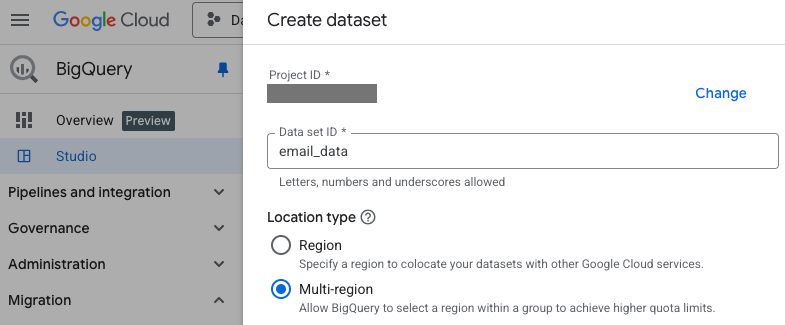
After navigating to BigQuery in the Google Cloud console, we find our main project and the list of associated datasets, then click "Create dataset" to make a new one.
From the parent dataset, click "Create table" to make a data table it to hold the emails. Select "Upload" as the source, and then select a local NDJSON file.
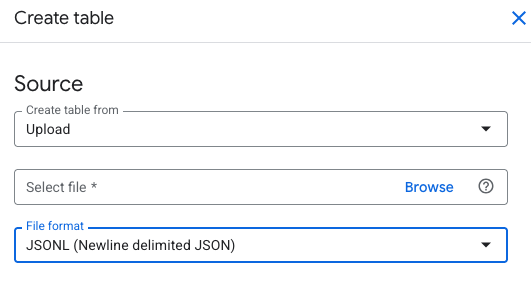
After this the data should be parsed, loaded, and ready for analysis.
Analyzing the data with AI.
Connect a model to BigQuery
Vertex AI is Google's generative AI development platform, and if we want to use it with the text in our cloud database, we need to make a bridge between the two.
So first we connect our BigQuery project to a model available through VertexAI. The steps to do this are:
- In BigQuery click Connections > Create connection
- Under Connection Type choose Vertex AI remote models
- Give the connection a name (e.g.,
gemini-ai). - Click the new connection and copy its "Service account ID"
- Go to the IAM panel and grant this account the
Vertex AI Userrole.
Initialize and choose a model
We then run a command to choose the model we're using and initialize it.
BigQuery takes SQL commands, so we need select our new dataset and email table, go to the "Query" panel and execute the following:
CREATE OR REPLACE MODEL `email_data.gemini_model`
REMOTE WITH CONNECTION `us.gemini-ai`
OPTIONS(ENDPOINT = 'gemini-2.5-flash-lite');
To choose the model I looked up the pricing in the developer docs and decided to go with Flash Lite, since it's Google's "smallest and most cost effective model, built for at scale usage."
Run SQL with some AI magic
Here's the cool part: we can now execute SQL queries that will select "insights" from the Gemini model as if they were columns in the data table, and return them in the results.
The key to this is the ML.GENERATE_TEXT function. Here's a simple example of a query that uses this function to generate a text response, with a basic text prompt as input.
SELECT
	ml_generate_text_result
FROM
	ML.GENERATE_TEXT(
		MODEL `project.dataset.model_name`,
			( SELECT 'Tell me a joke about a dog.' AS prompt)
	)
LIMIT 1;
Of course, what we really want to do is pass values from the fields of the data table into the prompt.
We can do that with the CONCAT() SQL function and the field(s) we want to reference. So here's an example query that would tell a joke about whatever creature is stored in the animal field:
SELECT
  animal_type,
  ml_generate_text_result
FROM
  ML.GENERATE_TEXT(
    MODEL `project.dataset.model_name`,
    (
      SELECT
        -- Use CONCAT() to join text and field value
        CONCAT('Tell me a joke about a ', animal_type, '.') AS prompt,
        animal_type -- Passthrough column
      FROM
        `project.dataset.animals_table`
      LIMIT 5
    ),
    STRUCT(
      0.5 AS temperature,
      200 AS max_output_tokens
    )
  );
Batch processing emails
Essentially we just need to apply the principles above to our email dataset, with an additional step to help with the batch processing and retrieval.
We're going to create a new table, summaries, which will store the AI generated summaries and a few other fields from the original email data table.
One of these fields is a unique id. As we process the emails and insert our summaries into the new table, we check that the id is not already present in this table – i.e. we make sure to only summarize things that haven't been summarized yet.
The full query looks something like the one below. Note that we're concatenating text from the To, From, Subject and Body fields of our database to reconstruct the email in our prompt.
INSERT INTO `email_data.summaries` (id, filename, `From`, `Subject`, summary)
SELECT
  id,
  filename,
  `From`,
  `Subject`,
  ml_generate_text_llm_result AS summary -- LLM output
FROM
  ML.GENERATE_TEXT(
    MODEL `email_data.gemini_model`,
    (
      SELECT
        id, `From`, `Subject`, `Body`, filename,
        CONCAT(
          'Role: You are an executive assistant.\n',
          'Task: Write a summary of this email in exactly 1 sentence. Do not exceed 25 words.\n',
          '--- Email Data ---\n',
          'From: ', `From`, '\n',
          'To: ', `To`, '\n',
          'Subject: ', `Subject`, '\n',
          'Body: ', `Body`
        ) AS prompt -- Concat multi-line string into prompt
      FROM
        `email_data.emails`
      WHERE
        -- Only IDs not already copied to summary table
        id NOT IN (SELECT id FROM `email_data.summaries` WHERE id IS NOT NULL)
      LIMIT 1000 -- Batch size
    ),
    STRUCT(
      0.1 AS temperature, -- Low temperature for more consistency
      50 AS max_output_tokens, -- Constrain output size
    )
  );
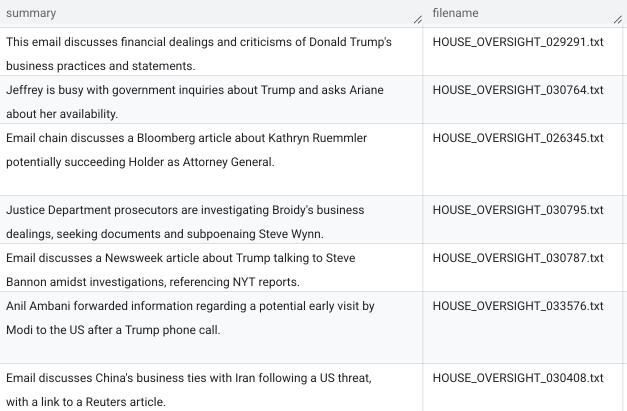
After the query has executed, we get many rows of output like this. Far more simple and readable than the original raw text!
Join summary and source table
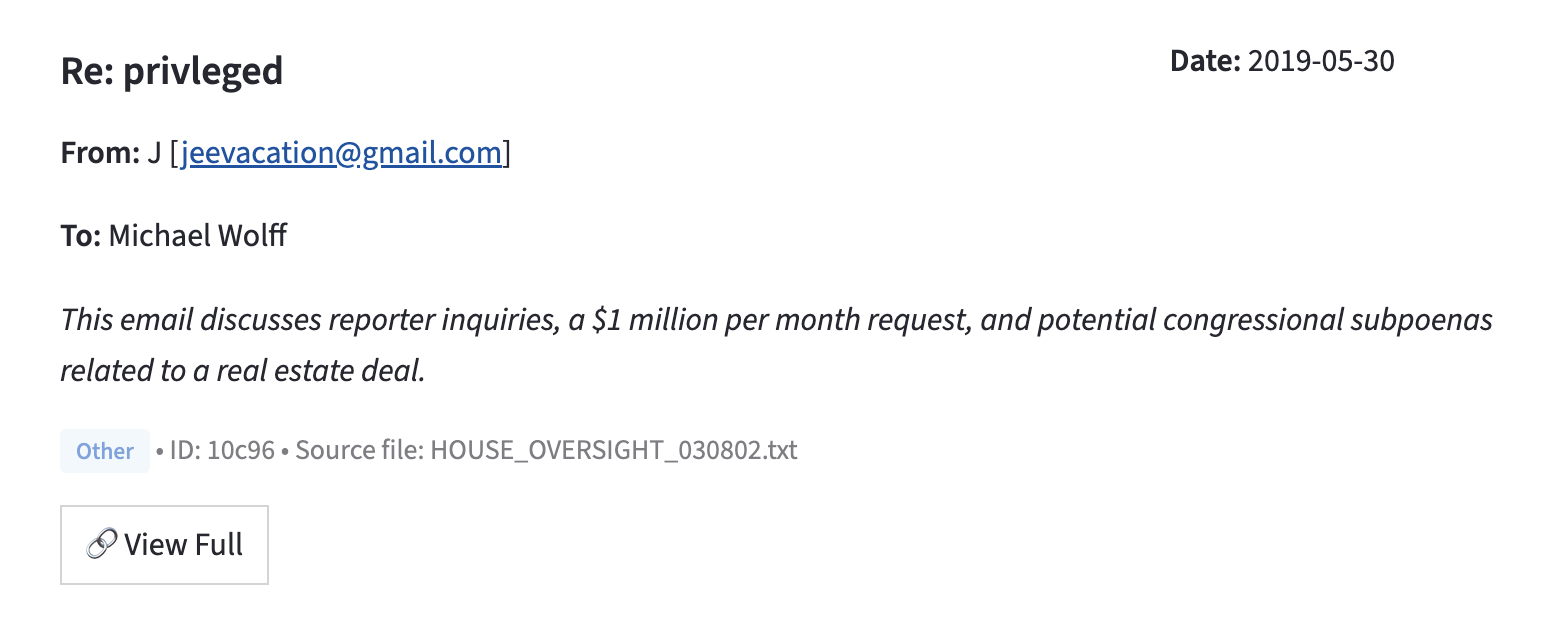
We'll be giving reporters a searchable interface where the email summaries are presented alongside the original source material. I made this with Streamlit, which is a great way to build data interfaces in Python without worrying too much about frontend complexity. (The full code for the app is here.)
Within the Streamlit app, we write a query that joins rows from the email table and summary table on the value of id, and return all of the records that match conditions in the WHERE clause.
SELECT
    e.id,
    e.Body,
    e.Subject,
    e.`From` as sender,
    e.`To` as recipient,
    e.Date_Sent as date,
    e.filename,
    s.summary,
    s.category
FROM `{PROJECT_ID}.{DATASET}.{TABLE}` e
LEFT JOIN `{PROJECT_ID}.{DATASET}.{summary_table}` s
ON e.id = s.id
WHERE {where_clause}
ORDER BY e.Date_Sent DESC
LIMIT @limit
As a result, instead of struggling through a huge text dump, a user can skim through a series of single-sentence summaries, then review the full text for the documents that seem to be of interest, formatted somewhat like an email. For example:
With an LLM doing most of the heavy lifting, human journalists can focus in much more quickly on the high-value work. Just as it should be.
© Corin Faife.RSS