Free download, no account required
Build once. Export everything. Wire 79 nodes into non-destructive pipelines that produce every color variant, every format, every asset, automatically. One graph replaces hours of repetitive manual work.
Free to use. No account needed for the editor. Native C++ desktop app for Windows, macOS, and Linux.
Built for: Game Artists · Pixel Artists · Illustrators · Concept Artists · Texture Artists · Designers · Anyone tired of repetitive exports
Who it’s for
If you’ve ever exported
Familiar territory. If you’ve used node-based tools in Houdini, Blender, Nuke, Substance, or Unreal, you already know the paradigm. ArcBrush applies it to 2D image production.
How it works
Your process,
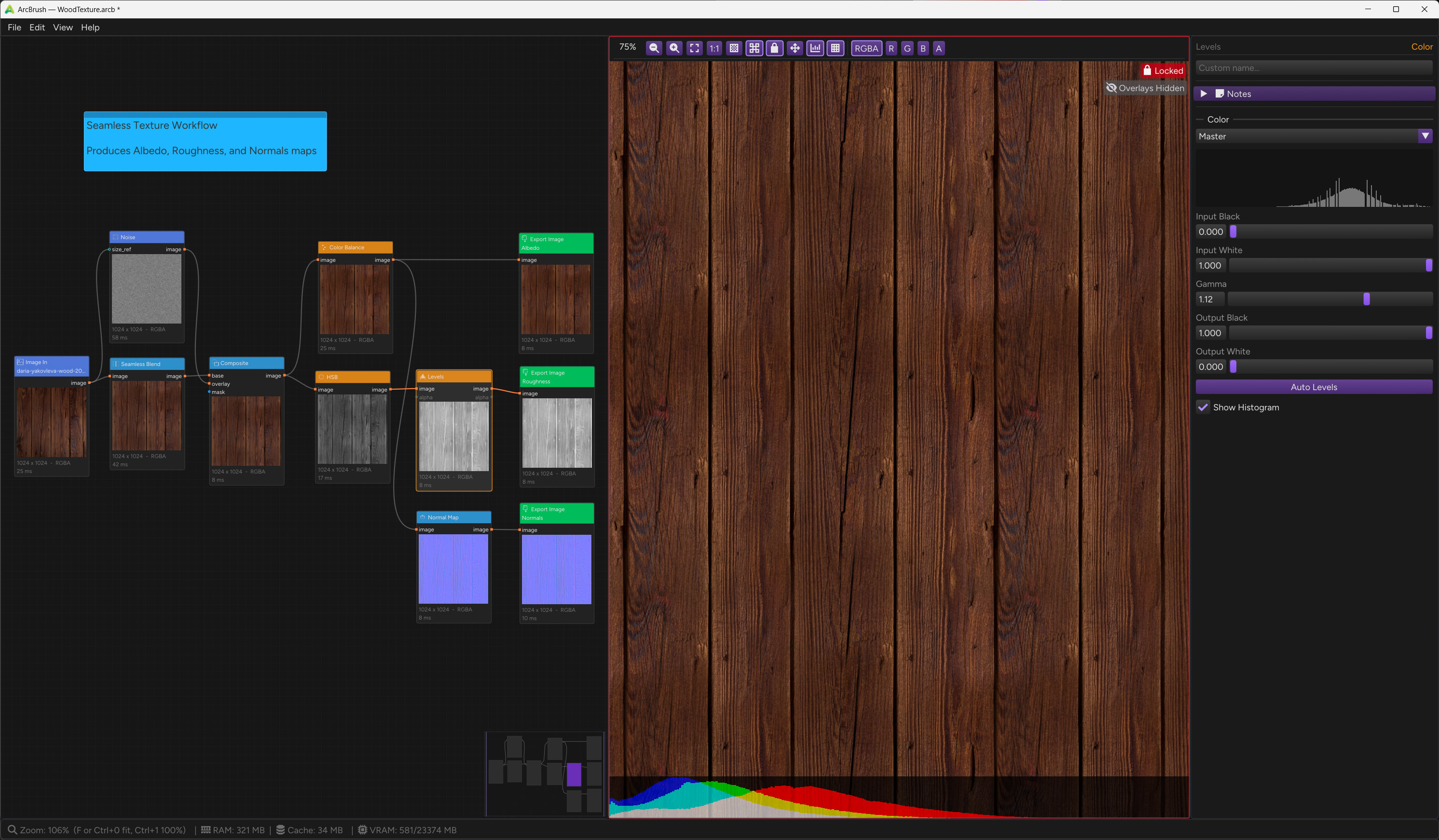
In ArcBrush, every operation is a node. Load an image. Apply a filter. Warp it. Mask an area. Remap colors. Export. Wire them together and the graph does the rest. Change one parameter and only the affected nodes re-evaluate. Nothing is ever baked. Everything stays live.
Wire anything to anything
Typed connections ensure compatibility. Images, masks, palettes, and variants each have their own pin type, and the graph prevents invalid wiring automatically.
Non-destructive forever
Every parameter stays live. Adjust blur radius, swap palettes, change AI prompts, even six months later. The graph re-evaluates only what changed.
Portable graph files
Save your workflow as a .arcb file. Share it with your team. Open it on Windows, macOS, or Linux. It just works. Every parameter, every connection, every embedded asset, exactly where you left it.
Live pipeline
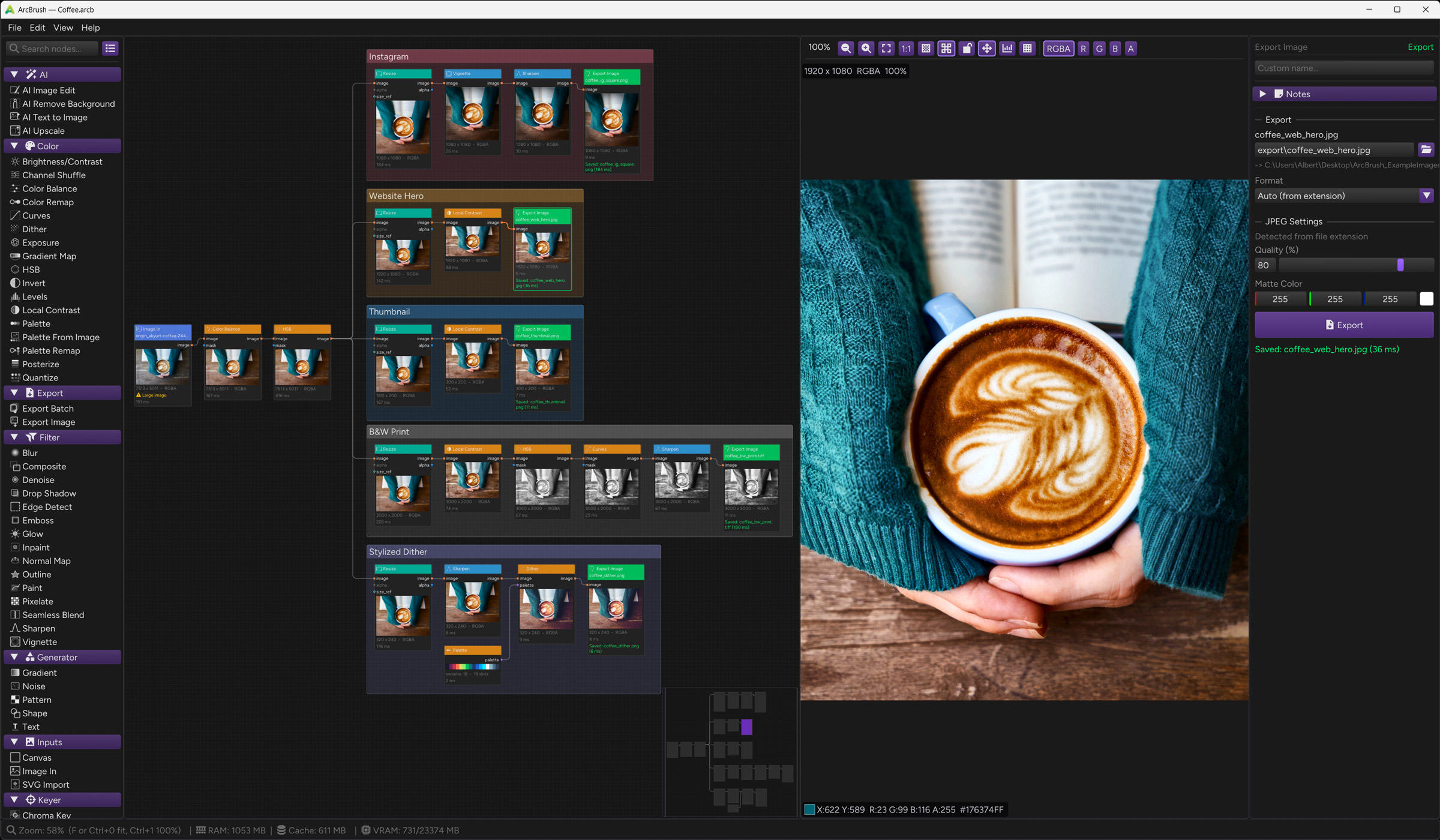
Layer-based tools produce one output at a time. ArcBrush pipelines produce N outputs from one configuration. Toggle "Watch File" on your source images and the graph re-evaluates every time the file changes on disk. Edit in Photoshop and see the result in ArcBrush instantly.
The killer feature
One graph.
Define a palette with 9 named colors. Wire it into Palette Remap. Connect Export Batch. Click export. Nine named PNG files appear in your folder, each one recolored while preserving every highlight, shadow, and gradient from the original. Change the palette, re-export. Done.
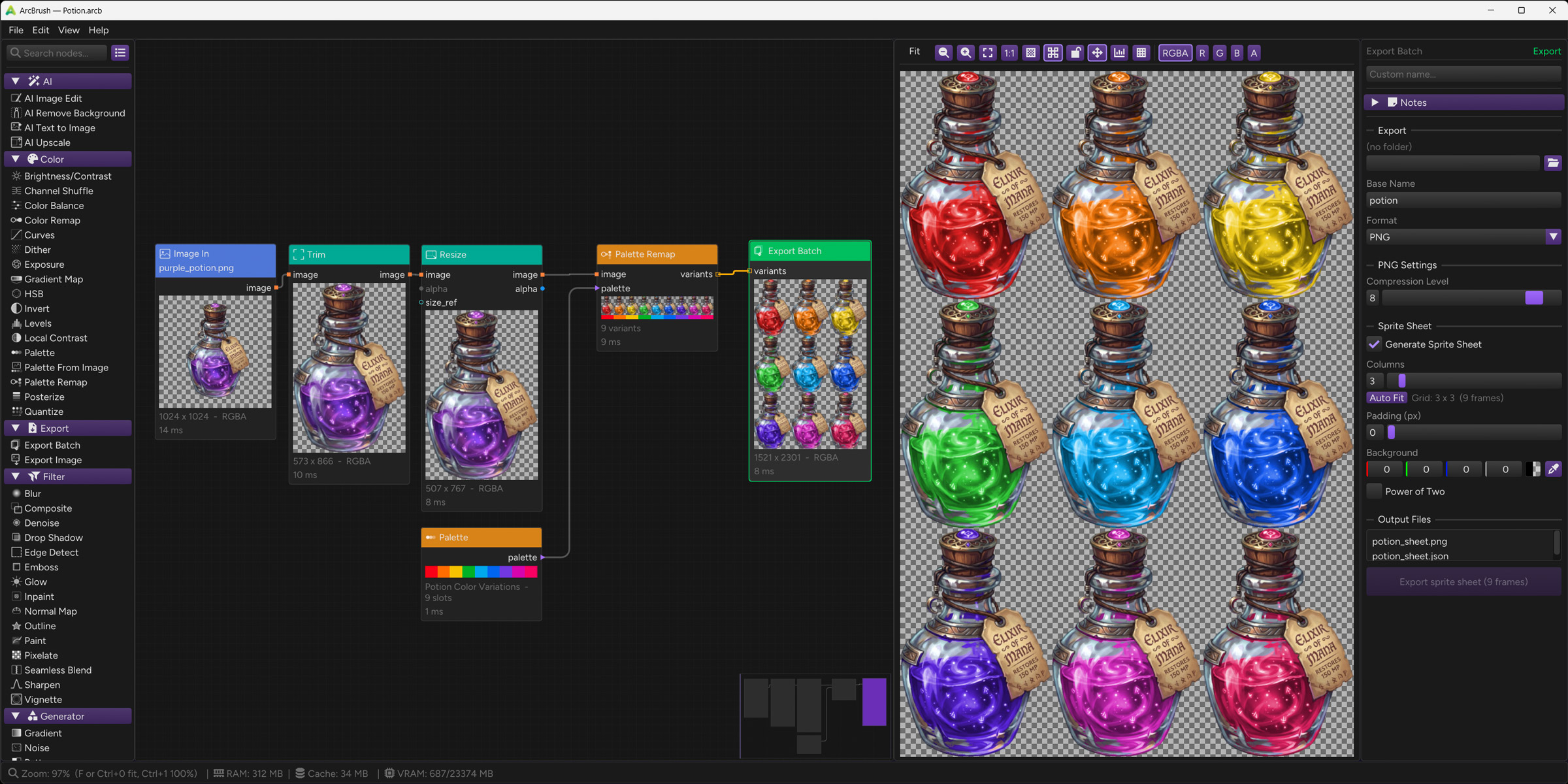
$ Output: potion_red.png potion_orange.png potion_yellow.png potion_green.png potion_sky_blue.png potion_blue.png potion_purple.png potion_magenta.png potion_pink.png
Luminance preserved
The remap shifts hue and saturation in perceptual color space. Highlights stay highlights. Shadows stay shadows. The recolor looks painted, not tinted.
Import palettes from your tools
Drop in palette files from Aseprite, Photoshop, GIMP, Krita, Illustrator, Affinity, or Inkscape. ArcBrush reads .gpl, .ase, .pal, and .aseprite files, including names and colors.
Sprite sheet export
Export all variants as individual files or pack them into a single sprite sheet with a TexturePacker-compatible JSON manifest. Ready to drop into your game engine.
Named variants
Each palette slot has a name. Export Batch uses that name in the filename. potion_red.png, potion_blue.png. Consistent, automatic, every time.
Palette From Image
Don't have a palette? Feed any reference image into Palette From Image. It extracts the dominant colors automatically. Wire that into Palette Remap.
One change, all variants update
Adjust the source art. Every variant re-exports with the change. Adjust the palette. Every variant shifts. The graph is live.
AI integration
AI on your terms.
ArcBrush is a complete image editor without AI. Every filter, mask, warp, color tool, and export pipeline works without an account or internet connection. AI nodes are optional. They wire into the graph like any other node, receive your masks, edge maps, and images as structured inputs, and produce images as outputs. Use them when they help. Skip them entirely if you prefer. The graph is the product.
The most capable model in the lineup. Powered by Gemini, Nano Banana 2 accepts multiple input images simultaneously: reference photos, style examples, and masks in one call. Text-to-image, image editing, multi-image fusion, and guided generation.
Text-to-ImageImage EditingMulti-Image InputStyle Transfer
Highest fidelity generation and editing from Black Forest Labs. Premium quality for both text-to-image and image editing workflows.
Text-to-ImageImage EditingHighest fidelity
High-quality generation and editing. Great balance of quality and capability for production art and professional editing workflows.
Text-to-ImageImage EditingPro quality
Low cost, high speed. Perfect for exploring ideas before committing to a higher-quality generation. Ideal for rapid iteration.
Text-to-ImageFast iteration
FLUX.2 Turbo Edit
Fast Edit
Fast, affordable image editing. Great for quick instruction-based edits and simple transformations at the lowest editing cost.
Image EditingFast iteration
Background Removal
Utility
Two models at the same cost: rembg (fast, reliable) and Bria RMBG 2.0 (higher quality on complex edges like hair and fur).
Background removalClean alpha
4x super-resolution powered by AuraSR. Two model versions: v1 for general use, v2 for photographs and non-AI images. Enable overlapping tiles for seamless results on large images.
4x upscaleSuper-resolution1 credit
“Just another node.” AI outputs wire into filters. Filter outputs wire into AI. Chain multiple AI calls. Branch into parallel paths. The graph doesn’t care what a node does internally — it just connects typed inputs to typed outputs.
ArcBrush is fully functional without AI. All 75 non-AI nodes, including every filter, transform, mask tool, warp, and export, work without an account, without signing in, without limits. AI generation is an optional add-on powered by credits. If you want to try AI, sign in with one click and get 10 free credits.
Starter
$10one-time
Best for trying AI features and occasional generation.
Most popular
Plus
$20one-time
For regular AI-assisted workflows.
Pro
$40one-time
For heavy AI use and production pipelines. Lowest per-credit cost.
Generations per model
At standard resolution (up to 1024x1024). Higher resolutions use more credits.
| Model | Credits | Starter | Plus | Pro |
|---|---|---|---|---|
| FLUX FastText to Image | 0.2 | 1,750 | 4,000 | 9,000 |
| FLUX.2 Turbo EditImage Edit | 0.5 | 700 | 1,600 | 3,600 |
| Remove BackgroundRemove BG | 1 | 350 | 800 | 1,800 |
| AI UpscaleUpscale | 1 | 350 | 800 | 1,800 |
| FLUX.2 ProText to Image / Edit | 2 | 175 | 400 | 900 |
| Nano Banana 2Text to Image / Edit | 5 | 70 | 160 | 360 |
| FLUX.2 MaxText to Image / Edit | 5 | 70 | 160 | 360 |
Credits never expireNo subscription10 free credits on signupUniversal across all models
Under the hood
Native. Not a web app.
ArcBrush is a C++20 desktop application for Windows, macOS, and Linux. OpenCV processes your images on the CPU and GPU. OpenGL renders your previews. Every operation runs natively on your hardware. AI nodes reach out to the cloud only when you tell them to.
Native binary compiled for Windows, macOS, and Linux. No runtime dependencies, no browser engine. Lightweight installer, fast startup.
14.9 MB Win · 22.1 MB Mac · 11.0 MB Linux
Image processing automatically offloads to your GPU when available. Larger images route to GPU for speed, with full CPU fallback on every operation.
Automatic GPU/CPU routing
Every per-pixel operation distributes across all your CPU cores automatically. Large images process in fractions of a second.
All cores · Adaptive threading
Only nodes downstream of a change re-evaluate. Fast nodes update instantly, heavy nodes wait for you to stop dragging. Nothing recomputes unnecessarily.
Incremental · Adaptive debounce
Five pin types (Image, Mask, Palette, Variants, Size Reference), each with strict connection rules. The graph prevents invalid wiring automatically.
5 types · Strict rules
.arcb files are human-readable JSON. Your work is auto-saved at regular intervals with crash recovery on next launch.
JSON · Portable · Crash recovery
Node library
79 nodes.
From basic inputs to AI generation, from pixel-level color control to mesh warps and batch export, every operation in your workflow has a dedicated node. Each one is composable with every other.

Image In
Load PNG, JPEG, WebP, TGA, BMP from disk or clipboard

SVG Import
Vector import with resolution-independent rasterization

Canvas
Solid color starting point at any resolution

Gradient
Linear, radial, angular, diamond gradients with multi-stop colors and seven interpolation modes

Noise
Perlin, Simplex, Clouds, Voronoi, White noise with fBm and domain warp

Pattern
Checkerboard, stripes, dots, hexagons, brick

Shape
Circle, rectangle, polygon, star, ring with optional stroke and tile mode

Text
Render text with system fonts or custom .ttf/.otf files. Searchable font picker, weight/style selection, alignment, rotation, and interactive drag positioning

Arrange
Place up to 5 images side by side or stacked for comparisons and layouts

Corner Pin
Four-point perspective warp with optional background plate

Crop
Extract a region by pixel coordinates or percentage

Displace
Pixel displacement driven by a grayscale or red/green channel map

Mirror
Flip horizontal, vertical, or both

Mesh Warp
Interactive bicubic Bezier grid deformation. Drag control points to sculpt images freely

Offset
Shift the image horizontally or vertically with optional edge wrapping

Pad
Add border padding with color or extend modes

Polar Remap
Cartesian-to-polar and polar-to-Cartesian coordinate transform

Resize
Scale to exact dimensions or percentage with multiple algorithms

Rotate 90
Pixel-perfect 90°/180°/270° rotation with no interpolation

Smart Scale
Content-aware resize via seam carving. Shrinks images while preserving important content

Spherize
Barrel and pincushion lens distortion

Sprite Sheet
Pack palette variants into a single grid image for game engines or further processing

Tile
Grid-based image repeat with mirror mode, row/column offset, and size reference

Transform
Translate, rotate, scale with interpolation control and interactive manipulator

Trim
Auto-crop transparent or solid-color edges

Blur
Gaussian, box, median, motion, bilateral, edge-preserving, radial, and zoom blur

Composite
Layer blending with 18 modes (Multiply, Screen, Overlay, Soft Light, and more)

Denoise
Noise reduction preserving edges and detail

Drop Shadow
Configurable offset, blur, color, and opacity

Edge Detect
Canny edge extraction with adjustable thresholds, kernel size, and custom edge/background colors

Emboss
Directional emboss with angle and strength

Glow
Bloom/glow effect with threshold and radius control

High Pass
Isolate detail by subtracting a blurred copy. Per-channel or luminance modes for sharpening, frequency separation, and texture flattening

Inpaint
Content-aware fill using mask regions

Normal Map
Generate normal maps from height/grayscale images for 3D lighting

Outline
Inner, outer, or center stroke around non-transparent regions

Paint
Interactive freehand painting directly on images

Pixelate
Reduce to chunky pixels with configurable block size. Essential for pixel art

Seamless Blend
Mirror-fold and content-aware blend to make any image tileable

Sharpen
Unsharp Mask and edge-preserving Detail Enhance

Vignette
Edge darkening with shape, size, and falloff

Color Range
Select pixels by color similarity with eyedropper pick, tolerance, and softness controls

Magic Wand
Flood-fill contiguous color selection from seed points with tolerance and softness

Mask Apply
Apply a mask as the alpha channel of an image

Mask Boolean
Union, intersection, subtraction, XOR of two masks

Mask From Image
Extract masks from alpha, luminance, or any channel

Mask Paint
Freehand mask painting with brush tools

Mask Refine
Erode, dilate, feather, and threshold masks

Roto
Interactive bezier spline rotoscoping

Black and White
Convert to grayscale with per-hue channel sliders and film-style presets

Brightness/Contrast
Simple brightness and contrast with S-Curve or Linear modes

Channel Merge
Combine four single-channel images into one RGBA image, with per-channel fill defaults for any unconnected input

Channel Shuffle
Rearrange, swap, or fill RGBA channels

Channel Split
Split an RGBA image into four single-channel images (R, G, B, A) for independent downstream processing

Color Balance
Shadows/midtones/highlights color shifting

Color Overlay
Solid color overlay with 18 blend modes and adjustable opacity

Color Remap
Single-color hue/saturation shift preserving luminance

Curves
Bezier curve adjustment per channel

Dither
Floyd-Steinberg, ordered, and blue noise dithering for retro and print styles

Exposure
Adjust exposure in EV stops with offset and gamma. Works in linear light

Gradient Map
Map luminance range to a color gradient

HSB
Hue, saturation, brightness adjustment

Invert
Channel inversion (all, RGB only, or per-channel)

Levels
Input/output range with per-channel gamma control

Local Contrast
Clarity/local contrast enhancement

Palette
Define named color slots for variant generation

Palette From Gradient
Sample a palette from a gradient with seven interpolation modes. Edit colors via the gradient editor; slot names persist across swatch count changes

Palette From Image
Auto-extract dominant colors from any image

Palette Remap
Full palette-driven variant generation (N colors → N outputs)

Posterize
Reduce color levels for stylized flat-color look

Quantize
Reduce to N colors with optional dithering

Chroma Key
Green/blue screen removal with spill suppression

Luma Key
Extract matte from brightness values

AI Image Edit
Edit existing images with text instructions

AI Remove Background
One-click AI background removal to clean RGBA

AI Text to Image
Generate images from text prompts (4 quality tiers)

AI Upscale
4x super-resolution via AuraSR. Adds realistic detail beyond simple resize

Export Batch
Export all palette variants as named files or packed sprite sheets with JSON manifest

Export Image
Save single output as PNG, JPEG, BMP, WebP, TIFF, or TGA
79 nodes 5 pin types Type-safe
Features
Everything you need.
Auto-save
Your work is saved automatically at regular intervals. Crash recovery restores your last state on relaunch. Never lose progress.
Interactive tools
Mesh Warp (drag a Bezier grid), Roto (bezier spline masks), Corner Pin (perspective warp), Text (drag-position and rotate), Paint and Mask Paint (freehand brush). Draw and sculpt directly in the preview.
Warp & distortion
Five warp nodes: perspective (Corner Pin), freeform mesh (Mesh Warp), displacement maps (Displace), polar coordinates (Polar Remap), and lens distortion (Spherize).
Text rendering
System font browser with instant search, weight and style selection, custom .ttf/.otf loading. Position by dragging, rotate with the ring handle. Missing fonts flagged on file open.
Pixel art workflow
Pixelate for chunky retro pixels. Outline for sprite borders. Dither (Floyd-Steinberg, ordered, blue noise) for stylized color reduction. Quantize to a limited palette. Export as sprite sheets.
Sprite sheet export
Export Batch can pack all variants into a single sprite sheet PNG with a TexturePacker-compatible JSON manifest. Configurable columns, padding, background, and power-of-two dimensions.
Texture tools
Seamless Blend makes any image tileable. Normal Map generates 3D-ready lighting maps from grayscale. Noise generates seamless tileable output. Pattern produces geometric bases. Tile Preview shows any node tiled in a grid.
Channel isolation
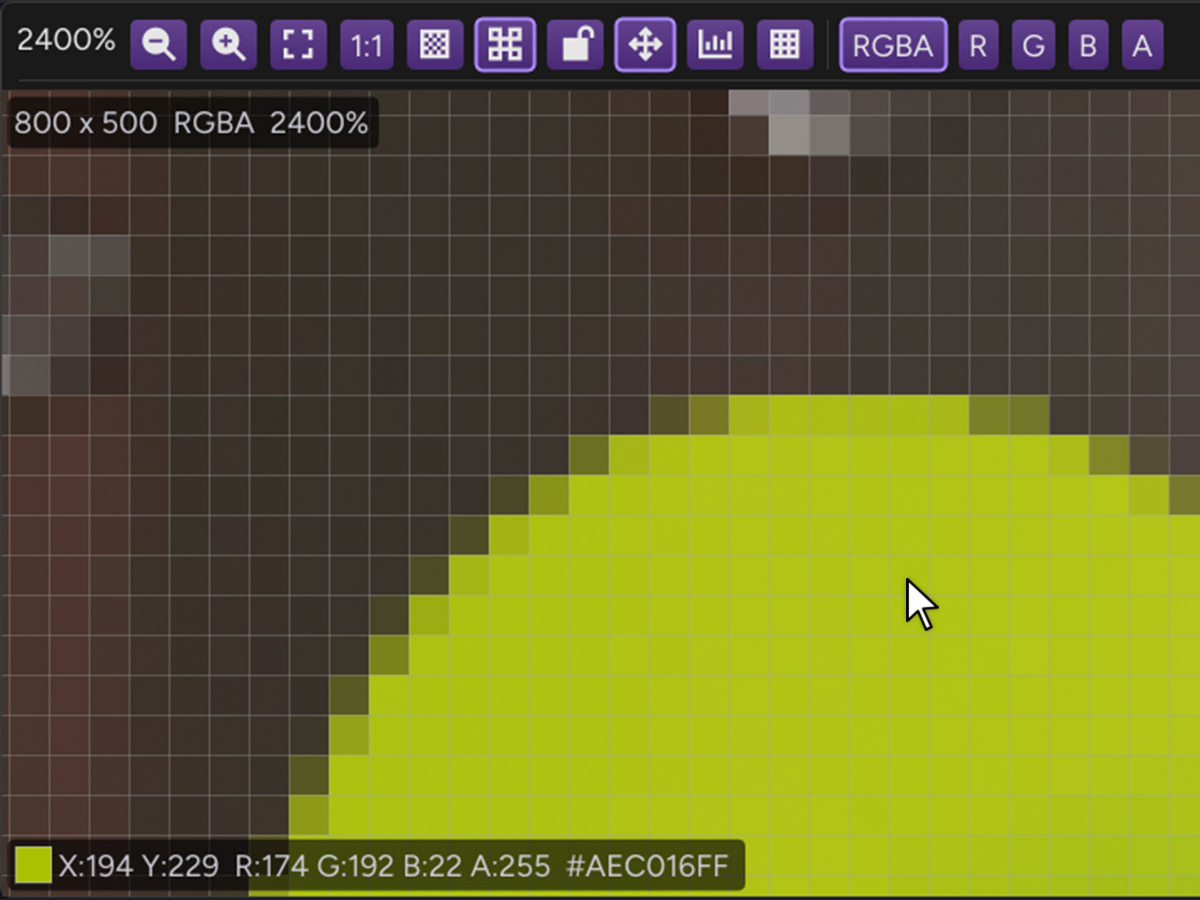
View individual Red, Green, Blue, or Alpha channels in the preview panel. Instantly see what's in each channel without exporting.
Histogram
Live histogram overlay in the preview panel shows the tonal distribution of any node's output.
Node groups
Backdrop boxes to organize complex graphs. Drag, resize, rename. Nodes automatically belong by spatial containment.
Node notes & sticky notes
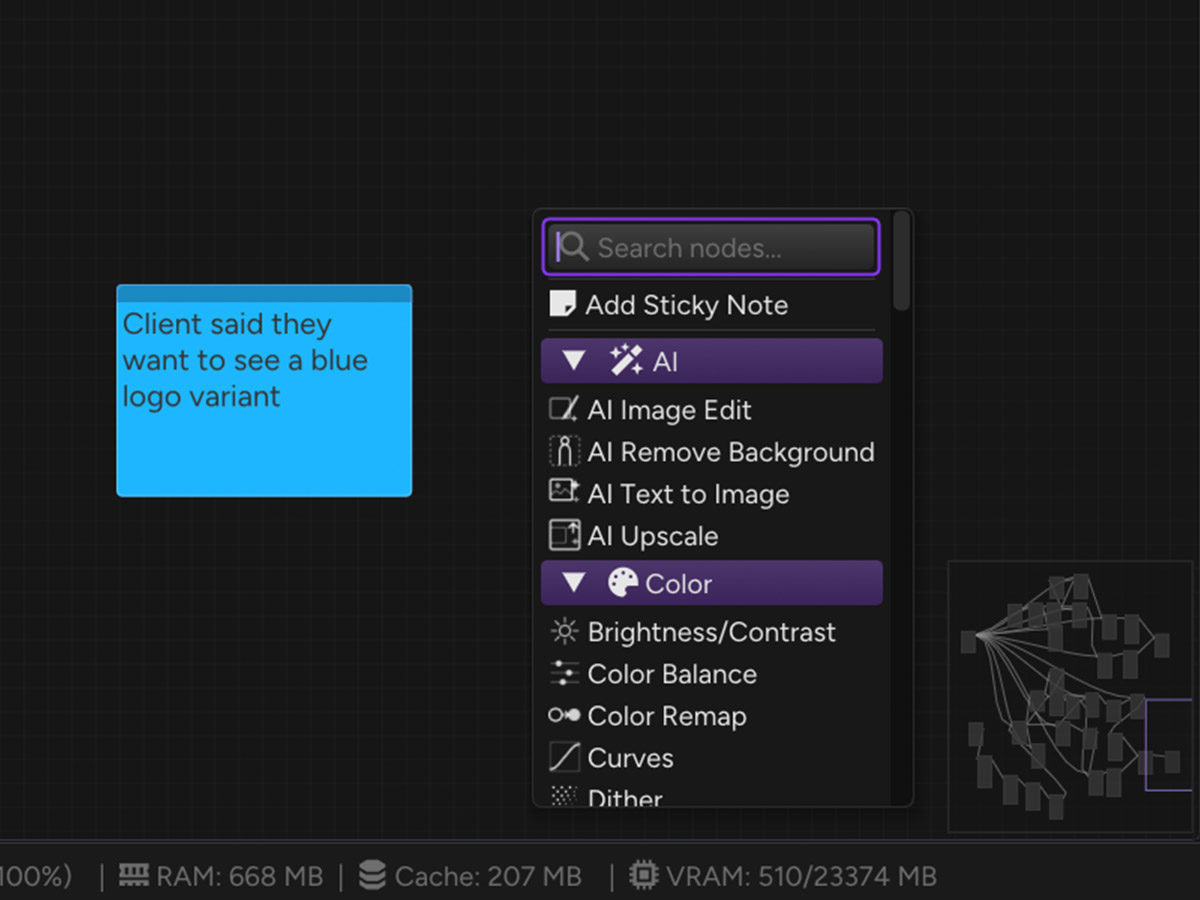
Attach text annotations to any node. Drop standalone sticky notes on the canvas for documentation and reminders.
Undo/redo
Full undo stack for every operation: node creation, parameter changes, connections, group edits. Ctrl+Z / Ctrl+Y.
Minimap
Bird's-eye view of your entire graph. Click to navigate. Toggle on/off.
Preview panel
Full-resolution preview with zoom, pan, pixel grid at high zoom, and color value readout. Lock to any node. Channel isolation and histogram overlay.
Quick-Lock preview
Double-click any node to lock its output to the preview panel, so you can inspect upstream nodes without losing your view. Double-click empty canvas to release.
Display color management
Images display correctly on monitors with non-sRGB color profiles. ArcBrush reads your monitor's ICC profile and applies color correction automatically. What you see matches what you export.
6 color themes
Violet (default), Emerald, Ocean, Rose, Amber, and Graphite. Choose the UI tone that suits your eye.
Wire styles
Curved (default), rounded, straight, or right-angle wires with automatic node avoidance.
Snap to grid
Nodes snap to a configurable grid when moved or created. Adjustable spacing from 8px to 64px. Enabled by default for clean, aligned layouts.
Graph search
Find any node by name instantly. Ctrl+F to search, Enter to navigate.
Favorites
Star any node from its Properties panel header to pin it to a Favorites section at the top of the Node Library and the right-click Add Node menu. Your most-used nodes stay one click away no matter how categories are arranged.
Keyboard shortcuts
Standard shortcuts for all operations. Ctrl+S save, Ctrl+Z undo, Delete to remove, F5 to re-evaluate, Tab to open add-node menu.
Drag-and-drop
Drop image files onto the canvas to create Image In nodes. Drag from the node library panel.
Clipboard paste
Ctrl+V to paste images from clipboard directly as new Image In nodes.
Quick export
Ctrl+Shift+E to export selected export nodes. Export All in the File menu runs every export node in the graph at once.
6 export formats
PNG, JPEG, BMP, WebP, TIFF, and TGA. Both single-image and batch export support all formats with quality control.
Relative export paths
Type export/sprite.png and the path resolves relative to your .arcb file. Directories are created automatically. Keep exports portable alongside your project.
File watching
Toggle "Watch File" on Image In or SVG Import nodes. When the source file changes on disk, the node reloads automatically. Edit in Photoshop, see it live in ArcBrush.
SVG import
Load vector graphics at any resolution. Resolution-independent rasterization via ThorVG.
Collect Files
Copy all referenced assets into a single folder next to your .arcb file. Share or move projects with everything included. No broken links.
Smart node deletion
Delete a node and its upstream and downstream connections are automatically reconnected. The signal chain stays intact. No rewiring needed.
Relative file paths
Image In, SVG Import, and Export nodes all support relative paths. Type assets/logo.png and it resolves relative to your .arcb file. Projects stay portable.
Node bypass
Disable any node without deleting it. The graph routes around bypassed nodes.
Y-key wire cut
Hold Y and drag across wires to slice them. Fast graph restructuring.
Package as .zip
Bundle a project and every file it references (images, SVGs, fonts, AI outputs) into a single shareable archive. Recipient unzips and opens with no missing-file errors.
Parallel AI generation
Run multiple AI nodes at the same time: generate an image, edit another, and remove a background all in parallel. No waiting for one to finish before starting the next.
Generation log
Track all AI generations with timestamps, prompts, and per-call costs. Session and lifetime cost tracking.
Eyedropper
Every color picker in the app has an eyedropper button for picking colors directly from the canvas. Color Range node uses it for pixel-precise selection.
Multiple blur modes
Gaussian, box, median, motion, bilateral, edge-preserving, radial, and zoom. Eight algorithms, each optimized for different use cases.
18 blend modes
Composite node supports Normal, Multiply, Screen, Overlay, Soft Light, Hard Light, Color Dodge, Color Burn, Difference, Exclusion, Hue, Saturation, Luminosity, and more.
Procedural noise & patterns
Noise node generates tileable textures with a seamless toggle. Pattern node produces geometric patterns. Five noise types, five pattern types, all with full parameter control.
Pro gradient engine
Seven interpolation modes including perceptual OKLab and OKLCh, pigment-mixing Kubelka-Munk, and stepped Constant, with Hue Path control for directing the sweep around the hue wheel. Floyd-Steinberg dither eliminates banding. Shared by the Gradient, Gradient Map, and Palette From Gradient nodes.
Get started
Download ArcBrush.
Free to use. No account required for the editor. All 75 non-AI nodes work immediately, with no signup, no activation, and no trial period. When you’re ready for AI features, sign in with one click and get 10 free credits to start.
1
Install & launch
Run the Windows installer, drag the macOS app to Applications, or make the Linux AppImage executable.
2
Build a graph
Right-click to add nodes. Wire them together.
3
Export everything
Connect an Export node. Click export. Done.
What you get
79 composable node types Free
Non-destructive graph editing Free
GPU-accelerated processing Free
Unlimited palette variants Free
Batch export + sprite sheets (6 formats) Free
Auto-save & crash recovery Free
Windows, macOS & Linux Free
.arcb portable graph files Free
AI generation (optional, cloud) Credit packs (no subscription)