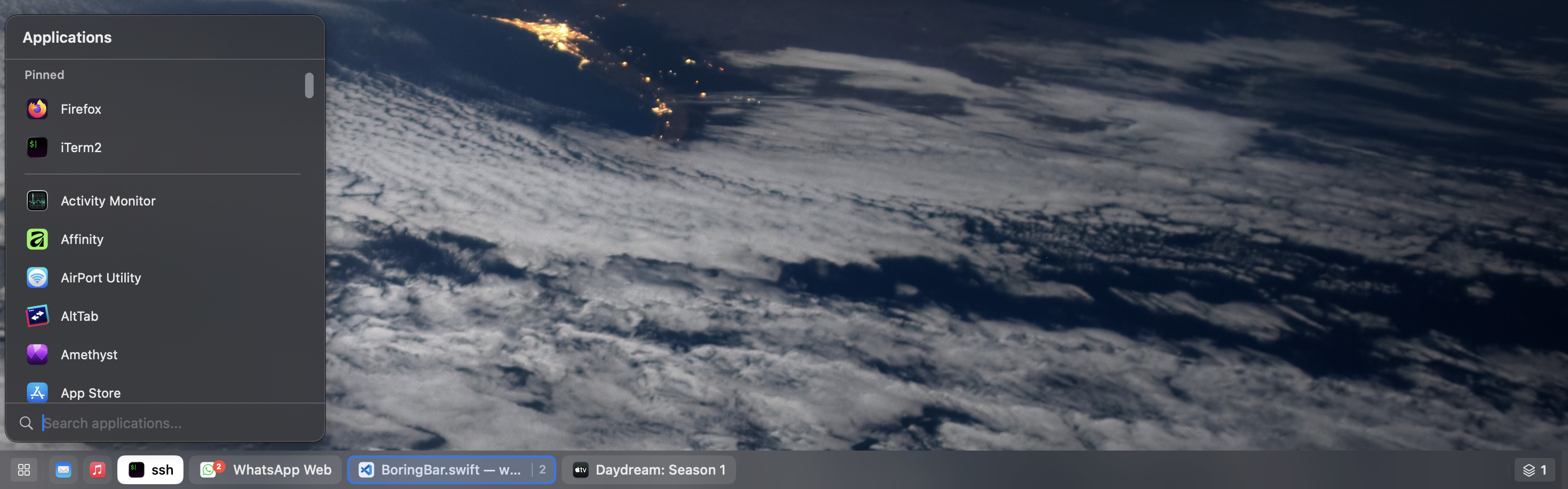
a taskbar-style dock replacement for macOS
The macOS Dock is built around apps, not windows. Multiple displays and desktops make it hard to track what's open where. boringBar keeps windows organized by desktop, with instant previews, one-click desktop switching, and pinned apps within reach.
Features

Current desktop only
Shows only the windows on the active desktop for that display, so you stay focused on what is in front of you.
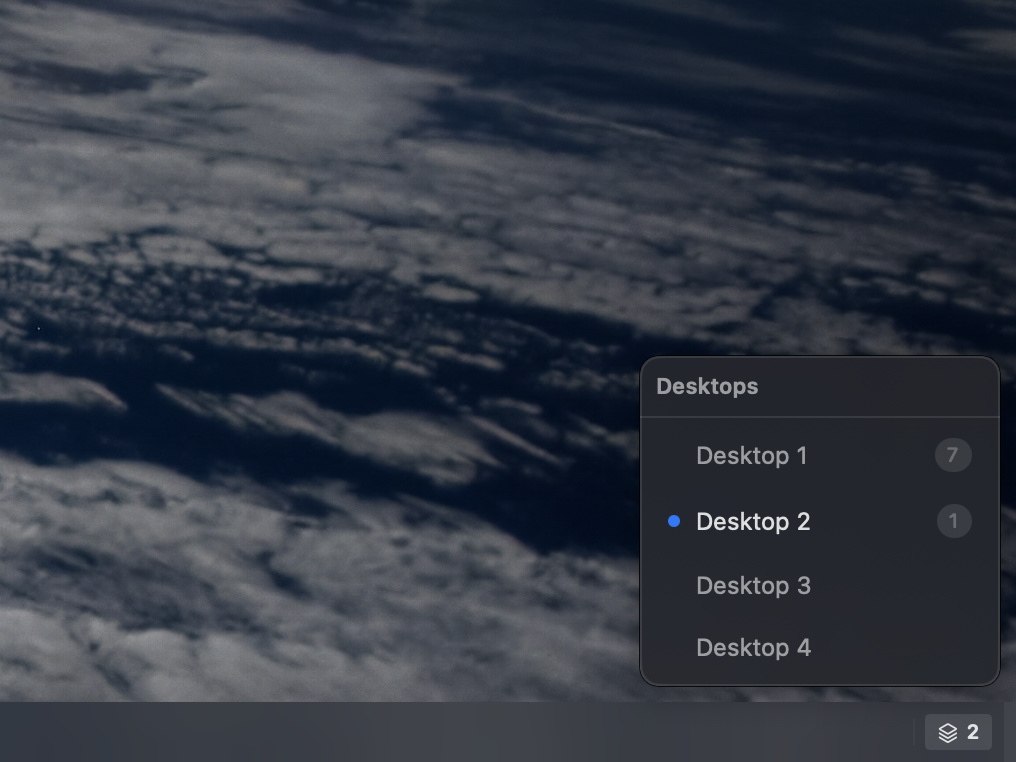
Desktop switcher
Jump to any desktop on the current display with one click, and see how many windows are open on each one.
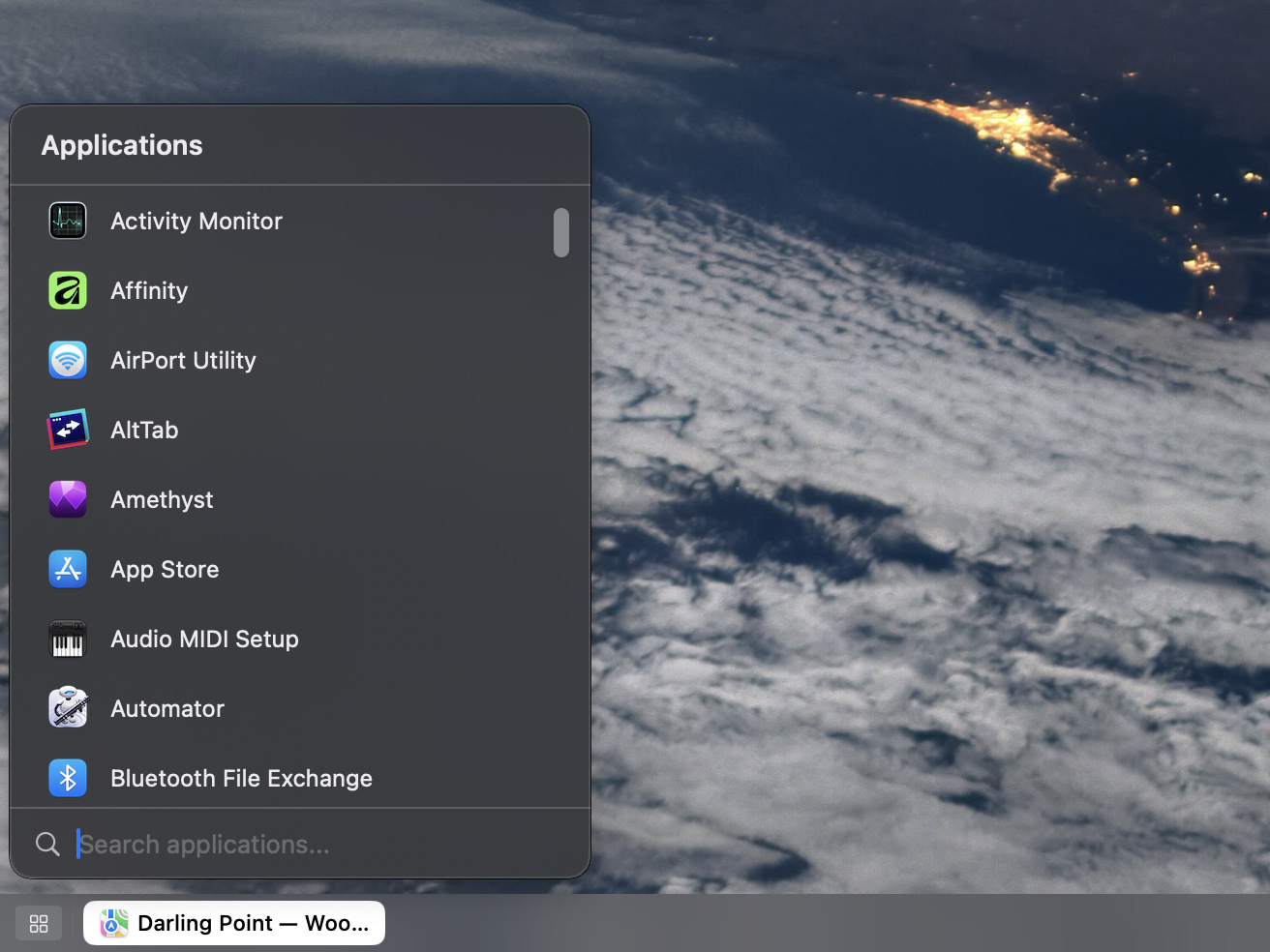
App launcher
Search and launch apps from a single list, then open it instantly with a configurable global shortcut.
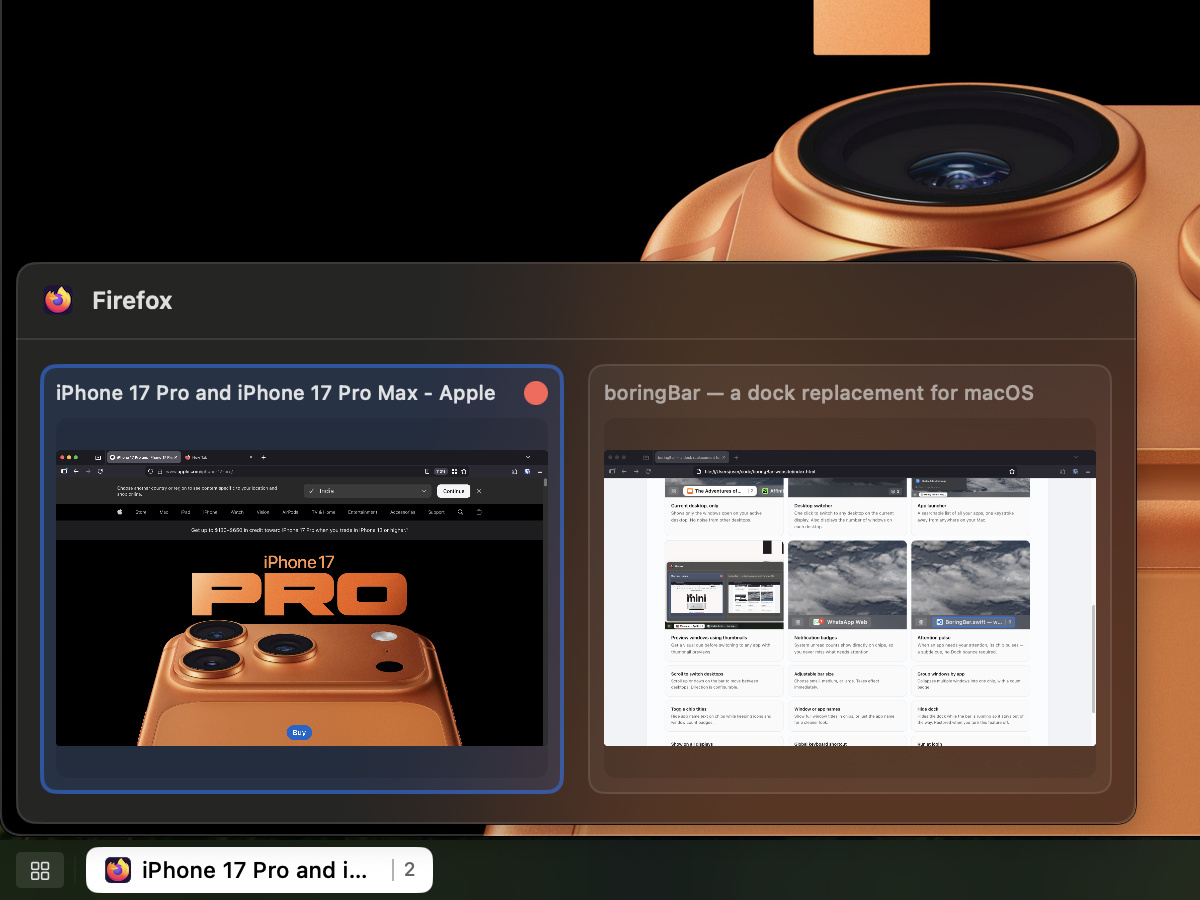
Preview windows using thumbnails
Hover a chip to preview windows before switching, so you can pick the right one faster.

Notification badges
Unread badges from macOS appear directly on chips, so important updates stay visible.
Attention pulse
When an app needs your attention, its chip gives a subtle pulse so you notice it right away.
Scroll to switch desktops
Scroll up or down on the bar to move between desktops. Direction is configurable.
Adjustable bar size
Choose small, medium, or large. Pick the size that suits you best.
Group windows by app
Collapses multiple windows into one chip, with a count badge.
Toggle chip titles
Hide app name text on chips while keeping icons and window count badges.
Window or app names
Show full window titles in chips, or just the app name for a cleaner look.
Hide dock
Keeps the Dock out of the way while you use boringBar, then brings it back when you turn the feature off.
Show on all displays
Mirror bars across multiple monitors, including setups where the system setting "Displays have separate Spaces" is off.
Quick shortcut to Show Desktop
Right-click the bar and choose Show Desktop, or click the ribbon at the far right edge to reveal the desktop.
Pin apps on bar/app menu
Right click on any app in the bar to pin them to the bar itself or to the top of the application menu.
FAQ
boringBar requires macOS 14 (Sonoma) or later.
boringBar requires two macOS permissions. Accessibility is used to observe and interact with windows, desktops, and apps on your behalf. Screen Recording is used solely to fetch window thumbnail previews and is not used for anything else. You can verify this yourself: the purple dot in Control Center only appears when thumbnails are being fetched, and you will not see it from boringBar at any other time.
Yes. You can download and try boringBar free for 14 days with all features unlocked. A license is required to continue using it after the trial.
A personal license is a one-time $40 purchase that covers 2 devices and includes 2 years of support and updates. The software keeps working after that — you just won't receive further updates. Business licenses are billed annually, start at 6 users, and use volume pricing, so the per-user cost drops as your team grows:
| Quantity | Price per user / year |
|---|---|
| First 1 | $3.49 |
| Next 2 – 20 | $3.50 |
| Next 21 – 50 | $2.50 |
| Next 51 – 100 | $2.00 |
| The rest | $1.00 |
For example, a 6-user business license is $20.99/year, a 20-user license is $69.99/year, and a 50-user license is $144.99/year.
Both licenses give you access to the same features. A personal license is a one-time purchase for individual use on 2 devices, while a business license is an annual subscription intended for use within a company or organization and includes volume pricing.
Each license seat is linked to one device. A personal license includes 2 seats. For business licenses, make sure to purchase the appropriate number of seats upfront, as seats cannot be added to an existing license. If you need more later, you can purchase a separate license. Multiple users on the same machine share a single seat.
Personal license holders receive an activation key by email after purchase. Business license holders need to add each team member from the Business License Management page first. In the boringBar app, that team member then enters their email address and receives a one-time code to confirm and activate their license.
boringBar can hide the Dock for you while it is running, but it will still be visible in Mission Control. When you turn the feature off or quit the app, the Dock comes right back.