Building a Web Page That Edits Itself
The original vision for the world wide web was a read/write medium. A few years ago I thought, “what if an HTML file could update itself?”
When I first started making goofy web pages many years ago, the index.html file felt magical. It felt like the file was the website, and a few .html files in a directory were a little community of pages. Over time, working with things like PHP and WordPress, then Django, Rails, and Node.js, “web pages” faded into the background, even my small personal websites felt like systems that just generated ephemeral files by necessity.
After moving my personal website (this one!) to 11ty in 2020, and inspired by ideas like the “file-first” approach of Omar Rizwan’s TabFS and the “read/write web” revitalization of XH’s mmm.page and Beaker Browser, I had the idea: “A web page that can update itself!”
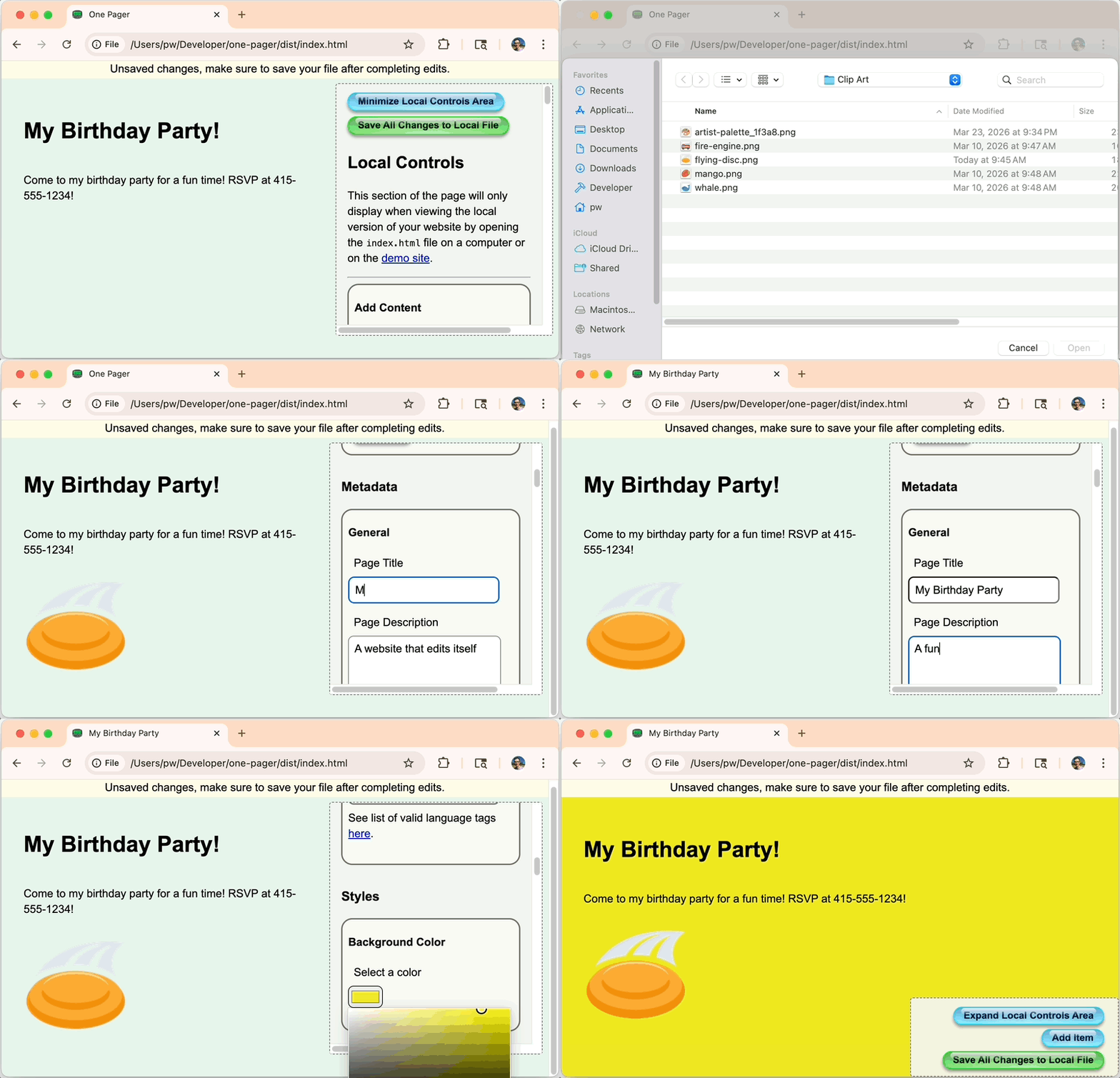
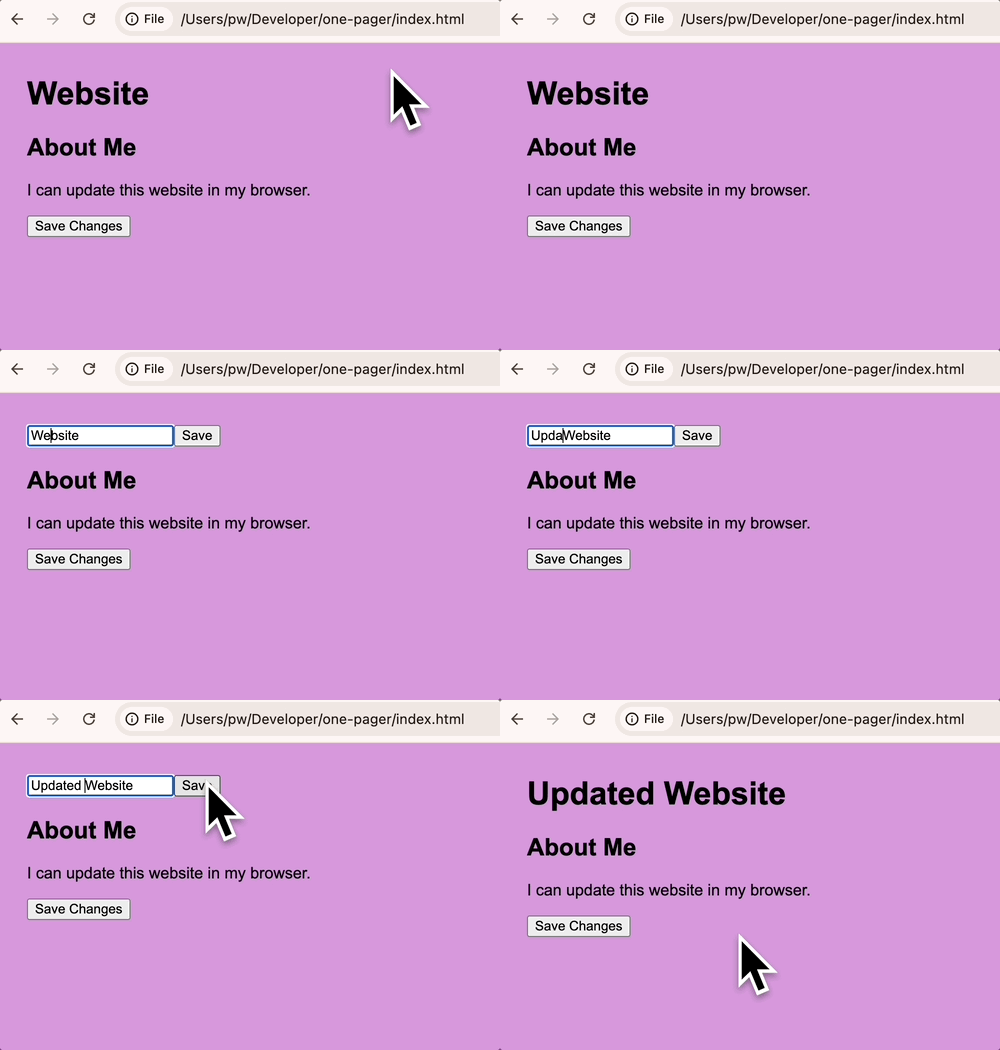
I quickly threw together a few getElementById() and .innerHTMLs and had a working prototype of an index.html file that could update its own DOM via the UI, and then save a copy of itself to a local file.
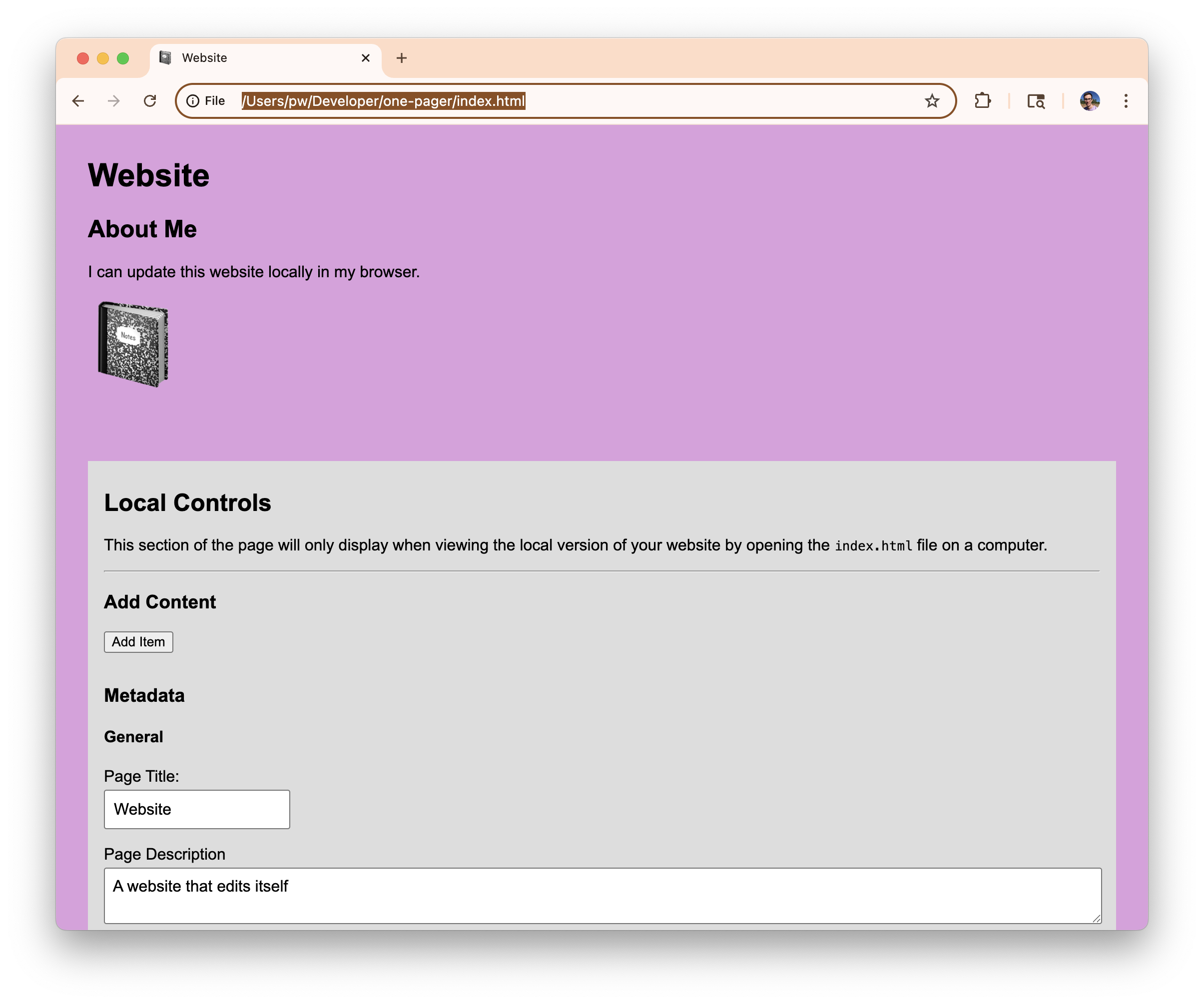
Next, realizing that I needed a way to reach beyond the UI in the browser to update things like the page title, or global styles, I added a control panel to update metadata.
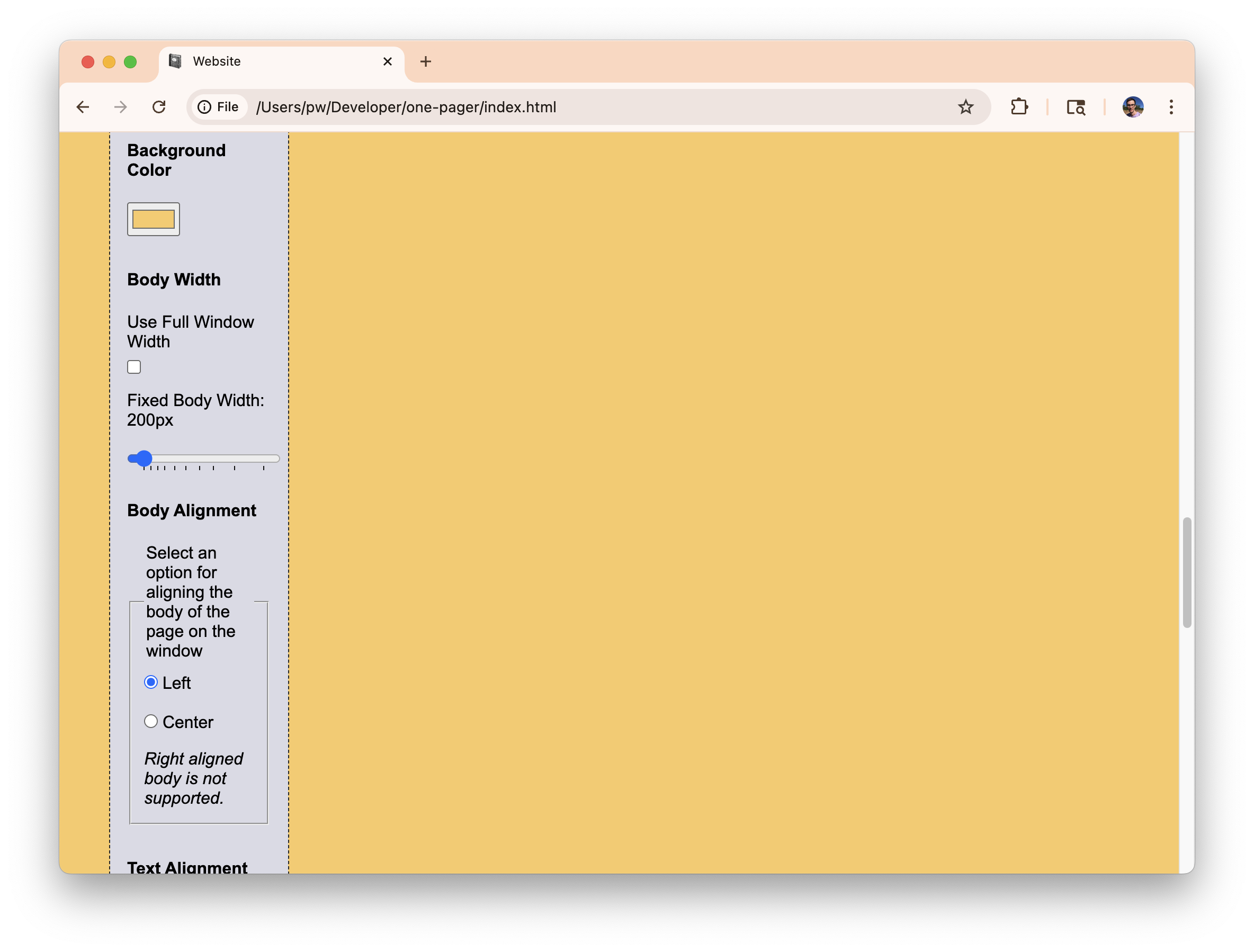
After adding controls for global styles like the <body> width I realized I needed to rethink the UX if I wanted the project to be easy to use. For example, shrinking the <body> width also squished the control panel to the same width, after all, it was just another element in the <body>.
I had started the prototype with the classic trio of index.html, script.js and style.css, but after a few commits switched to a single file with <script> and <style> tags within the HTML. Coming back to the project a few months after that initial prototype, the code was getting to be quite repetitive and hard to follow. It was hard to keep track of logic, there were a lot of event listeners. I decided to refactor all of the JavaScript into modules using Vite as a bundler, and followed that with another refactor in TypeScript.
One early design choice was that when switching an element like an <h1> or <p> into editing mode, I would hide the original element and insert a <textarea> with the original element’s content. At first this made things like canceling the edit easier because I could just un-hide the “real” element, but I needed lots of custom logic for saving the change for different types of elements.
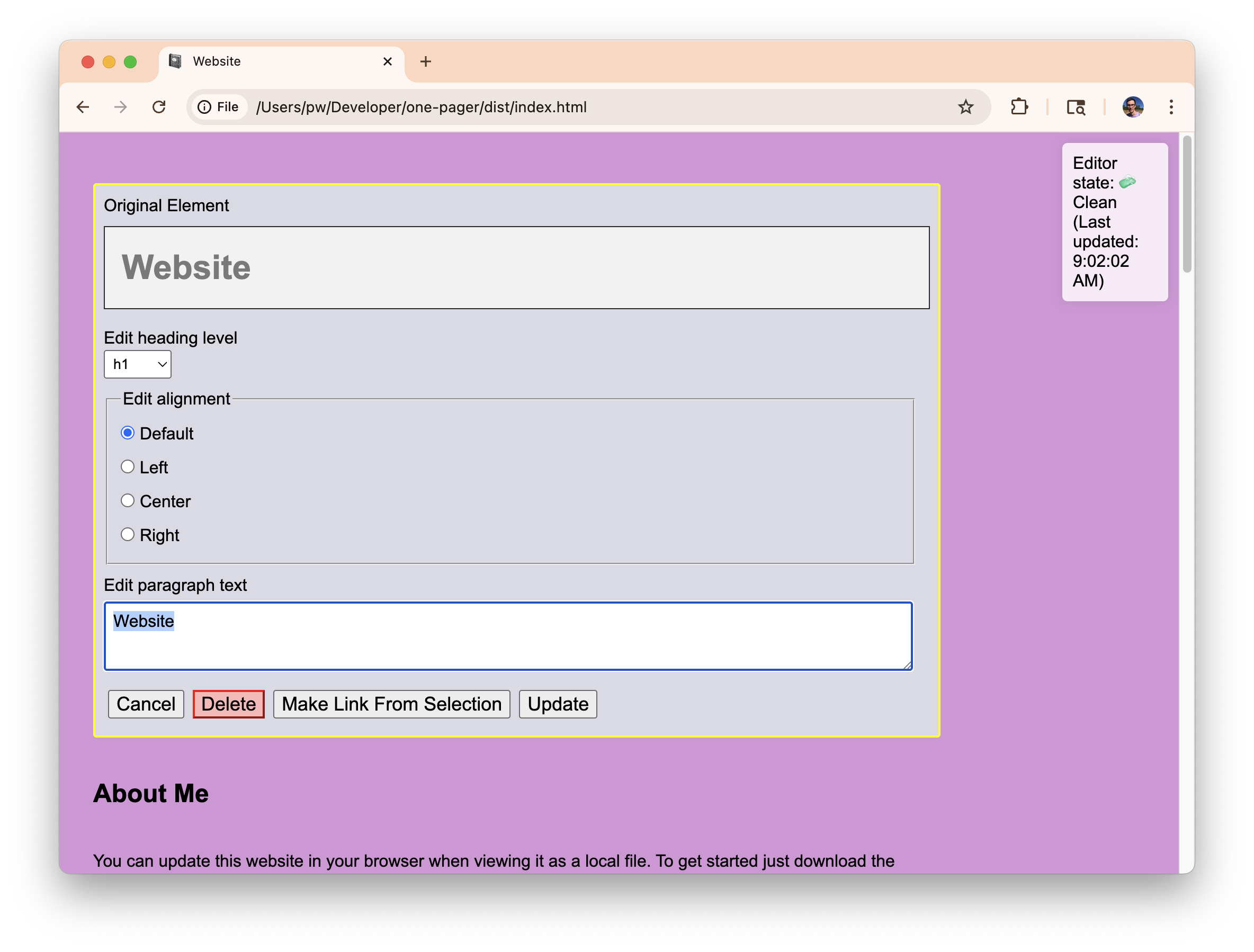
The TypeScript refactor had helped me finally pin down some of these bugs and I realized that it would be easier to use contenteditable="true" to edit the “real” element in-place. With this change, I was able to avoid any synchronization on save, and simplify the editing UI to just a set of buttons that I inserted below the element in the DOM. I was still able to restore the original content after a “cancel” action by storing it in data- attributes.
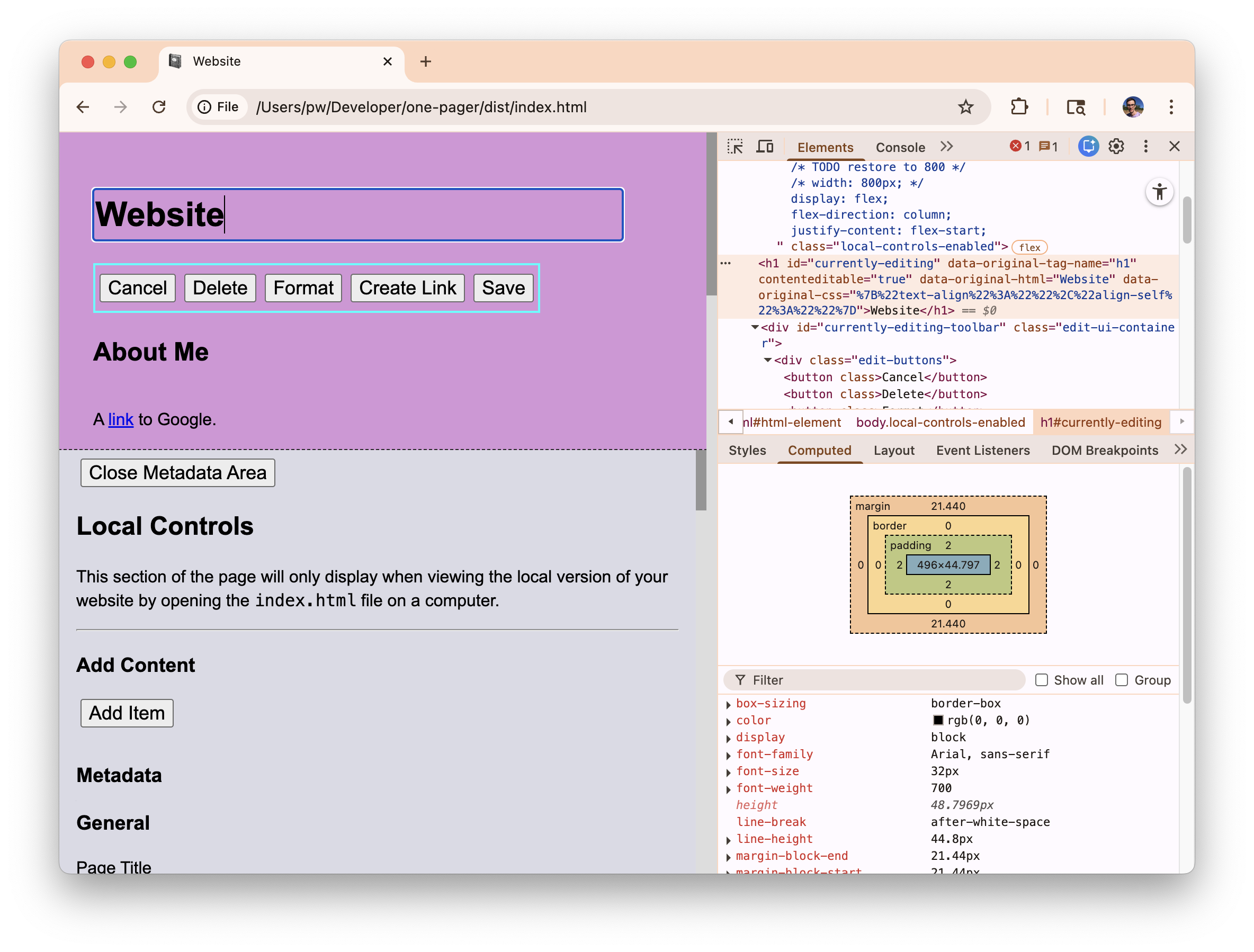
My original intention was to add a few more element types, things like <ul> and <strong> and <em>, but I decided it had been long enough and I should finish up with my current feature set of:
- Text elements:
<h1>through<h6>, and<p> - Images:
<img>(these are stored as Data URLs to avoid breaking out of the one file) - Links: Selections of text, or images can be wrapped in
<a>
I cleaned up my prototype CSS, added some fun early-2000s button styling, made a quick attempt to make the concept work on mobile (it’s not great), and at the suggestion of an early Recurse Center playtester, moved the control panel to the right-hand side on desktop.
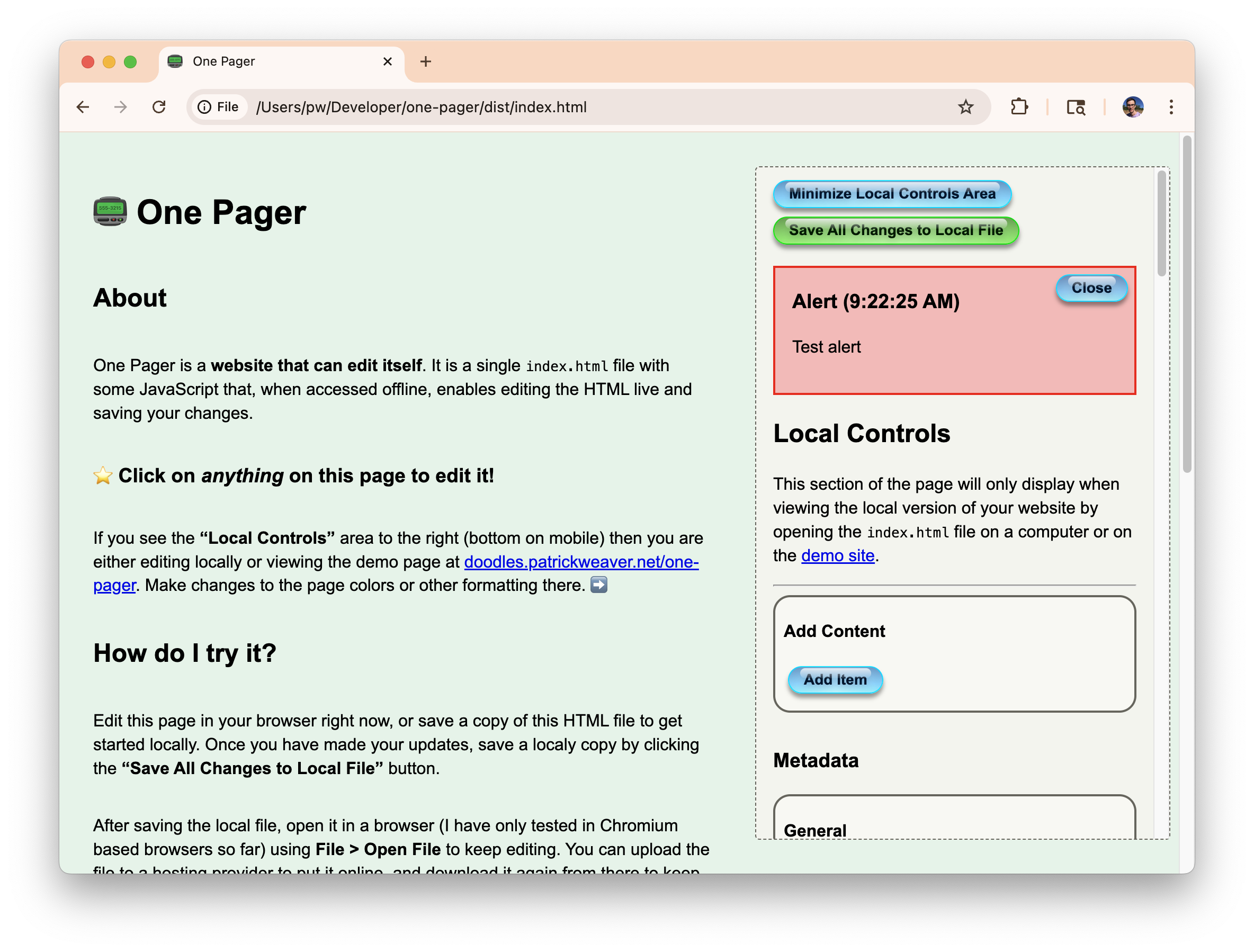
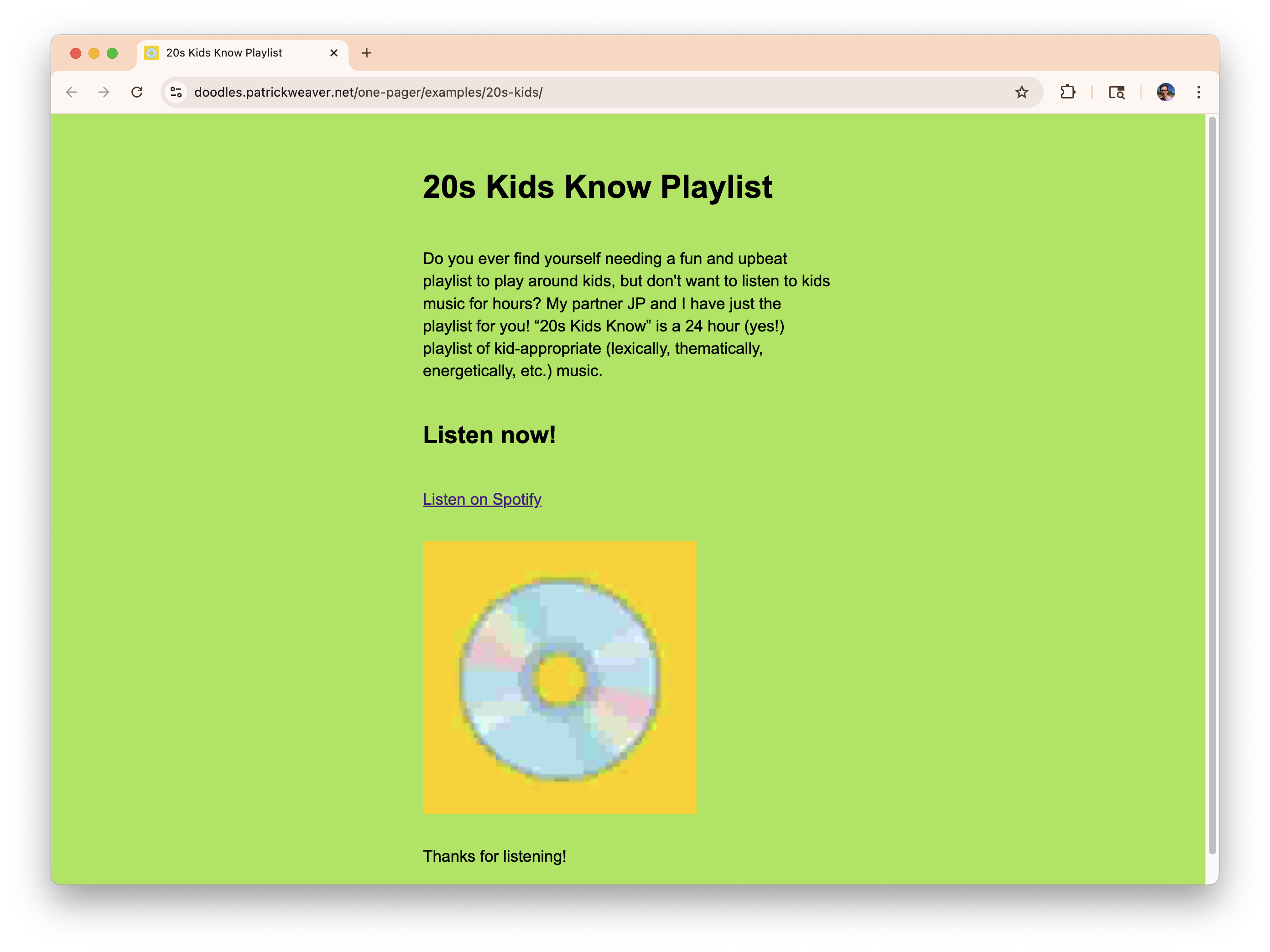
You can try it out now at doodles.patrickweaver.net/one-pager. The editing UI only displays under two conditions, the file is opened locally with a file:/// protocol, or being viewed at the specific URL above on my “Doodles” subdomain. Anywhere else a web page made with One Pager will not be editable, until you download the index.html! Below is an example web page I made about my 24 Hour kid-appropriate-non-kids-songs playlist.
If you make any web pages with One Pager, let me know, and I will add it to the Example Gallery. Good luck building some HTML!