Most companies that employ me, hand me a “work laptop” as I enter the building. Of course, I do not install personal software and keep a clear division between my “work like” and my “real life.”
However, I also don’t like to carry two computers just to jot down personal notes. My remedy is to install a virtualization system and create a “personal” virtual machine. (Building cloud software as my day job means I usually have a few VMs running all the time.)
Since I want this VM to have minimal impact on my work, I base it on a “Server” version of Ubuntu. however, I like some graphical features, so my most minimal after market installation approach is:1
sudo apt-get install -y xinit
Since most of what I do is org-mode work, the next step is:
sudo apt-get install -y emacs
I have played with a lot of window managers, and while some claim to be unobtrusive and minimal2, I really just want Emacs in full-screen mode (utilizing all screen estate possible).3
To accomplish this, I create an .xinitrc file that contains only:
exec emacs
That’s right, folks, Emacs is my window manager. I add the
following to my Emacs init.el script:
(set-frame-parameter nil 'fullscreen 'fullboth)
And now I can split the screen into windows, launch programs– even edit files– all without fondling the mouse, and since Emacs is in its graphical mode, I can use my favorite fonts, decorate the fringe, etc.
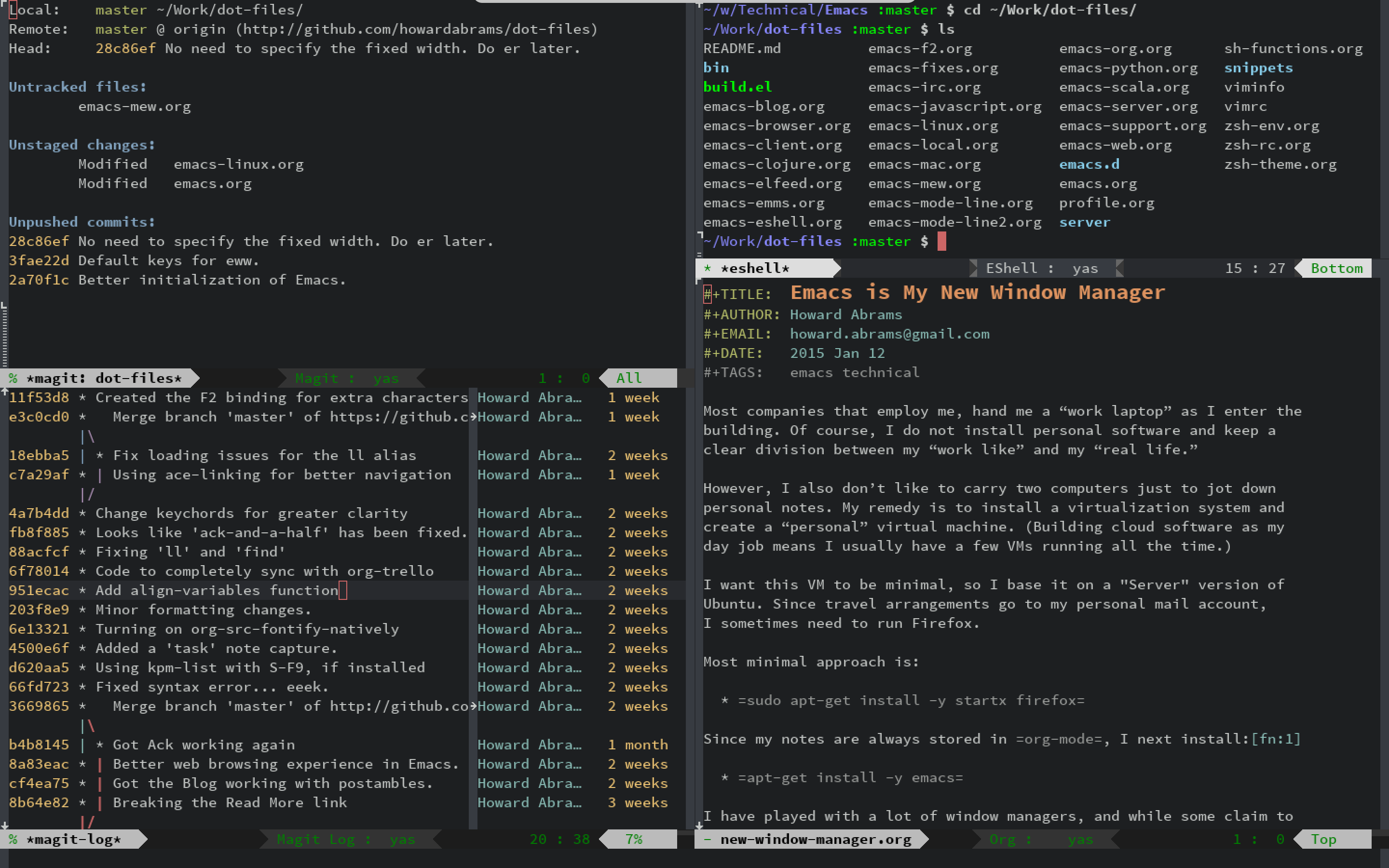
If I need a program that doesn’t run well within Emacs, I can
call xterm (or any other application) with M-! xterm.
Web Browsing
Unlike the previous century, this century has been defined by web applications. Most of my web efforts are looking up code documentation and other technical resources, and this is good using a text-oriented browser like w3m or eww embedded within Emacs.
Whenever a page doesn’t render well (can you say JavaScript), I can
hit the & key to bring up a web browser.4. You can kick off a
graphical browser to a specific URL by binding a function that calls
this:
(start-process "" nil "xdg-open" "http://mail.google.com")
Keep in mind, running X window applications without a real window manager will overlay Emacs, which is only an option if the window is temporary. When closed, you are back to Emacs:
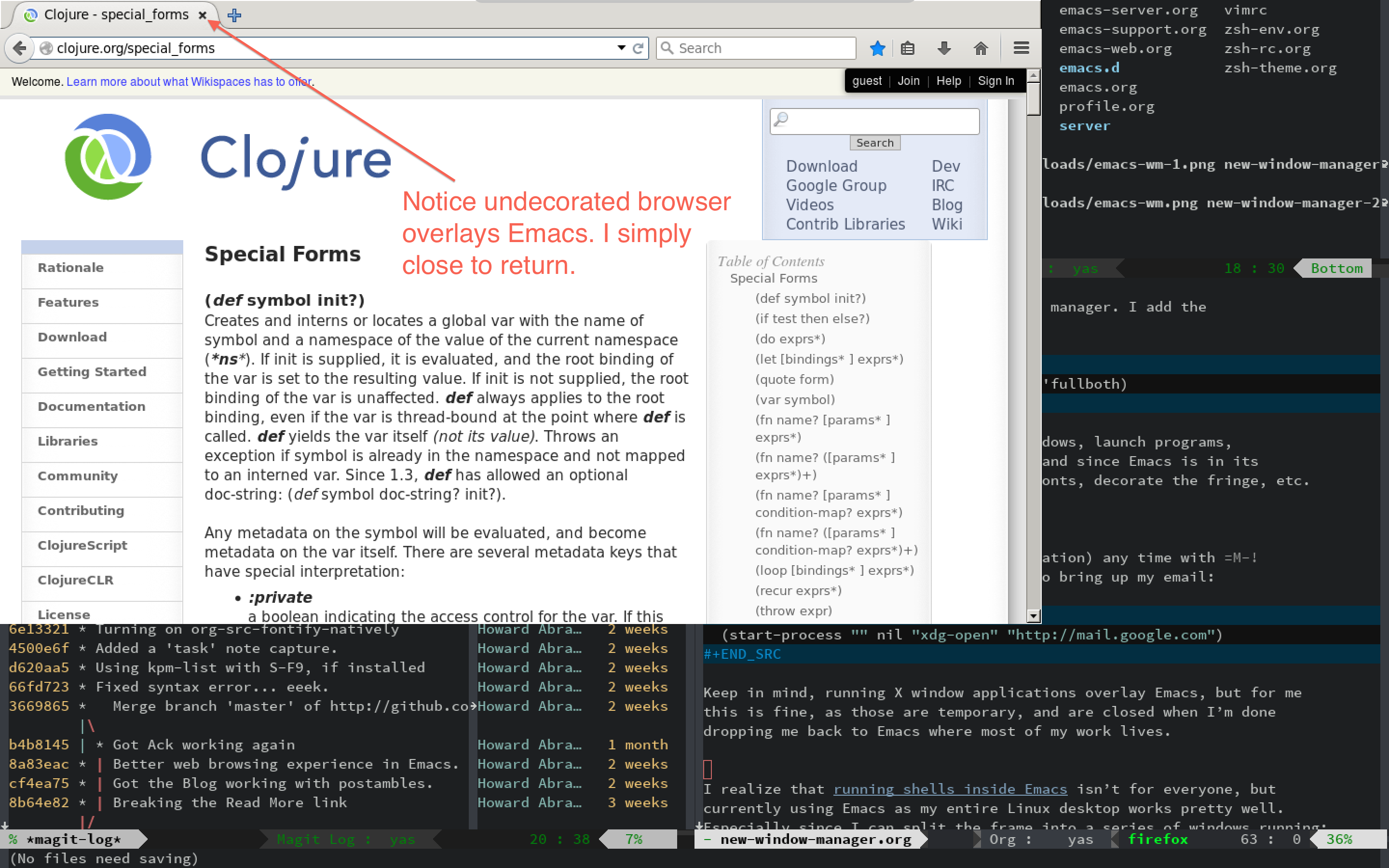
Update: Since I wrote this section, a number of people have mentioned some light-weight window managers. If you need to use a browser, but still want Emacs to utilize every possible pixel, the best seems to be Ratpoison5 (with DWM a close second).
Other Applications
I realize that running shells inside Emacs isn’t for everyone, but currently using Emacs as my entire Linux desktop works pretty well. Especially since I can split the frame into a series of windows running:
I use a function to start my favorite time-sinks…er, applications, at one time:
(defun setup-windows ()
  "Organize a series of windows for ultimate distraction."
  (interactive)
  (delete-other-windows)


  (sx-tab-frontpage t nil)


  (split-window-horizontally)
  (other-window 1)
  (circe-connect-all)


  (split-window-vertically)
  (elfeed)


  (other-window 2)
  (split-window-vertically)
  (twit)

  (window-configuration-to-register ?w))
The last line insert this “current” configuration in a register, so
after stomping and stirring my windows, I return to this
organization with C-x r j w.
Perhaps another screenshot of these results are in order:
