Just the Browser helps you remove AI features, telemetry data reporting, sponsored content, product integrations, and other annoyances from desktop web browsers. The goal is to give you "just the browser" and nothing else, using hidden settings in web browsers intended for companies and other organizations.
This project includes configuration files for popular web browsers, documentation for installing and modifying them, and easy installation scripts. Everything is open-source on GitHub.
Get started
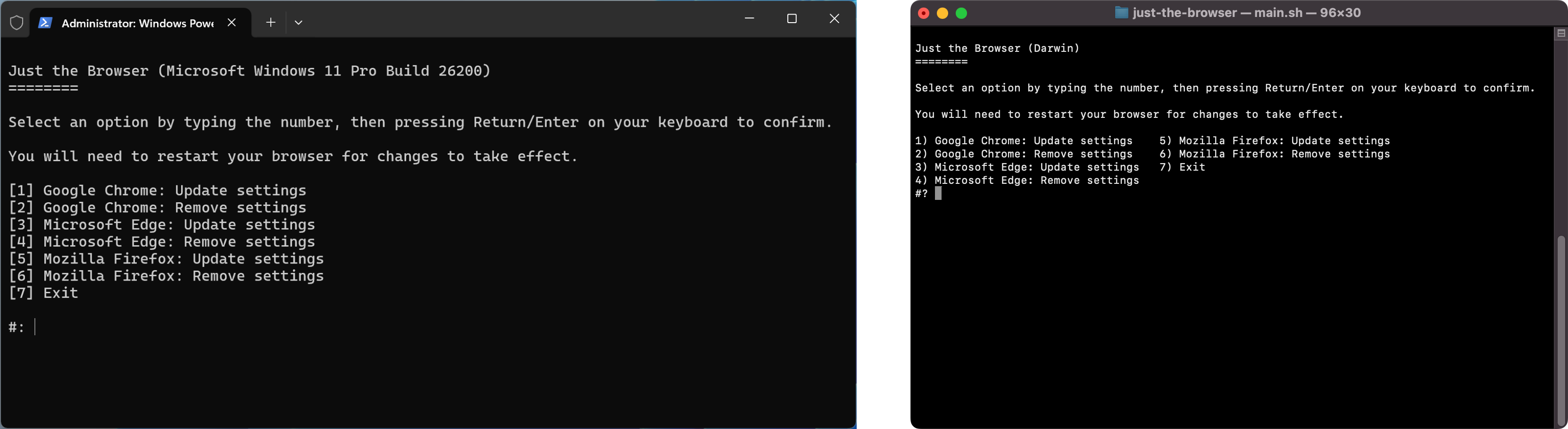
The setup script can install the configuration files in a few clicks. You can also follow the manual guides for Google Chrome, Microsoft Edge, and Firefox.
Windows: Open a PowerShell prompt as Administrator. You can do this by right-clicking the Windows button in the taskbar, then selecting the "Terminal (Admin)" or "PowerShell (Admin)" menu option. Next, copy the below command, paste it into the window (Ctrl+V), and press the Enter/Return key:
& ([scriptblock]::Create((irm "https://raw.githubusercontent.com/corbindavenport/just-the-browser/main/main.ps1")))
Mac and Linux: Search for the Terminal in your applications list and open it. Next, copy the below command, paste it into the window (Ctrl+V or Cmd+V), and press the Enter/Return key:
/bin/bash -c "$(curl -fsSL https://raw.githubusercontent.com/corbindavenport/just-the-browser/main/main.sh)"
Download web browsers
Start here if you don't have your preferred web browser installed. You can install the configuration files afterwards.
Google Chrome
macOS (Universal) Windows 64-bit x86 (amd64) Windows 32-bit x86 Windows 64-bit ARM (ARM64) Debian/Ubuntu 64-bit x86 (amd64) Fedora/openSUSE 64-bit x86 (amd64)
Not sure which link to use? Try the official download page.
Mozilla Firefox
macOS (Universal) Windows 64-bit x86 (amd64) Windows 32-bit x86 Windows 64-bit ARM (ARM64)
Not sure which link to use? Try the official download page or Linux setup instructions.
Microsoft Edge
macOS (Universal) Windows 64-bit x86 (amd64) Windows 32-bit x86 Windows 64-bit ARM (ARM64)
Not sure which link to use? Try the official download page.
Questions and answers
Got a question? Check here first, and if you still need help, create an issue on GitHub or join the Discord.
What features or settings are changed?
Just the Browser aims to remove the following functionality from popular web browsers:
- Most AI features: Features that use generative AI models, either on-device or in the cloud, like Copilot in Microsoft Edge or tab group suggestions in Firefox. The main exception is page translation in Firefox.
- Shopping features: Price tracking, coupon codes, loan integrations, etc.
- Sponsored or third-party content: Suggested articles on the New Tab Page, sponsored site suggestions, etc.
- Default browser reminders: Pop-ups or other prompts that ask you to change the default web browser.
- First-run experiences and data import prompts: Browser welcome screens and their related prompts to import data automatically from other web browsers.
- Telemetry: Data collection by web browsers. Crash reporting is left enabled if the browser (such as Firefox) supports it as a separate option.
- Startup boost: Features that allow web browsers to start with the operating system without explicit permission.
The exact list of features modified for each browser can be found on the pages for Google Chrome, Microsoft Edge, and Firefox.
Can I change or remove the settings?
Yes. The browser guides include steps for removing the configurations, and the automated script can also do it. The browser guides explain each setting, so you can add, remove, or modify the files before you install them.
Which web browsers are supported?
Just the Browser has configuration files and setup scripts for Google Chrome, Microsoft Edge, and Mozilla Firefox. However, Chrome on Linux and Edge on Linux are not currently supported.
Can I install this on my phone or tablet?
Not yet. See the issues for Android support and iOS/iPadOS support.
Is this modifying the web browser?
No. Just the Browser uses group policies that are fully supported by web browsers, usually intended for IT departments in companies or other large organizations. No applications or executable files are modified in any way.
Do the settings stay applied?
Yes, as long as the web browsers continue to support the settings used in the configuration files. Web browsers occasionally add, remove, or replace the settings options, so if the custom configuration breaks, try installing the latest available version.
Does this install ad blockers for me?
No. If you want one, try uBlock Origin or uBlock Origin Lite.
Why does my browser say it's managed by an organization?
The group policy settings used by Just the Browser are intended for PCs managed by companies and other large organizations. Browsers like Microsoft Edge and Firefox will display a message like "Your browser is being managed by your organization" to explain why some settings are disabled.
How do I know the settings are applied?
You can open about:policies in Firefox or chrome://policy in Chrome and Edge to see a list of active group policy settings.
Why not just use an alternative web browser?
You can do that! However, switching to alternative web browsers like Vivaldi, SeaMonkey, Waterfox, or LibreWolf can have other downsides. They are not always available on the same platforms, and they can lag behind mainstream browsers in security updates and engine upgrades. Just the Browser aims to make mainstream web browsers more tolerable, while still retaining their existing benefits.