TL;DR: Magic Switch is a free, open-source macOS app for sharing an Apple Magic Keyboard, Trackpad, or Mouse between two Macs — with no Apple ID and no USB re-pairing dance. Source on GitHub.
I recently finally returned to Poland, after ~living in Taiwan for 7 months, where I was … bike riding, learning Chinese, and getting some experience in certain things that I never thought I’d do in my life. Upon my return, I decided that it’s finally time to admit that I’m no longer just a tourist, and make my (rental) apartment look kind of nice. I like interior design a lot, but for the past 5 years of living in my current place, couldn’t – despite the overall low cost – bring myself to invest in anything but the essentials that I would regularly use or need. I could live out of a backpack: I have done that, for months at a time, of course. I came to Poland with half a suitcase. I need nothing but the essentials to live. Most of my belongings aren’t valuable. But the sentimental value makes them priceless. It’s not that my place wasn’t nice; in fact, of the many people I’ve hosted on Couchsurfing, they’ve all commented that they liked the way I designed, orientated, and chose things for the apartment. They were mostly essentials.
So I got back to Poland, and have been doing a whole revamp of my apartment. Taiwan inspired me a lot; I was moving around every week or two, and the places I stayed, the places I explored, and the galleries, studios, and museums I visited all took their toll. I’m a minimalist at heart, clearly, but enjoyment of life and the conveniences have finally gotten the best of me: maybe I’m just getting old. If I get kicked out of here any time soon, I’ll be devastated: because my hard work of picking colors that match, materials that suit, and difficult-to-source designs and items, probably simply won’t fit the place I live in next; the tiles on the kitchen wall will be different, the furniture will be a different palette, or the curtains will be a different color. Annoying.
I decided to buy a real desk for the first time in my life. Normally, I work either in bed, or laying down somewhere else. Sitting at a desk is generally a painful experience for me and has been forever – sitting in general is extremely painful; after ~5 minutes, my back starts to spasm like no other pain I’ve ever (regularly) felt.
I probably have Ehlers Danlos Syndrome which, among other things (like my extreme flexibility), has probably led to back pain problems which no doctor, surgeon, physio, or “friends offering help”, could help with. The only time I’ve encountered what the pain feels like, was in Orwell’s 1984:
[..] his body was being wrenched out of shape, the joints were being slowly torn apart [..]
So, I got myself a standing desk!
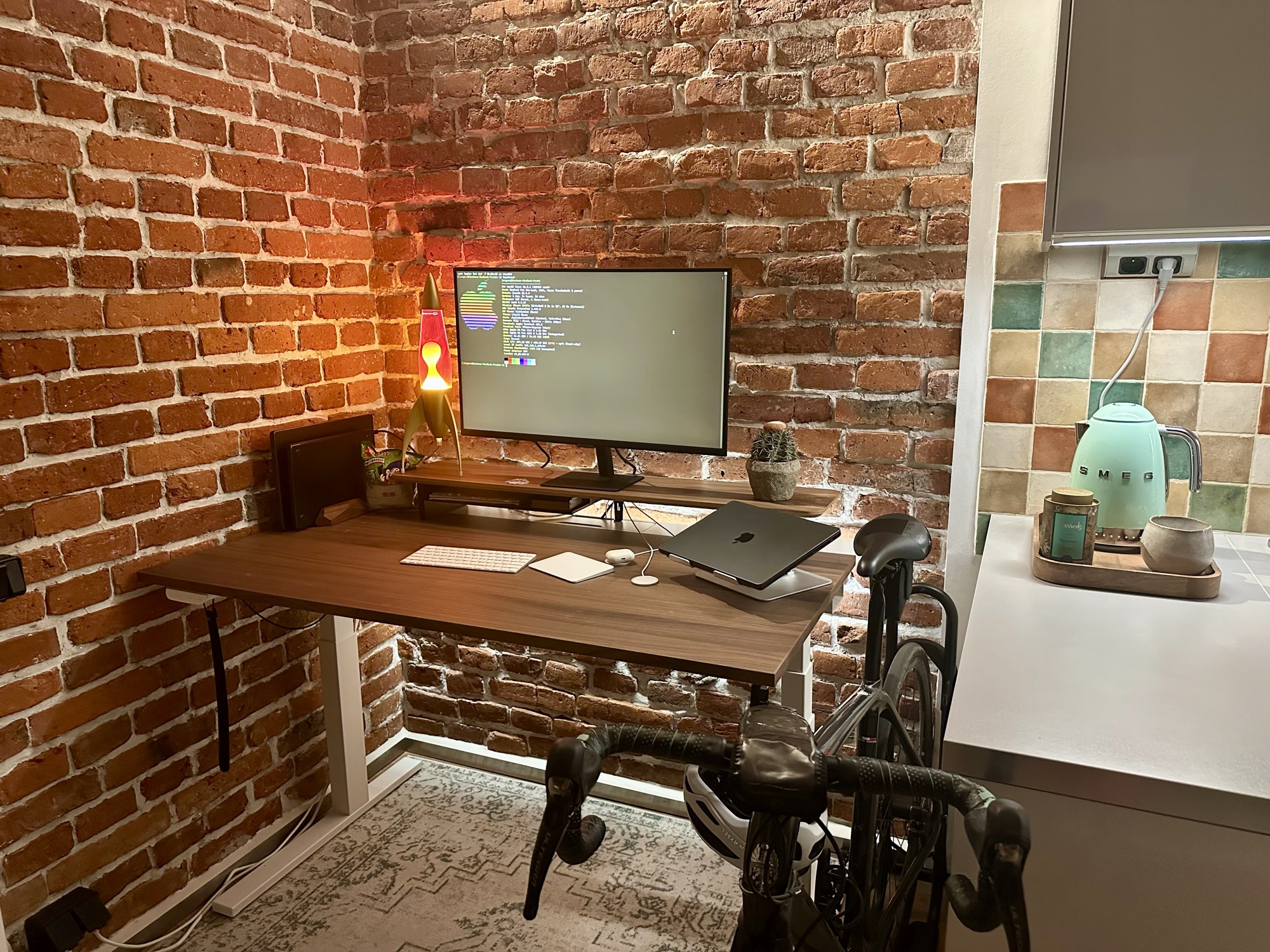
Yes, today’s blog is a bit of a mix of storytelling, and technical details. Bear with me, we all have our demons.
Among other things, I also got a monitor, which meant it was time to get a keyboard too. I opted for the option that was free: an Apple Magic Keyboard and Magic Trackpad. These two are Bluetooth devices, which require an initial pairing with USB-C.
Apparently Apple, in all of their “it just works” wisdom, made it so these peripherals couldn’t be connected to multiple devices at once. Unlike Apple’s AirPods, which you can connect to multiple devices at once and easily just connect from any device whenever you want to use them on a device, the Magic Keyboard and Magic Trackpad simply refuse to be paired with multiple devices at once, and using them with more than one computer is extremely painful. Actually, it’s worse than that: you can’t just disconnect the peripherals on the device using them and connect to them on the other device; no, you have to connect them via USB to the other device to do a full re-pair. Basically, the peripherals are really sticky.
You can have two devices that are paired to the single peripheral, but good luck getting the peripheral to connect to the second device: you can shut off the first device or disconnect Bluetooth; it just Won’t Work™. This is a known issue. In reality, there is a real way to share the peripherals between devices, but it requires being signed into the same Apple Account on both of the devices. You go to Settings -> Display -> Advanced -> Link to Mac or iPad, and it can work that way. That doesn’t fit my use-case, because I don’t want to (and can’t, in some cases) login to my Apple Account.
blue-switch
There’s some paid product you can buy on the Apple Store which claims to help with this. I found some open-source software called blue-switch, which made some very simple menu bar UI, which could be used to disconnect a peripheral from one system, and get it connected to another. Basically, the way it worked was that:
- Using mDNS, two devices negotiate a connection with each other.
- Both devices can send/receive various commands, for example sending to the other device something along the lines of: “DISCONNECT FROM PERIPHERAL AA:BB:CC..”
- The device will then force a connection to the peripheral.
Basically, it was a hack around the design of the Magic devices, and you basically just force the re-pair dance so it happens at a click, instead of using the USB cable to re-pair and dealing with the Bluetooth settings.
The problem with blue-switch was that it was just a very simple proof of concept, trusted everybody on the LAN, and the UX was basically non-existent (and didn’t even have the ability to handle errors). As Claude tells me, this is what the original app did:
- Discovery via mDNS/Bonjour — two Macs running the app find each other on the local network and exchange routing info (host + port).
- A plaintext TCP control channel — once discovered, either Mac opens an
NWConnectionto the other and sends short string commands:CONNECT_ALL,UNREGISTER_ALL,NOTIFICATION,SYNC_PERIPHERALS,HEALTH_CHECK, plusOP_SUCCESS/OP_FAILEDacks. - The core Bluetooth trick — on receiving
CONNECT_ALL, a Mac uses IOBluetooth to force-pair/connect the Magic peripherals to itself; onUNREGISTER_ALLit drops them. - A basic menu-bar UI — a status item with a list of registered peripherals and the other Mac, and a Settings window with a few tabs.
Without Claude, I’d have no way of knowing how this worked (other than reading the code and hoping I understand the macOS Bluetooth glue). People treat these LLM coding agents as slaves, but clearly, I’m a slave to the LLM.
So anyways, that’s all blue-switch was. It didn’t have authentication, encryption, any idea of which device the other Mac actually was, and no recovery on failure (which seems to be completely unavoidable sometimes). Beholden to my master, Claude and I vibe-coded a more secure, resilient application, with a proper UI/UX and algorithm to never “lose track” of these devices.
Magic Switch: a free alternative
I called it Magic Switch.
The source code is available on GitHub, as well as an immutable build, built with GitHub runners.
Security
For security, I went with:
- A mutually-authenticated, sealed channel keyed by a 12-character pairing code shared out-of-band between the two Macs.
- With the pairing code, we set up a PSK via PBKDF2-HMAC-SHA256 (with 600k iterations), and stored it in the macOS Keychain.
- Just for funsies, there’s also a per-connection handshake: each side sends a 32-byte nonce, and both devices derive direction-specific session keys with HKDF. To make it even more fun, we prove possession of the key with an HMAC over the transcript (and with
client/serverrole tags to avoid just reflecting a packet so as to make a server -> server attack happen). Claude was kind enough to tell me that the function I originally concocted, wasn’t constant-time-safe (as if it matters, lol). - Messages between devices are framed as ChaCha20-Poly1305 sealed boxes with monotonic counter nonces, so replay attacks can’t happen.
- Since we’re using 12-character pairing codes, we also rate-limit to 5 crypto failures per 60 seconds: if that limit hits, we block the device for 15-minutes.
- Hardened the connections themselves: 30s idle / 5-min total budgets, per-connection state (killed the racy shared
ConnectionManager), and IP canonicalization so an attacker can’t double their budget by alternating IPv4/IPv6.
One may question commitment to sparkle motion why I bothered with all of that for a simple LAN-only connection which just tells the other client “connect to this Bluetooth device; disconnect from that Bluetooth device”. In reality, it’s because I wanted to learn things. And have fun.
Smoothing out the handoff
As for actual functionality change, I added a bunch of new things to make the app and handoff smoother, and Just Work™.
- In addition to requesting a peripheral, it’s possible to send peripherals to the other device. Before touching any Bluetooth state, it pings the other system over the secure channel to confirm it’ll actually accept the handoff (TCP being open isn’t enough because the system could be half-asleep, in typical macOS fashion). If the handoff fails partway, it re-connects the peripherals locally so we’re never left with peripherals stranded on neither system.
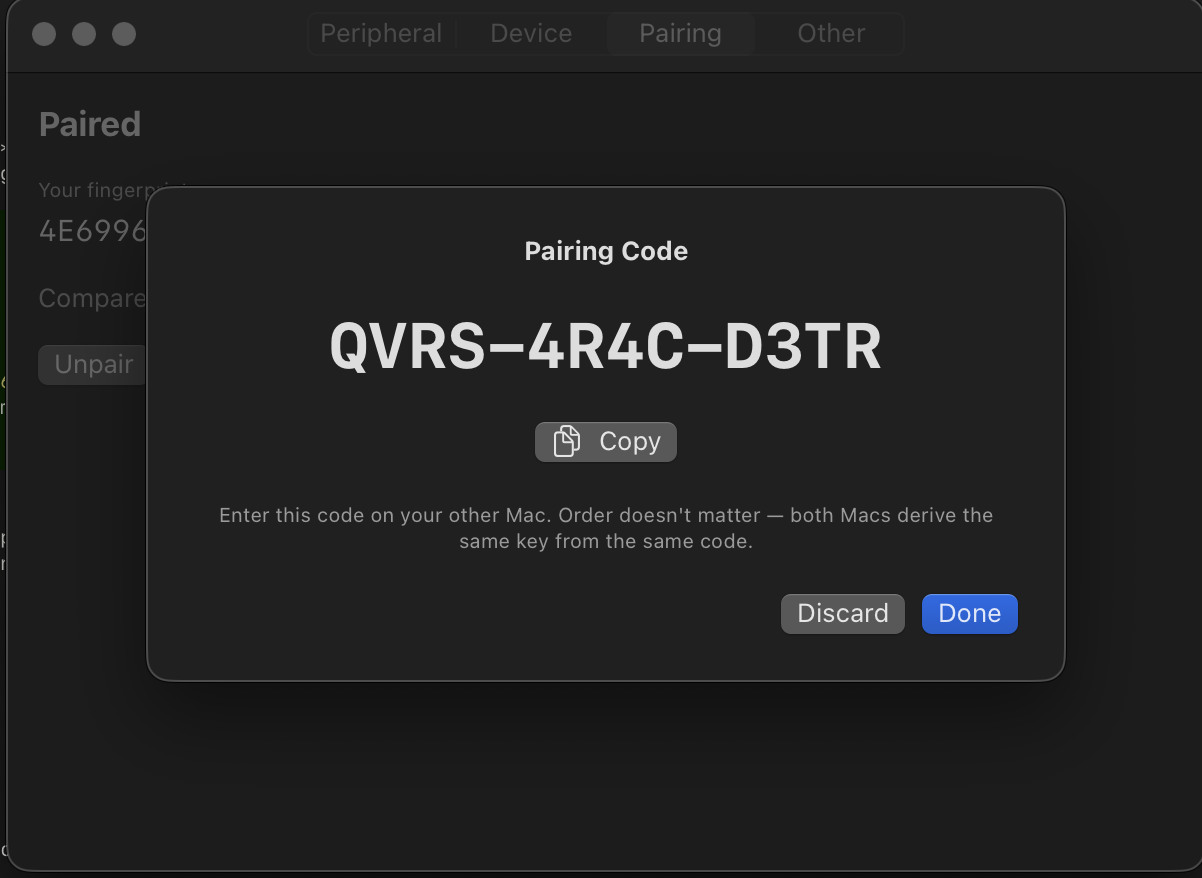
- The pairing flow matches that of some other macOS systems (like AirPlay?) Basically, you generate a 12-character pairing code on one system, which generates a shared fingerprint which is shown on both systems for confirmation.
- In order to first (before the authentication) communicate with the other system, each Mac pins the peer’s key fingerprint the first time it sees it. A later, different fingerprint is dropped and surfaced as an “Identity Mismatch”. So some type of impersonation of a different system (authentication not encryption!) is picked up, too.
- The original app sent all of your peripherals to the other device, upon its single-button click. I made it possible to send/request/receive a single device.
Pairing
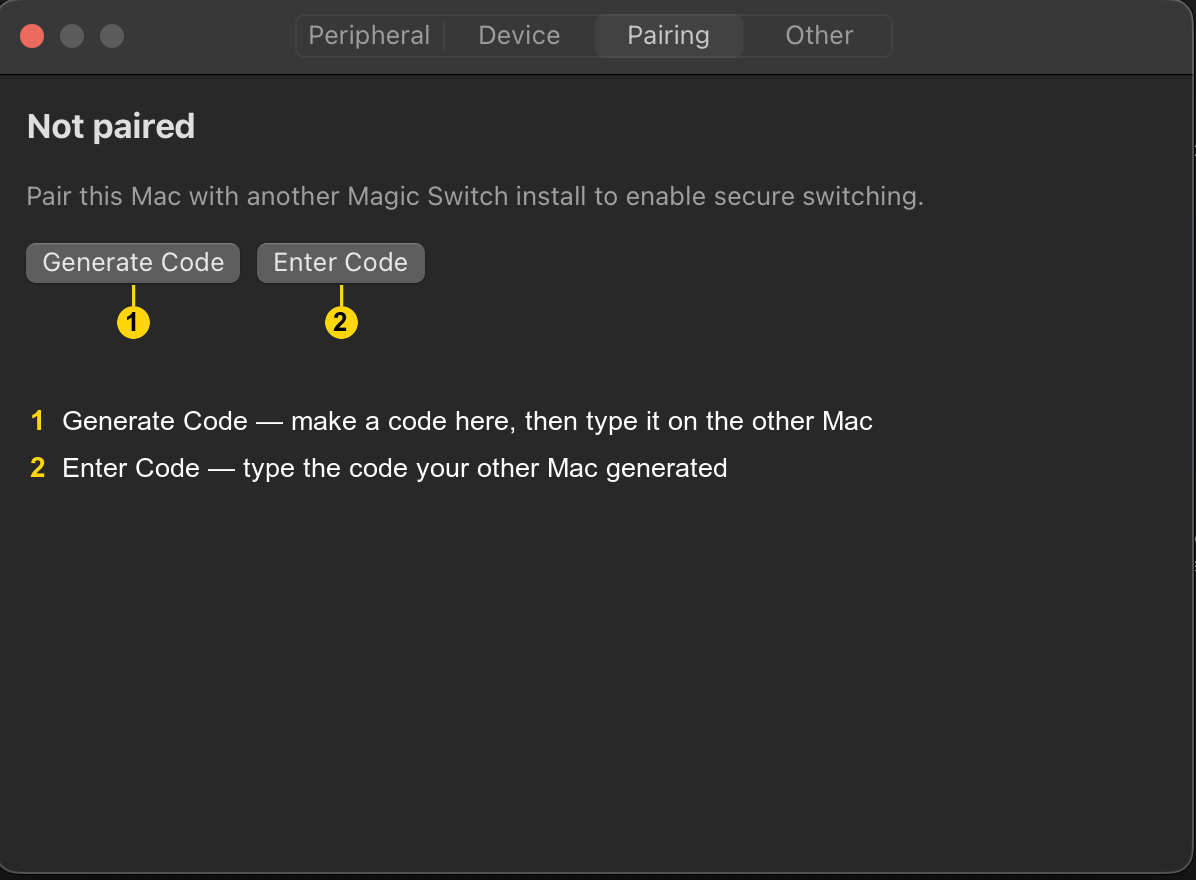
Pairing two Macs works a lot like pairing most Apple things: one generates a code, the other types it in, and then both show a matching fingerprint you can eyeball.
 |
|---|
| The Pairing tab before setup: generate a code, or enter the one your other Mac made |
 |
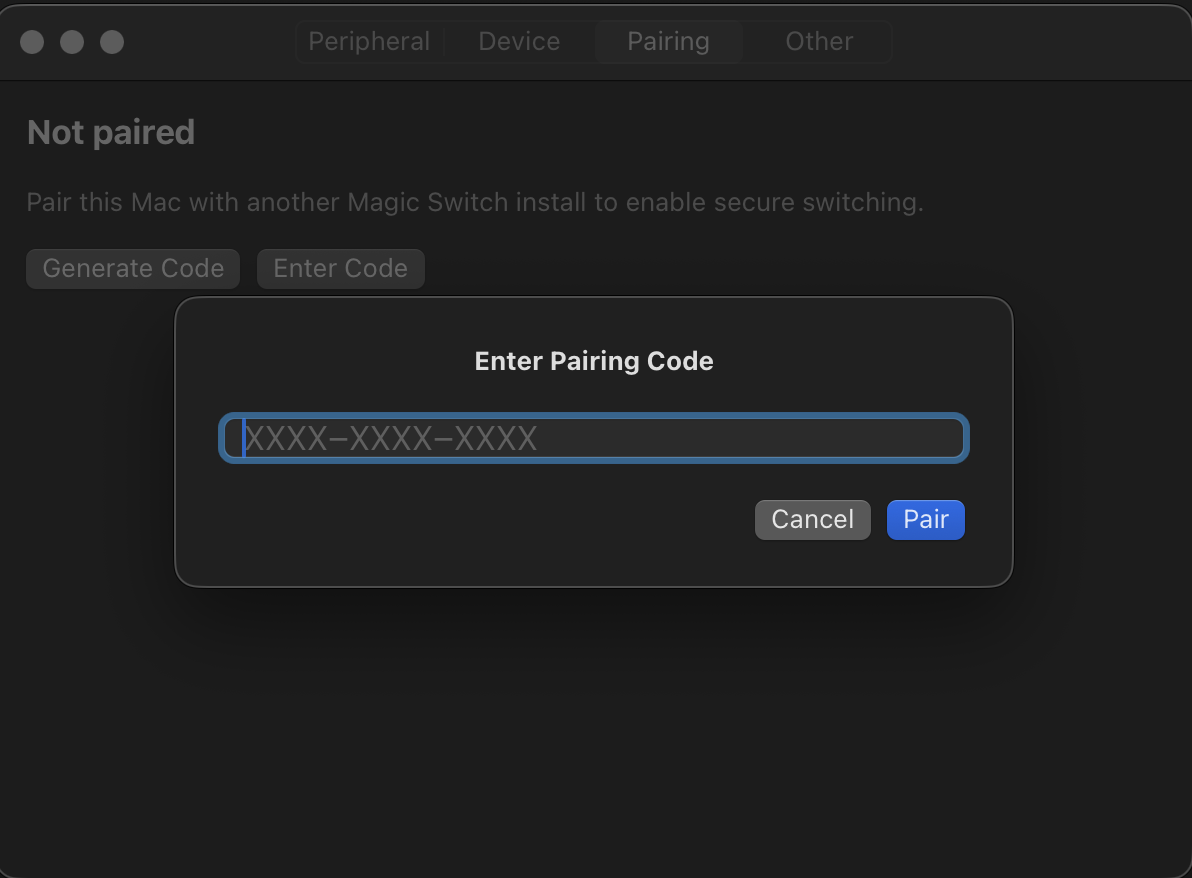 |
|---|---|
| Generate a 12-character code on one Mac… | …and enter it on the other |
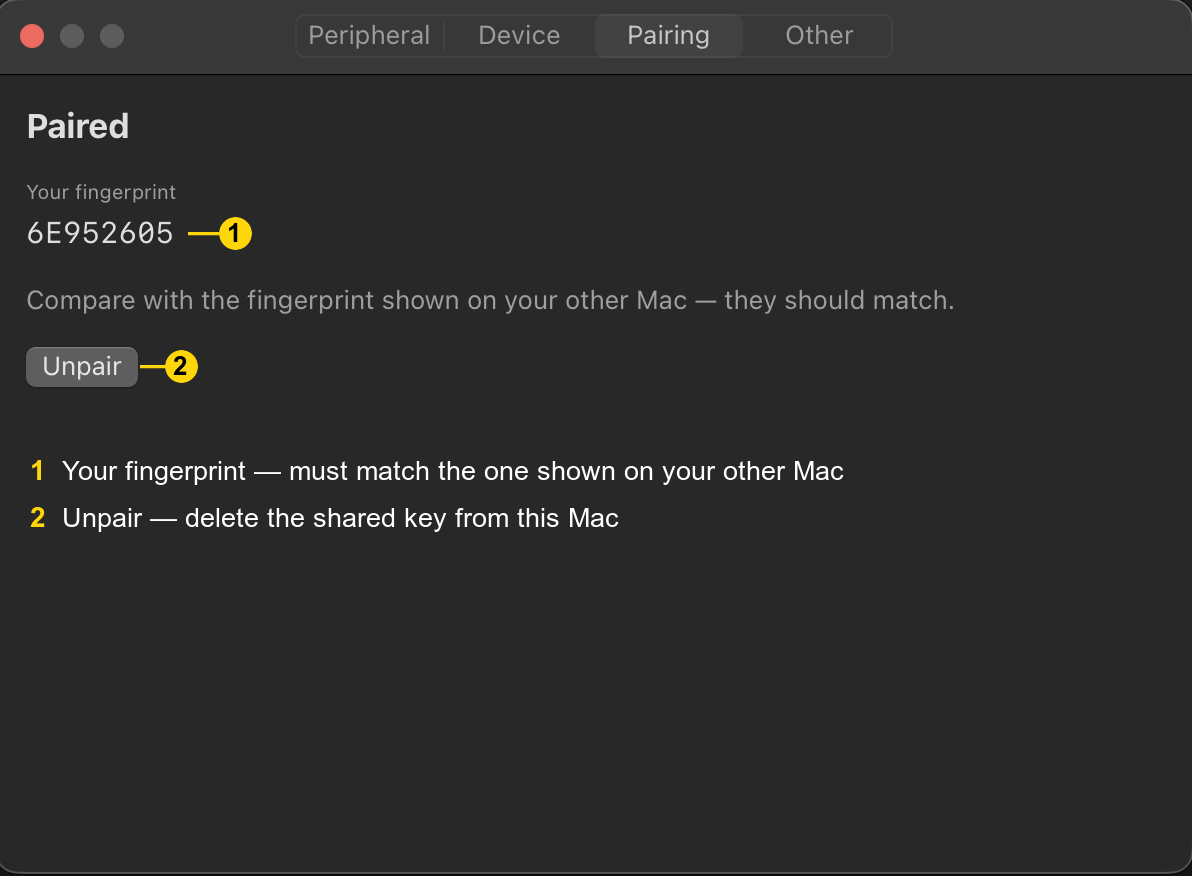 |
|---|
| Once paired, both Macs show a matching fingerprint — a mismatch means something’s wrong |
Sleep, clamshell, and other annoyances
The real problems arise when we try and get things working when it comes to sleep, clamshell mode (lid closed but connected to a monitor), and some other annoying network things. I came up with some useful configurable functionality:
- On system sleep, we attempt to hand off the peripherals back to either 1) the other Mac, or 2) the world. By “the world”, I mean we simply de-pair them and do nothing else.
- These magic devices often get “stuck” once the radio sleeps and won’t reconnect until you power-cycle them. I made the program watch for anything that was on this Mac before it slept, and reconnects it the moment it reappears (i.e. we power-cycled them); but only after querying the other Mac, confirming it’s not using them (so the two Macs don’t fight over the device).
Who actually owns a peripheral?
Under all this handoff stuff, there’s basically just one question: “who actually owns a peripheral right now?” This isn’t “stored” in the application anywhere, and instead we literally just take “owning a peripheral” to mean currently having a live Bluetooth connection to it, and the app works that out every time, with either:
- Asking Bluetooth locally,
- Asking the connected-to-other-system, “Are you holding this right now?”
From there, who gets the peripheral comes down to a few cases:
- Clicking a Mac (move everything): it looks at what this Mac is holding. If we’ve got all of them, we’re the sender — ping the other system to make sure it’ll take them, de-pair locally, then tell the other system to grab them, rolling back if anything fails partway. If we’ve got none of them, we’re the receiver — tell the other Mac to let go first, then connect locally. If it’s a mix (some here, some there) the program just refuses and asks you to sort it out rather than guess what you mean.
- Clicking a single peripheral: same logic, but just concerning one device — on this Mac, send it; not on this Mac, request it; mid-connection, ignore the click.
- Automatically grabbing something back (after a drop, wake, or power-cycle): This is an annoying edge case I came up with, where two Macs could start fighting over a device. Before reconnecting, the program asks the other Mac whether it’s actually using it — if yes, we leave it alone; if no (or it doesn’t answer), we attempt to take it. So, this path doesn’t tell the other Mac to disconnect, it only ever picks up something nobody’s holding.
Generally speaking, there’s some more logic, especially about:
- Nothing is ever allowed to land on neither system. If a handoff fails for some reason, the app tries to get back to the state that it started (aka reconnect what it just disconnected from).
- “Unreachable” means different things in each direction: if I’m requesting a peripheral and the other Mac doesn’t answer, I assume it’s already let go (a Mac, installed with this app, that’s dropped off the network has dropped the peripherals, because that’s done automatically with this app) and grab it. The app will never forcefully try to pull a peripheral away from a Mac that is awake and answering.
The UI
For the UI, I made a much more polished display and also menu-bar popdown.
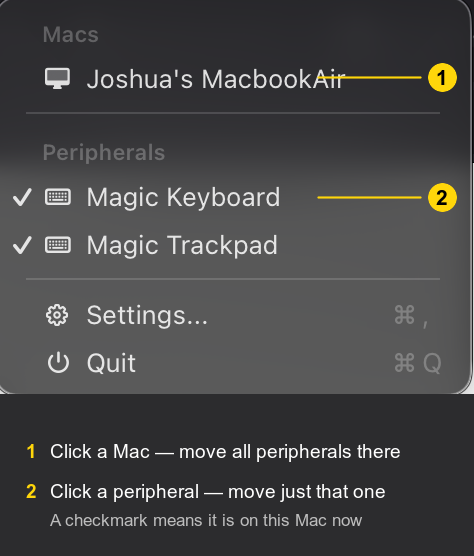 |
|---|
| The menu-bar popdown: click a Mac to move everything, or a single peripheral to move just that one; a checkmark means it’s on this Mac |
- The icon used for the popdown menu depends on what’s going on: triangle for Bluetooth is off or unpaired to any peripherals; up/down transfer arrows when the system is sending/receiving a peripheral respectively.
- The popdown menu allows you to send or request single peripherals, or “all of them”.
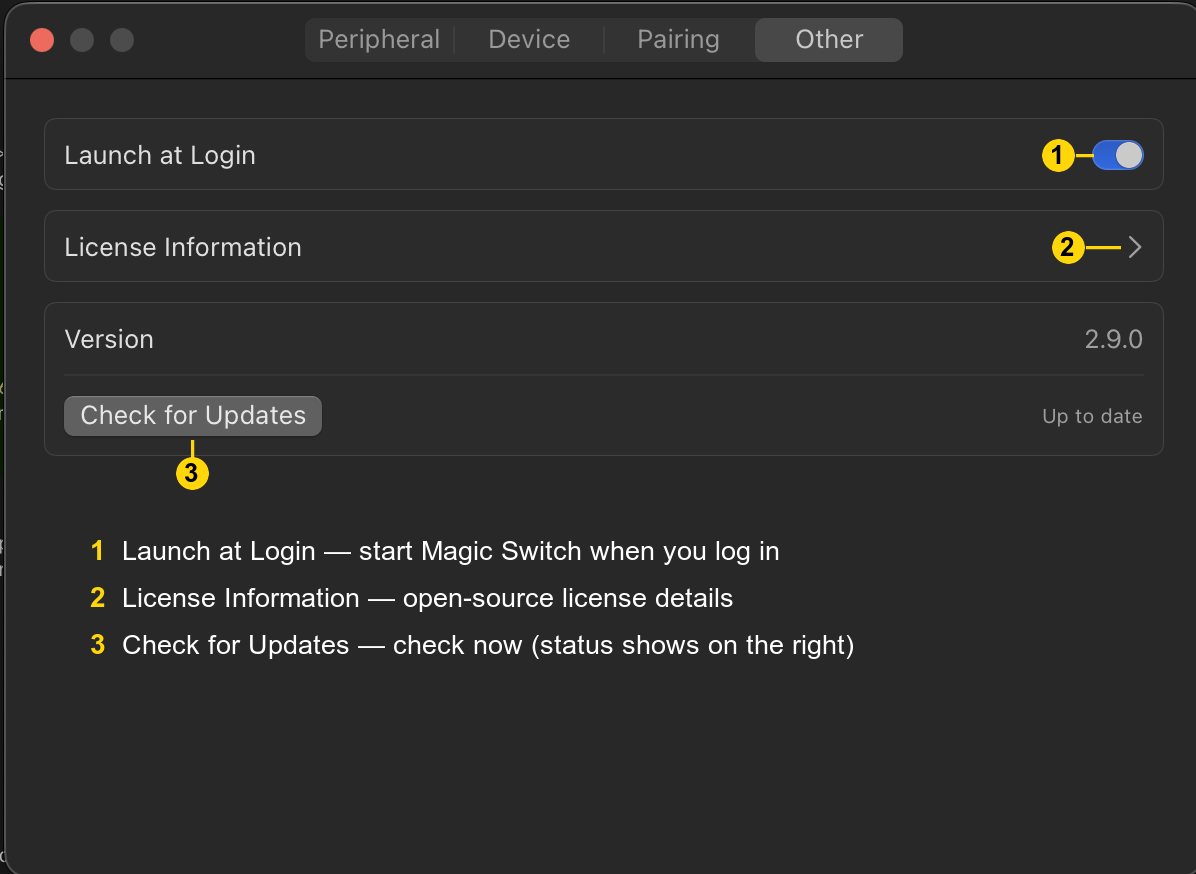
- Checks for updates every 24 hours (with a rolling check every hour until the check succeeds). It does not automatically update.
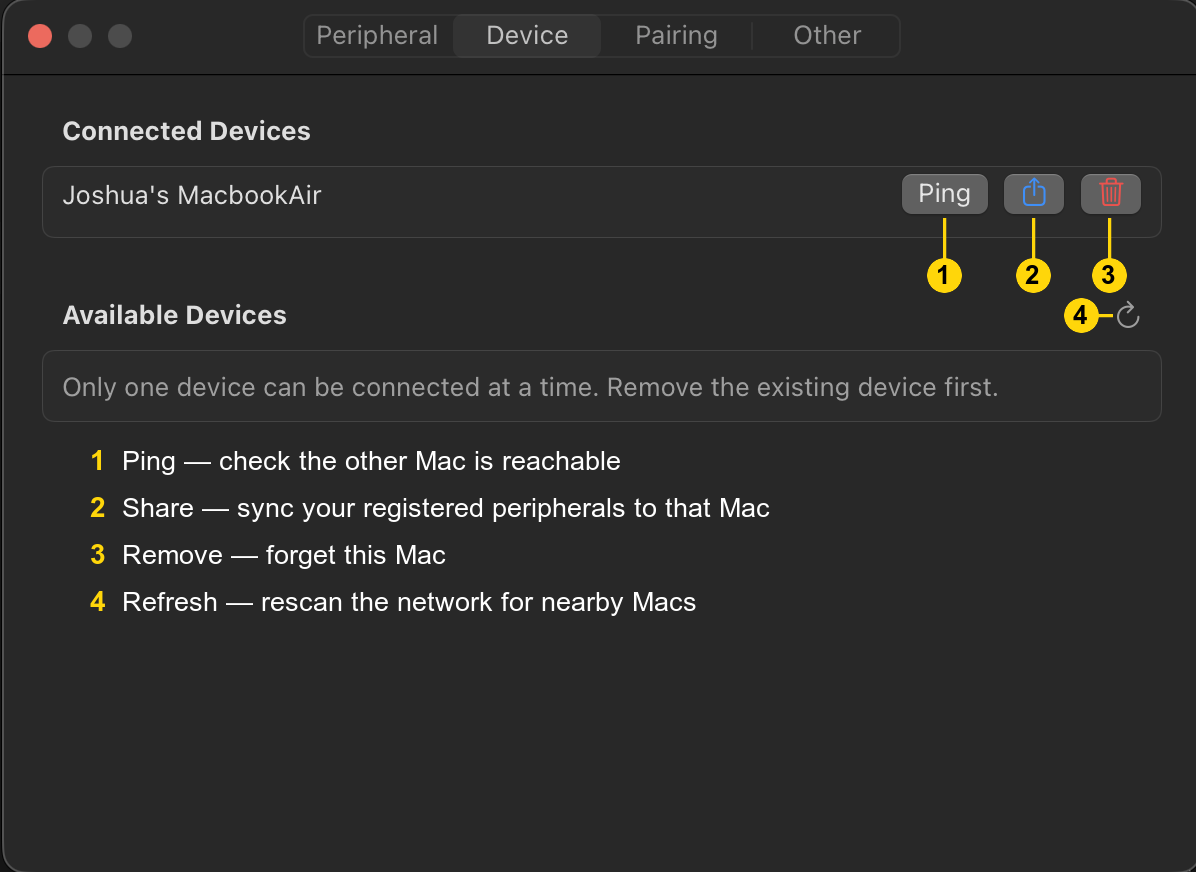
Behind the menu sits a small settings window with a tab for each job:
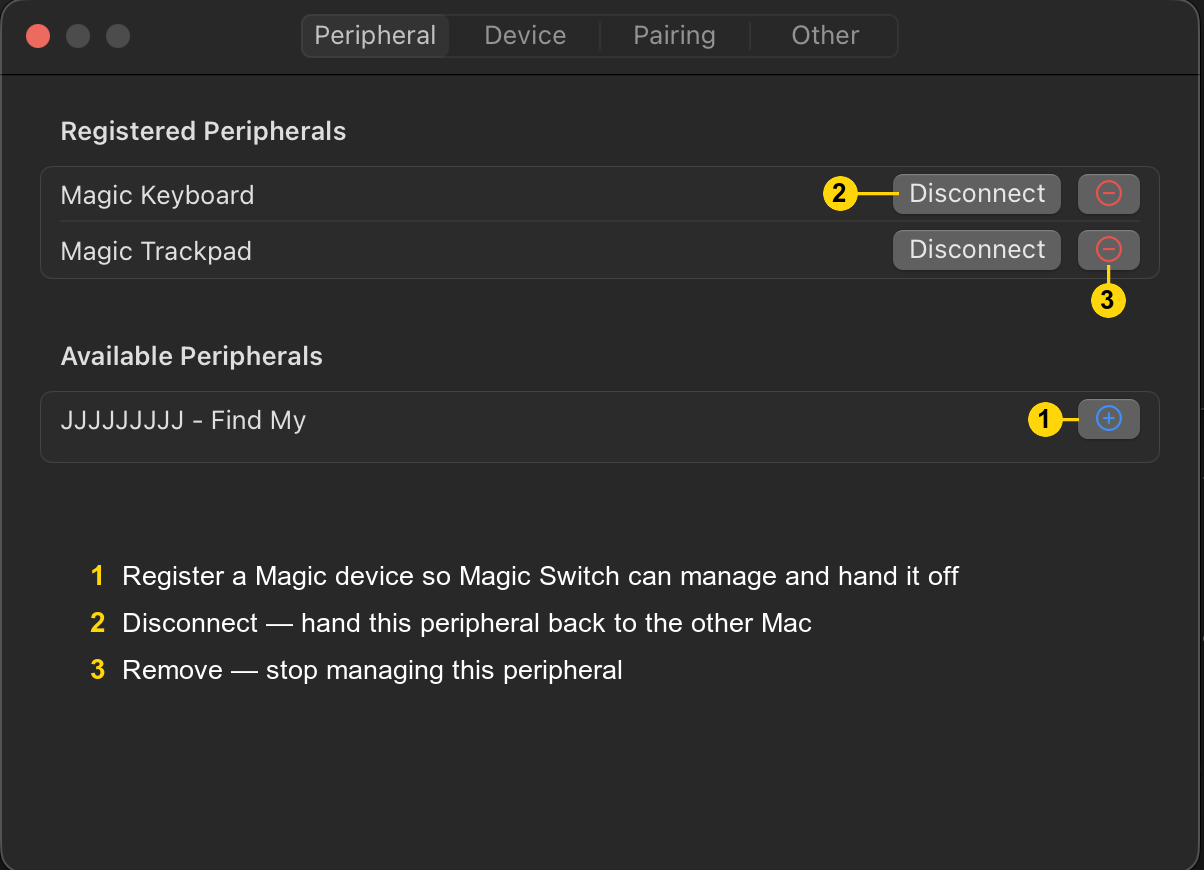 |
 |
|---|---|
| Peripheral tab: register a Magic device, hand it back, or stop managing it | Device tab: ping the other Mac, share peripherals to it, or forget it |
 |
|---|
| Other tab: launch at login, license info, and the manual update check |
The popdown menu in the menu bar was the hardest thing to get working as I wanted it to. I had the following requirements:
- When you open the popdown menu, moving the mouse anywhere on the screen would not minimize the menu (i.e. the only way to close the menu is to press something).
- Moving the mouse when the popdown menu is open must not make the menu bar disappear when in full-screen mode of an application.
- All buttons and important text must have useful hover/tooltip hints.
- Opening the settings from the popdown menu must open it on the desktop, and automatically move you to that screen.
- Pressing Cmd-Q (exit) must not close the application, but just the settings (or settings menu).
- The popdown menu must automatically update, even if it’s already open, when there’s a change of information.
- All icons must be aligned, with not a single pixel off; in a logical, compartmentalized manner.
I imagine nobody else will ever actually use this: I certainly wouldn’t recommend it! Nonetheless, it was kind of fun to make.