OpenShot 4.0 Highlights
- New Color View: Correct and grade footage with approachable presets plus the precision of color wheels, curves, LUTs, and live video scopes.
- New Recording View: Record your microphone, screen, webcam, and system audio directly into a project, with each source kept separate and editable.
- 10 new effects: Create audio-reactive graphics, beat-synced flashes, cinematic film looks, cleaner footage, animated timers, and more.
- Local AI-powered masks: Select and follow subjects using free downloadable models that run on your computer, with no cloud service or subscription required.
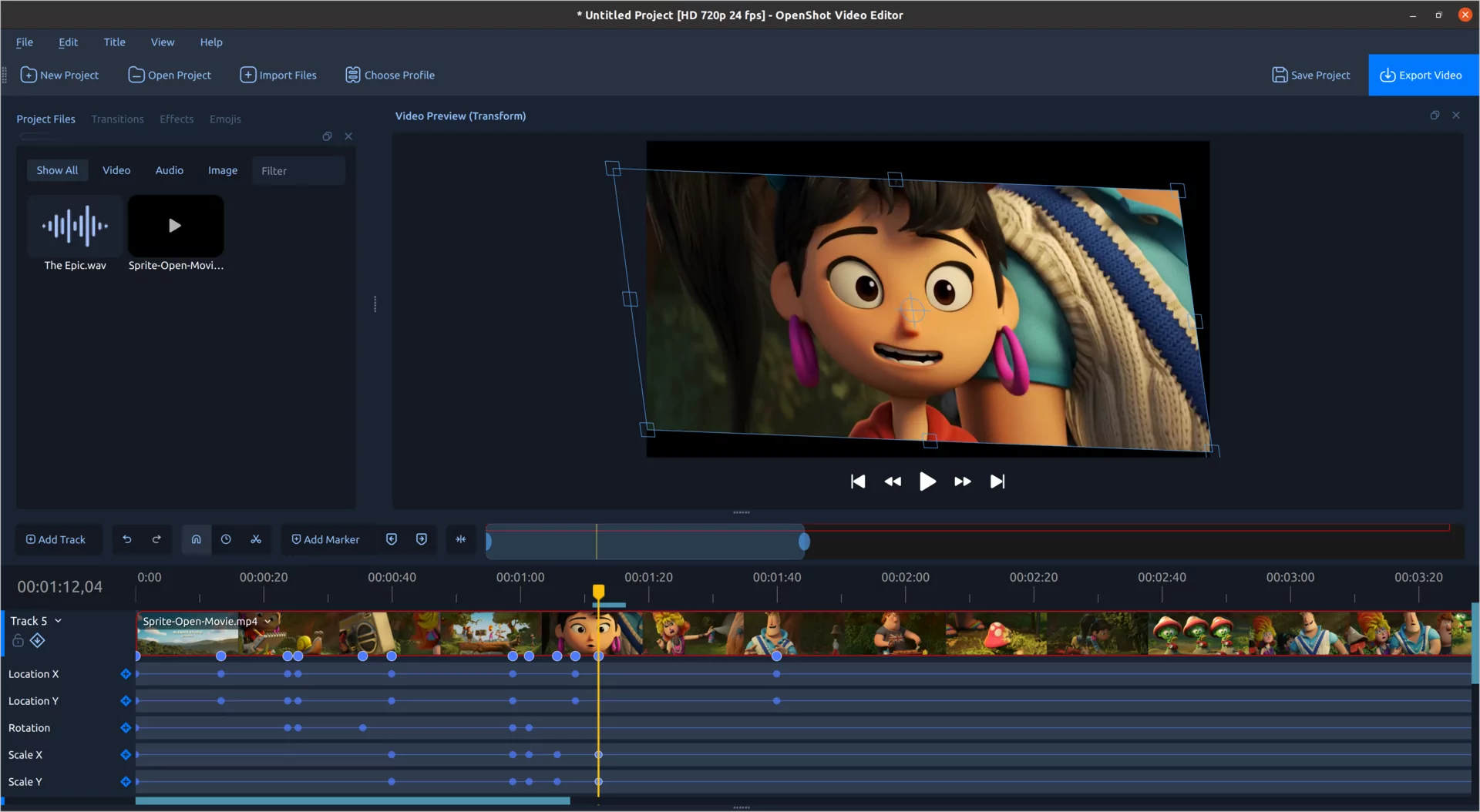
- A cleaner native timeline: Work with smoother zooming, easier keyframes, editable timecode, clearer clips, and more consistent interaction.
- Faster effects and editing: Performance work makes Blur dramatically faster while also improving Sharpen, timeline rendering, video scopes, color grading, and audio visualizations.
- Smarter creative workflows: Reorganized menus and presets make camera moves, animation, color looks, film styles, and audio edits easier to find and apply.
- A more modern foundation: Expanded Qt 6 support improves compatibility with newer Linux distributions and lays groundwork for Android and other future platforms.
Meet the New Color View
Color can fix a problem shot, guide the viewer's attention, or completely change the mood of a scene. OpenShot 4.0 brings these jobs together in a dedicated Color View with a large video preview, clip properties, color wheels, and live video scopes arranged around your footage.
You do not need to be a professional colorist to get started. Right-click a video clip and choose Look > Adjust Colors. OpenShot adds the new Color Grade effect, selects it, and opens the tools you need. You can begin with a quick adjustment and learn the more advanced controls at your own pace.
Color correction and creative grading in one effect
The new Color Grade effect includes practical controls for exposure, contrast, temperature, tint, highlights, shadows, saturation, and vibrance. These are useful for correcting dark footage, removing a color cast, recovering bright areas, or giving several cameras a more consistent appearance.
When you are ready to build a look, the same effect includes separate color wheels for global adjustments, shadows, midtones, and highlights. Push the shadows toward a cooler tone, warm the highlights, or make a small adjustment to skin tones without shifting every part of the image in the same way.
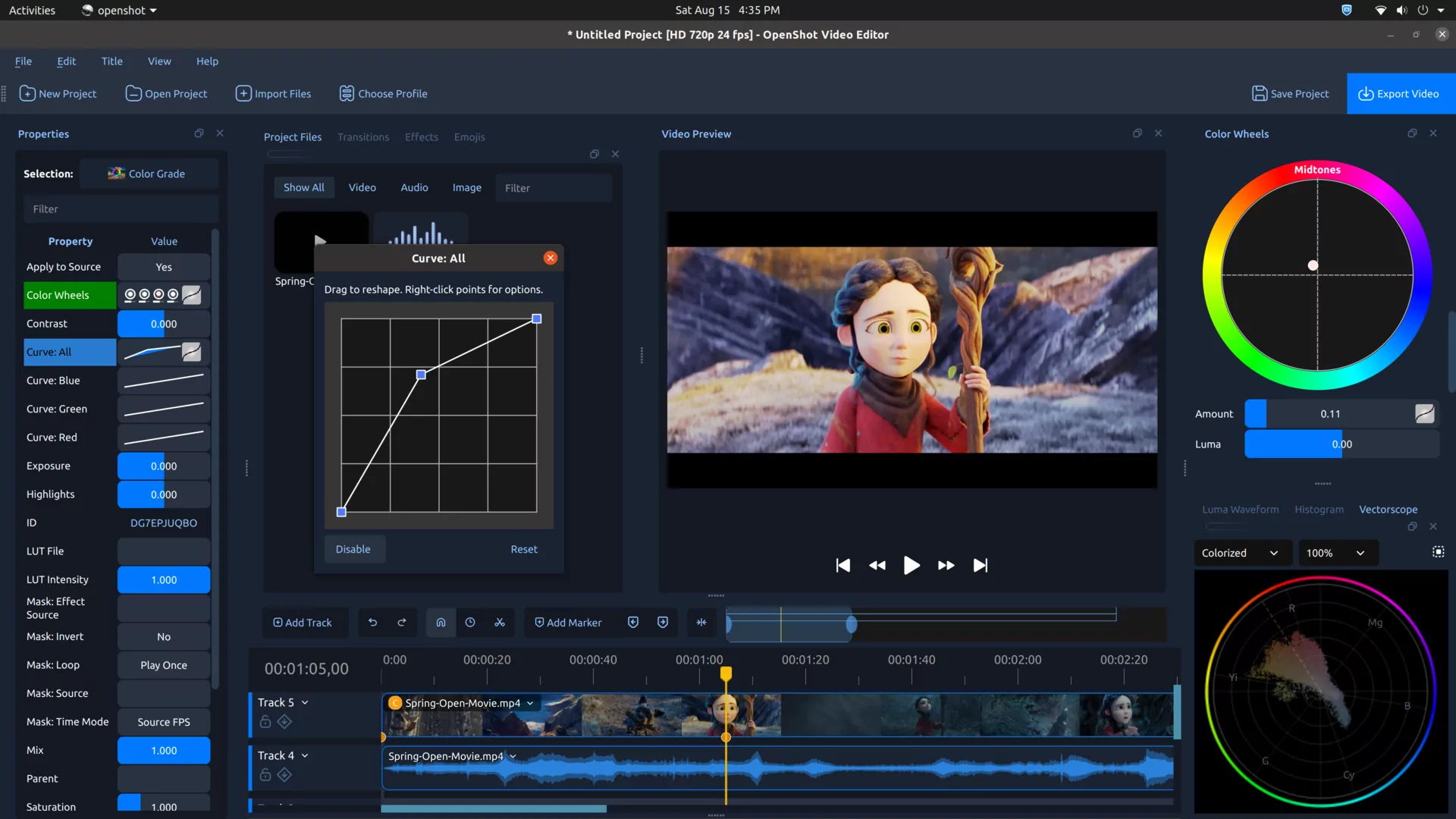
Four editable curves provide precise control over the full image and the individual red, green, and blue channels. Curve points and handles can be moved directly, including smooth Bézier adjustments. OpenShot also supports industry-standard .cube LUT files, with an intensity control that lets you blend a LUT into the corrected image instead of applying it at full strength.
The complete Color Grade effect is keyframable. Color wheels, curves, correction controls, LUT intensity, and the overall mix can all change over time. That makes it possible to correct lighting that shifts during a shot, animate a stylized color transition, or slowly reveal a finished look.
See what your image is really doing
A monitor can be misleading. Its brightness, color settings, and the light in your room can all affect what you see. Video scopes show the actual color and brightness information inside the frame.
OpenShot 4.0 includes a Luma Waveform, Histogram, RGB Parade, and Vectorscope. The scopes update as you move through the project, so you can check exposure, find clipped highlights, compare color channels, judge saturation, and keep skin tones looking natural.
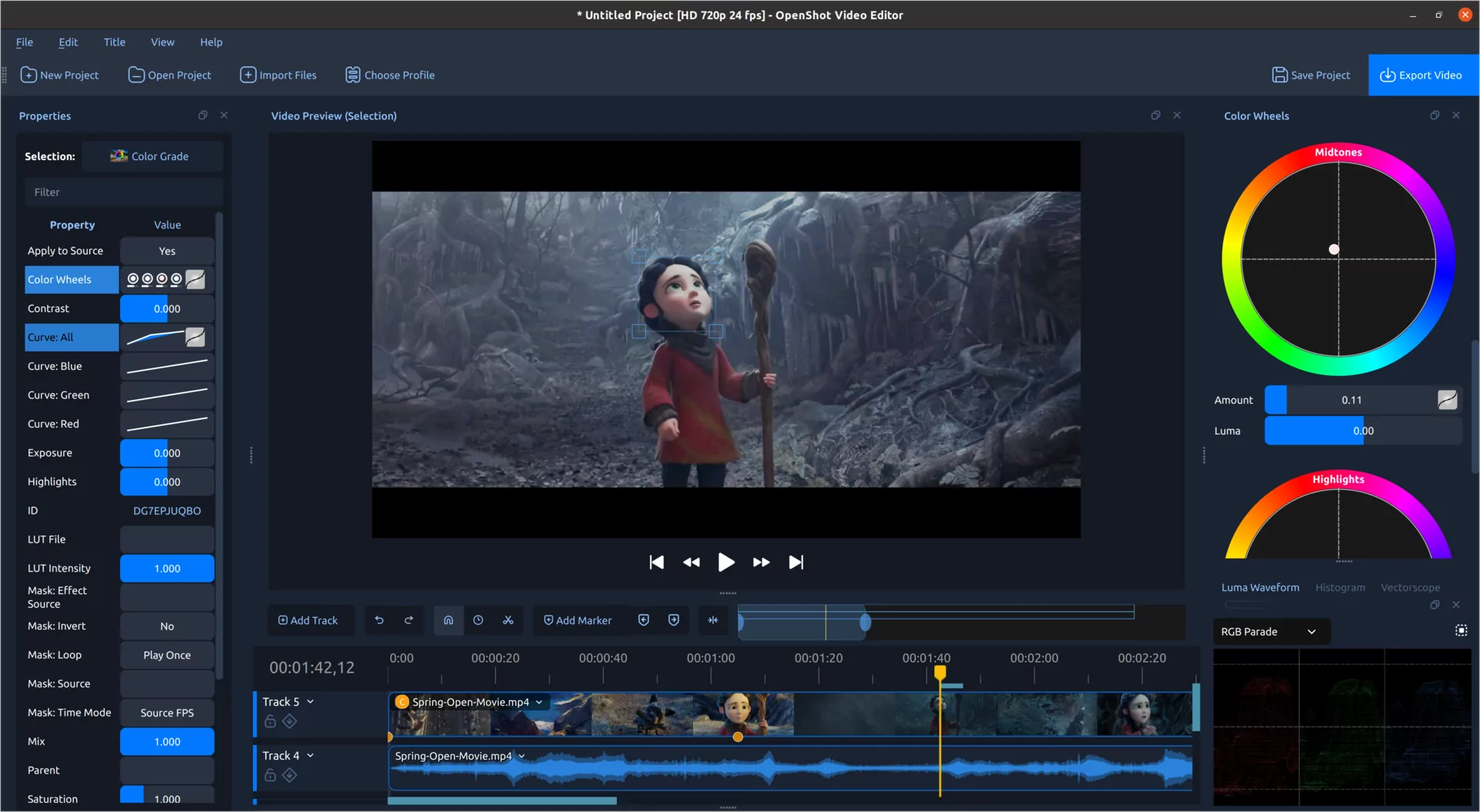
Each video scope includes a Region tool. Draw a box over a face, sky, wall, or product and the scope will focus on that part of the image. The Vectorscope also includes a skin-tone reference line, making it easier to spot color casts and keep faces looking believable.
For a quicker start, the clip menu includes options such as Auto Contrast, Lift Shadows, Warm Up, and Boost Color. These presets use the same editable Color Grade effect, so they are starting points rather than permanent one-click filters.
We also wrote a new color chapter for the OpenShot User Guide. It explains color correction, grading, scopes, skin tones, curves, wheels, and LUTs in plain language.
Record Your Screen, Camera, and Voice Inside OpenShot
The new Recording View turns OpenShot into a practical capture and editing workspace. Record a microphone, desktop, webcam, or several sources together without building a separate import workflow first.
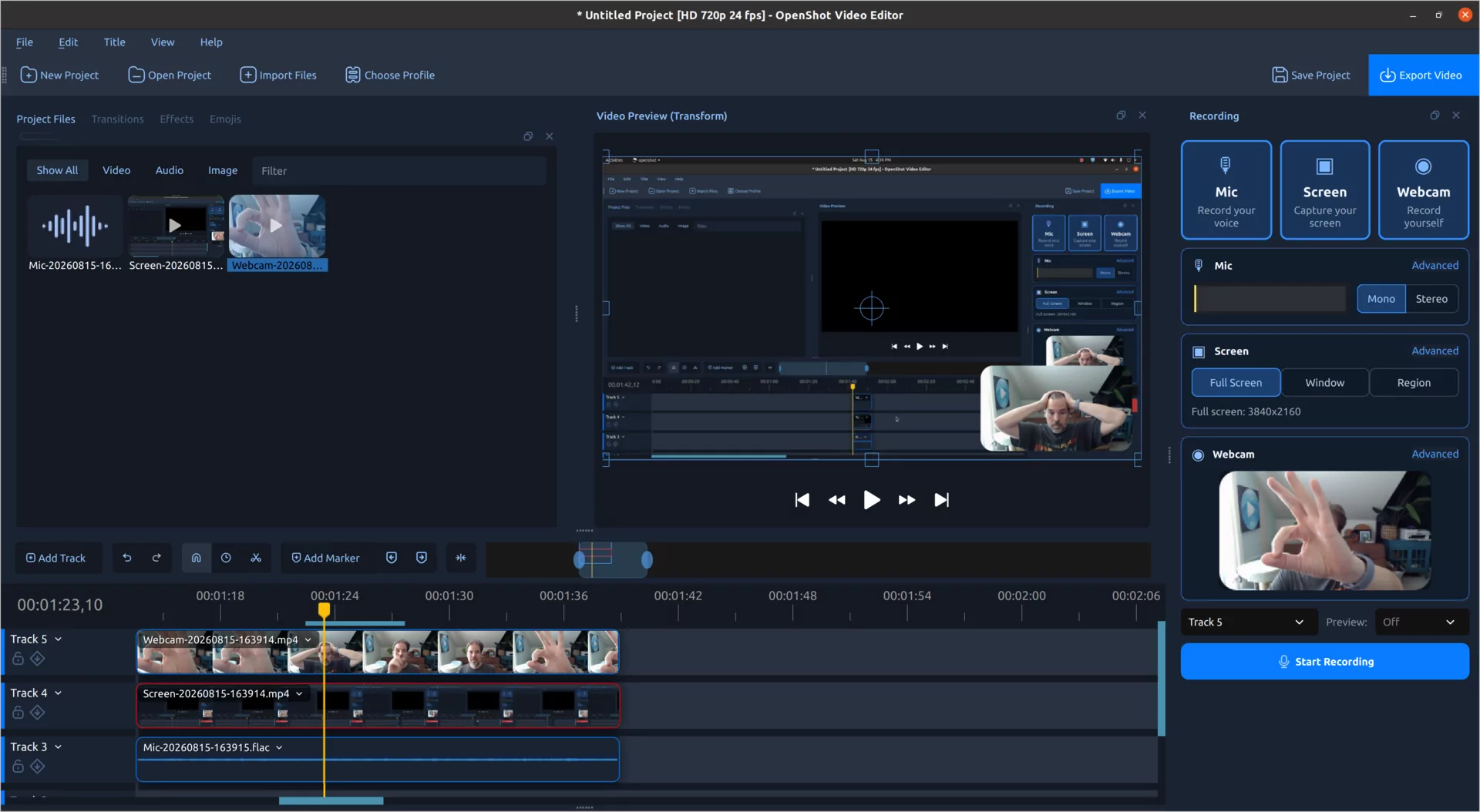
Each enabled source is recorded as its own media file and timeline clip. Your microphone stays separate from system audio. Your webcam stays separate from the screen capture. After recording, you can trim a mistake, adjust voice volume, crop the camera, move the picture-in-picture window, or apply effects to one source without changing the others.
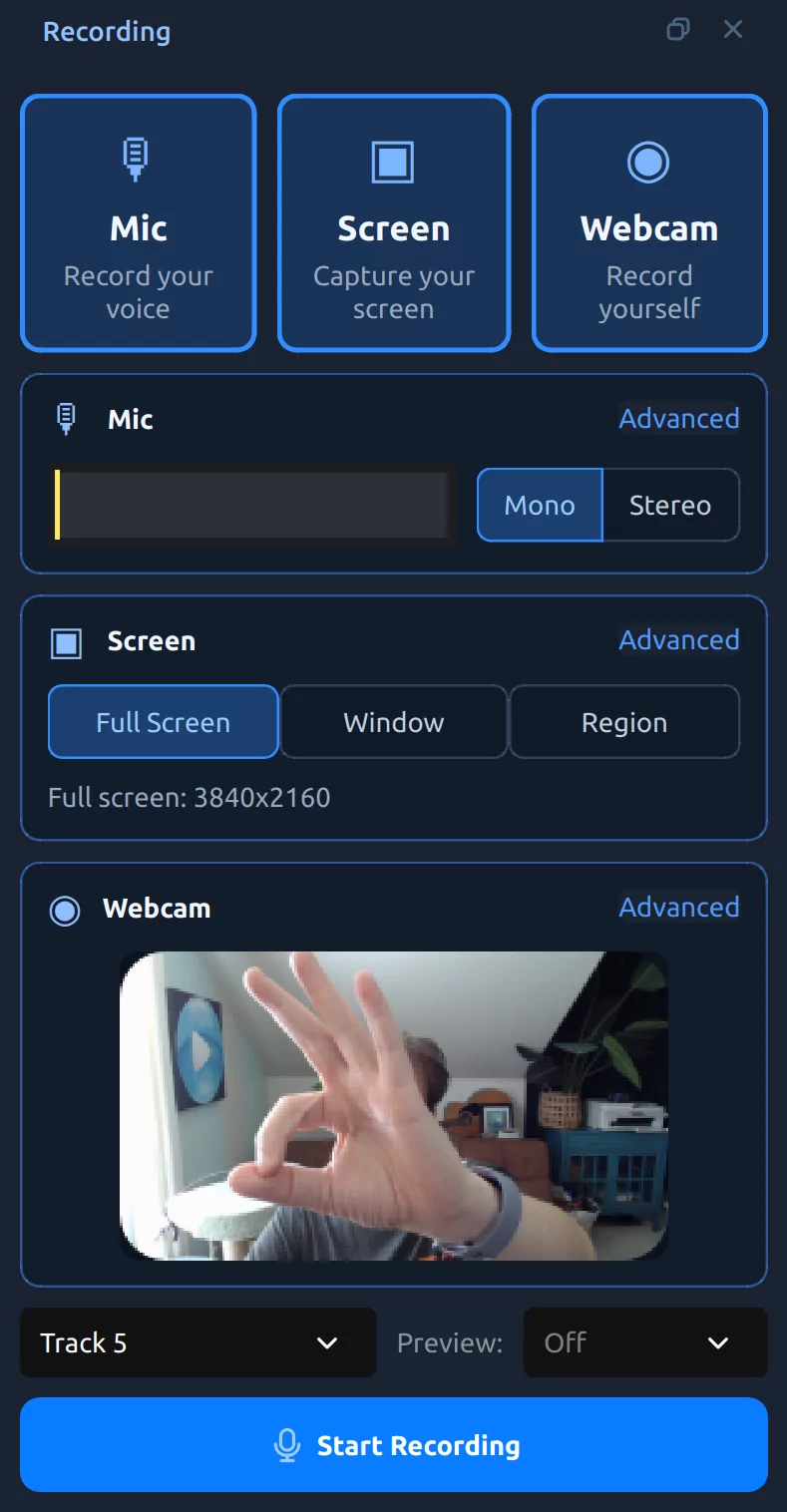
When screen and webcam recording are combined, OpenShot can automatically place the webcam in a rounded picture-in-picture layout. All of those choices use normal clip properties, so you remain in control after the recording ends.
The Recording View provides live feedback before and during a session. You can check the microphone meter, preview the webcam, and watch temporary clips appear on the timeline while recording. OpenShot keeps the sources synchronized and replaces the temporary previews with the completed media when you stop.
You can also preview an existing project while recording a microphone or webcam. This is useful for voice-over work, commentary, reaction videos, lessons, and presentations. For an even faster voice-over workflow, right-click a clip and choose Audio > Record. OpenShot moves to the beginning of the clip, opens the recording controls, and chooses a useful track below it.
If you want to record several takes before editing, choose No Track. The finished media will be added to Project Files without being placed on the timeline. Recordings are stored in the project's assets folder, which helps keep the source files together with your work.
Capture options adapt to the operating system and available hardware. OpenShot supports platform-native recording paths on Windows, macOS, Linux X11, and Linux Wayland with PipeWire. Available screen, window, region, camera, and system-audio options can vary by platform and permissions.
10 New Effects for Sound, Style, and Motion
OpenShot 4.0 adds ten effects to the underlying video engine. Some solve everyday problems, while others make entirely new creative workflows possible.
Turn audio into animated graphics
The new Audio Visualization effect transforms sound into an animated visual. It can draw waveforms, filled waveforms, bars, radial patterns, spectrum displays, particles, and VU-style meters. Controls for color, rainbow spread, frequency range, channels, detail, glow, background, and visual style make it useful for music videos, podcasts, lyric videos, audio previews, and social media posts.
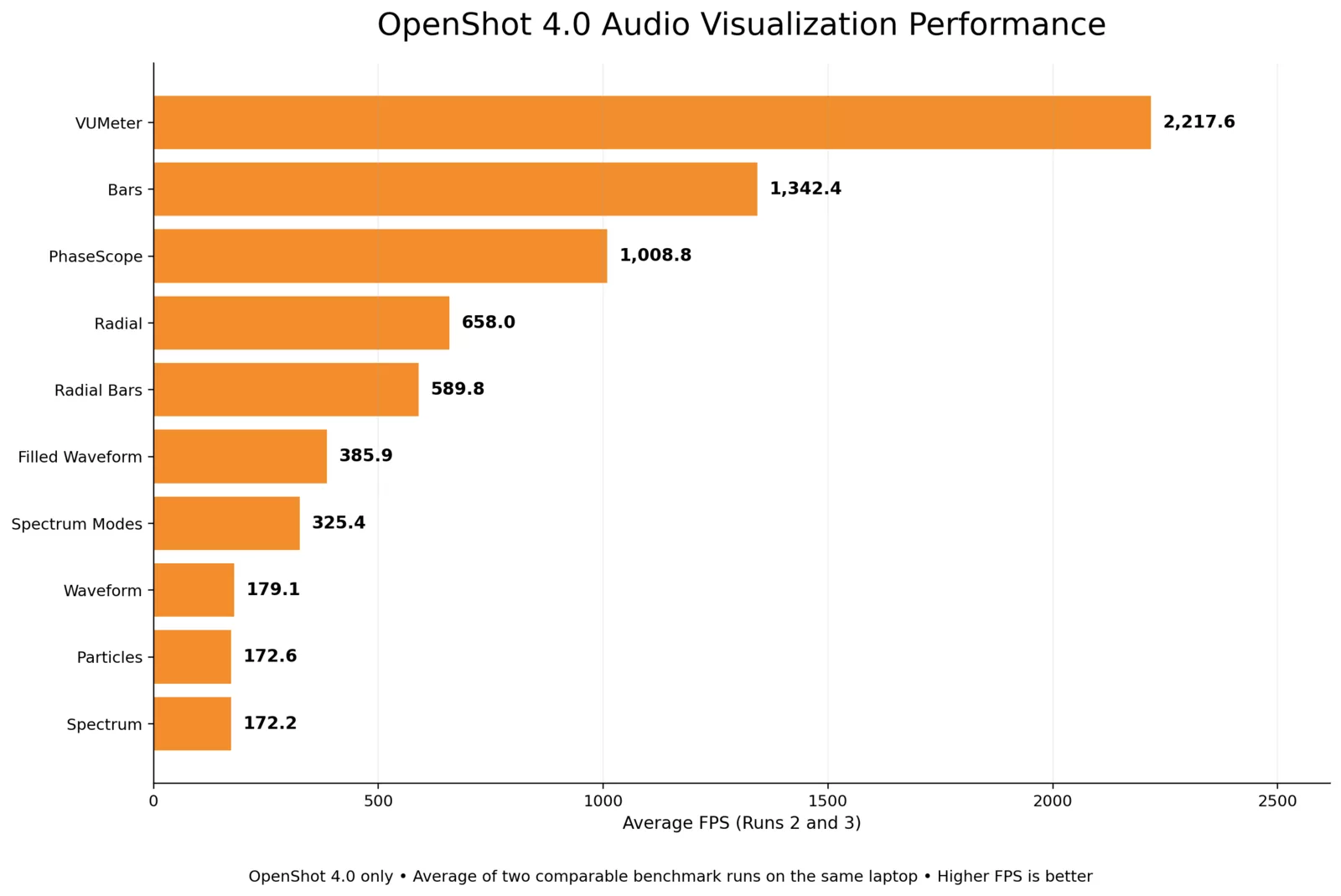
These visuals are designed to animate smoothly, not simply look good in a still frame. In our performance testing, every visualization mode ran well above common 24, 30, and 60 FPS project rates. Even the most demanding modes exceeded 170 frames per second, while Bars, PhaseScope, and VU Meter processed at more than 1,000 FPS.
Beat Sync turns the energy in an audio clip into a color layer that reacts to beats and loud sounds. Adjust the frequency range, threshold, response curve, attack, and release, then composite the result over another video. It is a flexible building block for flashes, rhythmic color changes, and music-driven edits.
Add texture, light, and polish
- Film Grain adds repeatable, animated grain with controls for size, softness, clumping, tonal response, color variation, evolution, and coherence. Ready-made looks include 35mm Fine, 35mm Classic, 35mm Gritty, 16mm Classic, Super 8, and High ISO.
- Denoise Image reduces luma grain and color speckles while protecting motion and detail. A brightness response curve lets you clean noisy shadows more strongly than highlights.
- Shadow creates soft drop shadows with adjustable color, distance, angle, blur, spread, and opacity.
- Glow adds an outer or inner halo around visible pixels. It works especially well with text, logos, transparent images, and masked subjects.
Build new visual ideas
- Displacement Map uses an image or video to warp another clip. Create water ripples, heat haze, refractive glass, mirages, and animated distortions.
- Timer generates configurable count-up and count-down displays for tutorials, challenges, sports, presentations, and social videos.
- Color Grade powers the new correction and grading workflow described above.
- Object Mask creates a reusable animated mask around a selected subject.
Create Animated Object Masks on Your Own Computer
Removing a background or isolating a moving subject usually means drawing a mask frame by frame. The new Object Mask effect gives you a much faster starting point.
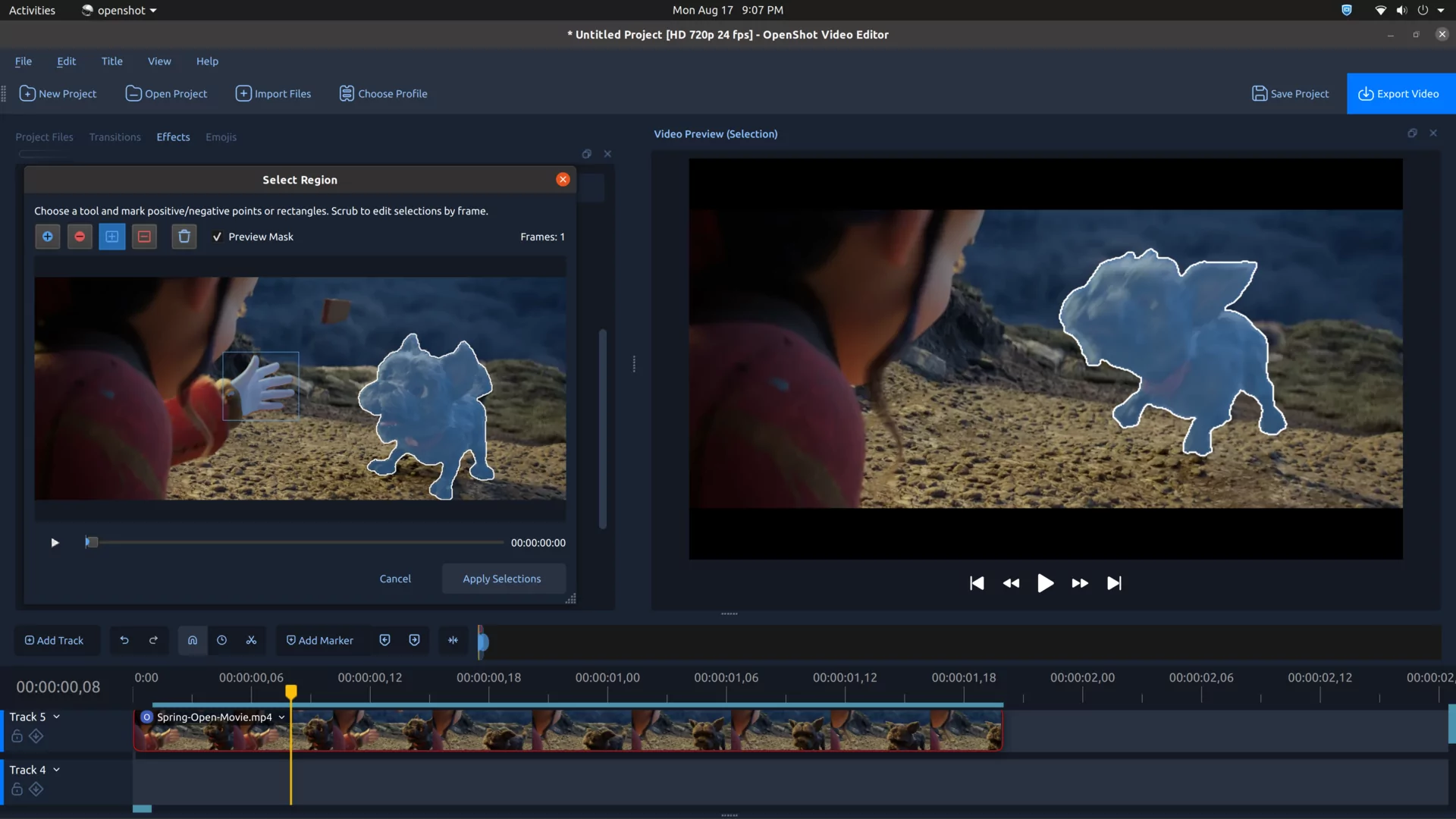
Add a few positive points on the subject and negative points on the surrounding area. OpenShot generates a detailed selection preview, then follows that mask through the clip. Add more prompts on difficult frames when the subject changes shape or becomes hidden.
Most importantly, this workflow runs locally. OpenShot uses free machine learning models that can be downloaded when you need them and run on your own computer. The collection includes YOLO, EfficientSAM, and Cutie models converted to the ONNX format so libopenshot and OpenCV can execute them locally. There is no cloud processing requirement, no AI account, and no AI subscription. Your source footage does not need to be uploaded to a remote service.
The finished mask can be displayed as an effect or reused as the mask source for Blur, Pixelate, Color Grade, and other OpenShot effects. You can modify only the subject, invert the mask to modify the background, or combine multiple effects for more advanced composites.
Object Detection has also received a major update. OpenShot now supports downloadable YOLOv5 ONNX models, model validation, segmentation masks, and improved controls for detected objects. You can adjust which objects appear, how boxes and labels are drawn, and how individual tracked objects are transformed.
Local models, local footage: Object Mask and Object Detection are designed around downloadable models that run on your machine. Performance depends on your computer and the selected model, but access to the feature does not depend on a paid cloud service.
A Cleaner, Fully Native Timeline
The timeline is where editors spend most of their time, so even a small improvement can change how the whole application feels. OpenShot 4.0 completes the move away from the old web-based timeline components. Clips, transitions, keyframes, tracks, rulers, menus, and interaction are now handled through a native Qt timeline.
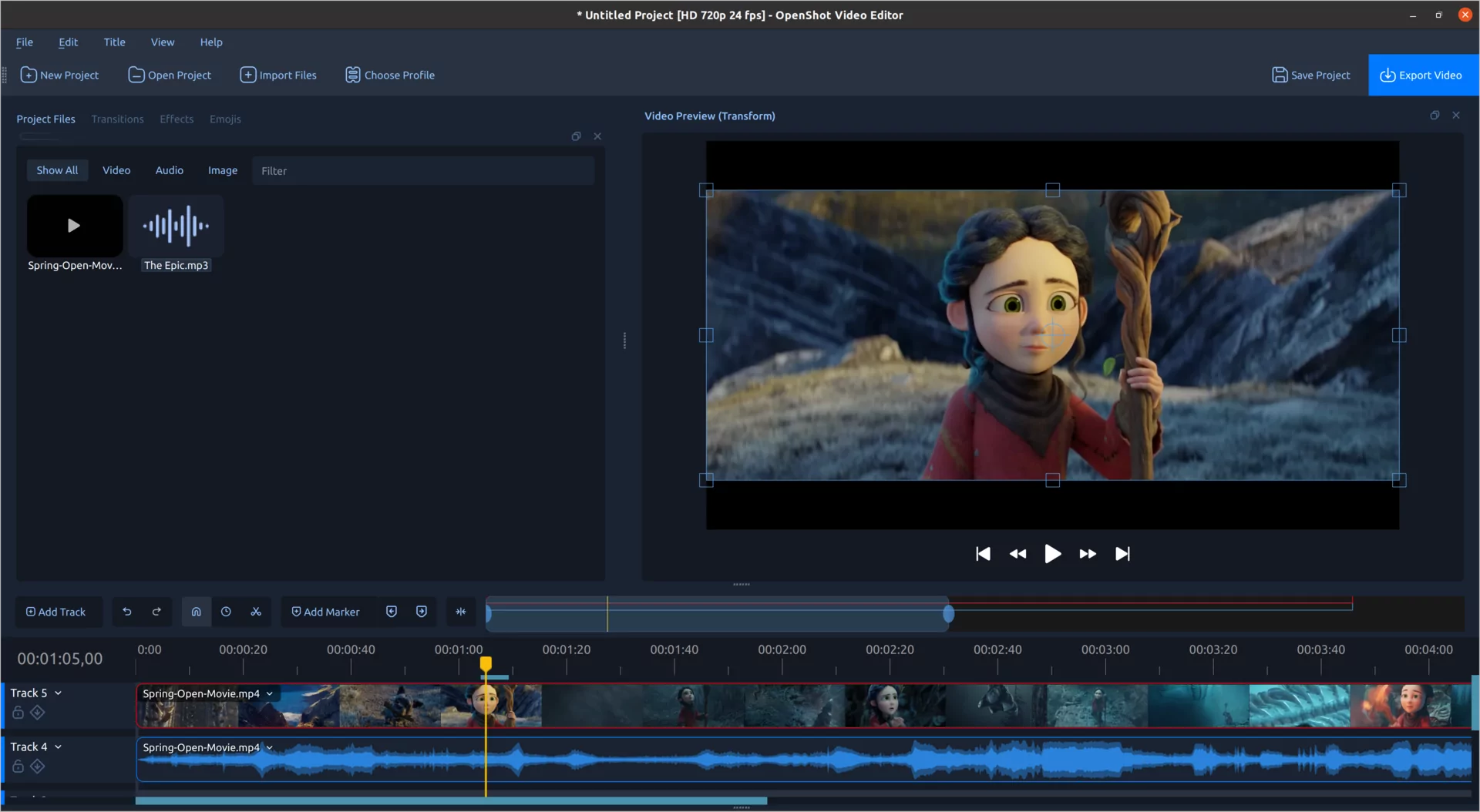
The result is a cleaner and more consistent editing surface. Clip and transition names sit in compact menu containers. Effect icons remain visible at smaller zoom levels. Thumbnail spacing better follows the source aspect ratio, and smoother zooming reduces distracting jumps and jitter.
The current timecode in the ruler can now be edited directly. Click it, enter a new value, and press Enter to move the playhead. The Up and Down keys can adjust the selected time segment, with modifier keys for larger or smaller steps.
Keyframes also have clearer menus for changing interpolation or removing a point. The keyframe panel understands the richer animated data used by color wheels and curves, and retiming a clip now scales those nested keyframes with the rest of the animation.
Many smaller corrections are included as well. Timeline pasting now respects the visible track position, cache and marker graphics scroll more reliably, smooth zooming keeps its position better, mouse-wheel tilt can scroll horizontally, and timeline items hidden beneath the ruler no longer receive accidental clicks.
Faster Effects, Smoother Editing
New creative tools are much more useful when they can keep up with your project. OpenShot 4.0 includes focused performance work throughout the editor and the libopenshot video engine, from everyday timeline drawing to computationally expensive image effects.
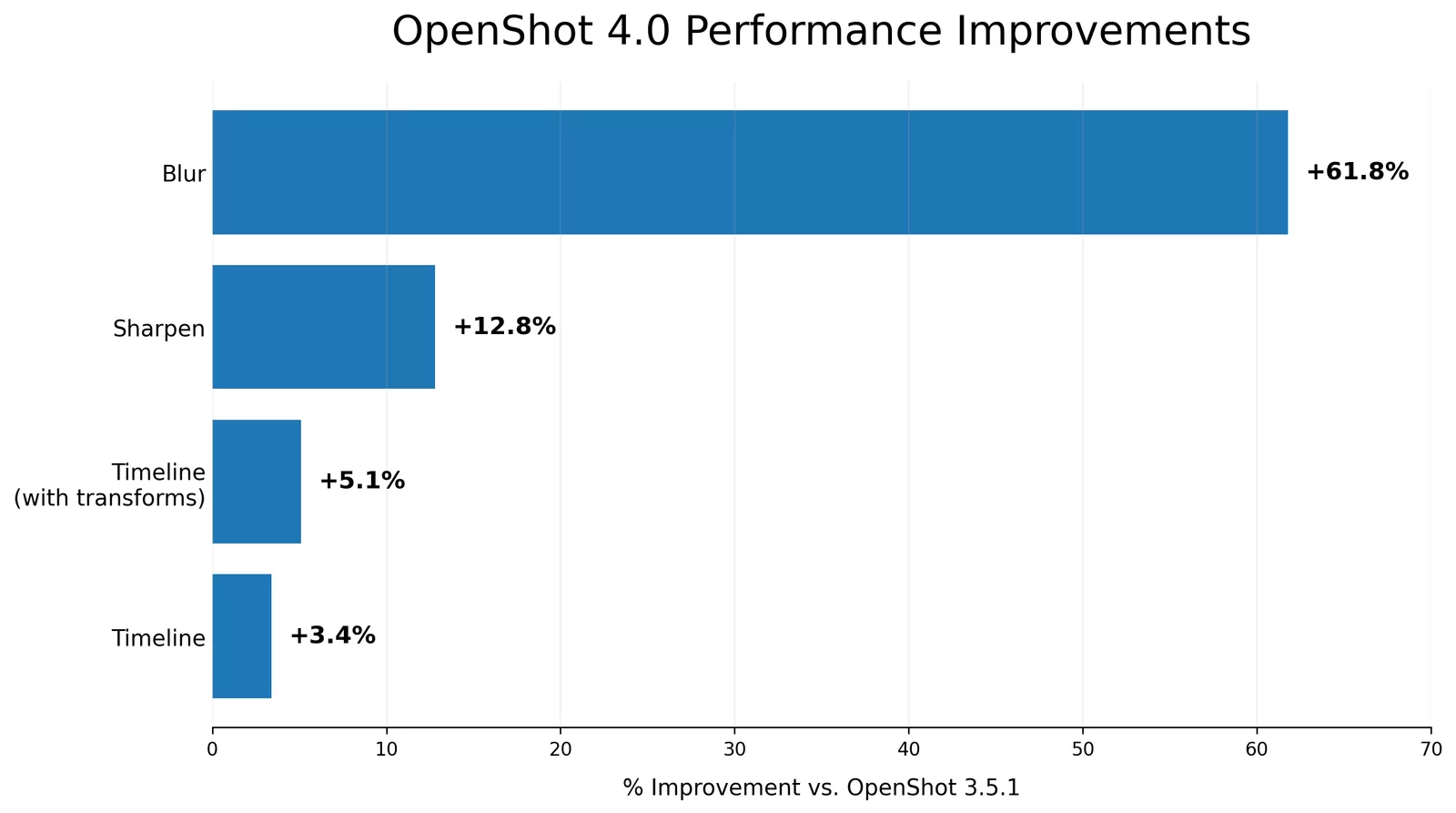
In our OpenShot 4.0 benchmark comparisons against version 3.5.1, the Blur effect completed its test workload 61.8% faster, while Sharpen improved by 12.8%. Timeline rendering improved by 3.4%, rising to 5.1% in the timeline test with transforms.
The timeline percentages may look modest beside the much larger Blur result, but their impact is broad and meaningful. Timeline work touches almost every part of an editing session, including clip editing, preview updates, thumbnail rendering, scrolling, zooming, transforms, and keyframe adjustments. Even a small improvement in a path used this often can make the entire editing experience feel more responsive.
The work goes beyond the four tests shown here. OpenShot 4.0 also reduces processing costs in video scopes, Color Grade, Film Grain, and audio visualization modes. Filled waveforms use a faster drawing path, color analysis avoids unnecessary per-frame work, and several effects now skip calculations they do not need. We have also expanded the libopenshot benchmark suite so future performance changes can be measured more consistently.
Smarter Motion and Easier Clip Menus
OpenShot's clip menu has been reorganized around the way people actually edit. Related choices now live under clearer groups such as Transform, Look, Audio, Speed, and Motion. Reset options are easier to find, and commands adapt to whether a clip contains video, audio, or both.
Better Titles, Captions, Media, and Export Workflows
OpenShot 4.0 includes improvements throughout the rest of the editing process. Caption editing has a better preview workflow, and animated titles can now be exported as MP4 files from the Export Files menu. Blender 5.x compatibility work fixes title colors, material nodes, keyframes, and compositor behavior across more animated title templates.
Media importing preserves the user's selection order and uses a better fallback sequence when the first reader cannot open a file. This includes improved FLAC handling and sharper SVG thumbnails. EDL and Final Cut Pro XML import and export paths have also received broader test coverage and compatibility fixes.
Export choices have been refreshed with modern presets for platforms such as TikTok, Instagram, Facebook, Snapchat, and LinkedIn. Older standard-definition presets that no longer serve most users have been cleaned up.
Built for Modern Desktops and Future Platforms
A major-version release is not only about what appears on the screen today. OpenShot 4.0 includes a large modernization effort across the user interface, build system, packaging, and underlying C++ libraries.
Expanded Qt 6 and PySide6 compatibility helps OpenShot fit more naturally into current Linux distributions while preserving the flexibility needed by existing builds. Desktop portal integration improves file access and screen capture on modern Linux environments. High-DPI scaling, dock restoration, window movement, and theme behavior have also received extensive attention across Windows, macOS, and Linux.
This work also opens the door to platforms that OpenShot has not traditionally supported. The codebase now includes important Android compatibility foundations for file access, rendering, Qt bindings, and large ARM64 memory addresses. Android is not being announced as a supported OpenShot 4.0 release platform, and we do not have a release date to share. Still, it is exciting to see the architecture become more portable and ready for future experiments.
Under the hood, libopenshot reaches version 1.0.0 with new effects, live capture readers, color analysis, local object masking, Qt 6 support, and many stability fixes. libopenshot-audio also reaches version 1.0.0. Together, these libraries provide the media and audio foundation behind the OpenShot editor.
Hundreds of Fixes and Refinements
Alongside the headline features, OpenShot 4.0 includes hundreds of fixes, tests, and smaller improvements. They touch playback, caching, clip readers, recording timestamps, waveform accuracy, end-of-clip frames, copy and paste, exports, dock layouts, high-DPI displays, model downloads, translations, and much more.
We have intentionally kept this announcement focused on what these changes mean for creators. Developers and curious users can find the repository-specific release notes and source history on GitHub:
- OpenShot Video Editor 4.0.0 release notes
- libopenshot 1.0.0 release notes
- libopenshot-audio 1.0.0 release notes
Thank You to Blender and Its Open Movie Artists
Many of the screenshots in this post feature Spring and Sprite Fright, two beautiful Open Movies created by Blender Studio. Blender's Open Movie projects are an incredible gift to the creative community. They showcase remarkable filmmaking, openly share production assets, and help move free creative software forward. We are grateful to use this work as test footage throughout OpenShot.
Film footage: Spring and Sprite Fright. Copyright Blender Foundation, available under Creative Commons Attribution licenses. (CC) Blender Foundation | studio.blender.org
A Special Thank You to Raffi
I want to give a special thank you to Raffi for his dedication to the OpenShot community. He spends countless hours helping users, sharing support and practical tips, and making sure important user issues are heard. His advocacy has helped guide bug fixes and improvements throughout this release, making a huge positive impact on the entire community. Thank you, Raffi!
Thank you to every contributor, translator, tester, supporter, and community member who helped shape this release. Your bug reports, ideas, code, patience, and encouragement continue to make OpenShot better.
If OpenShot has helped you create, learn, teach, or share your story, please consider supporting the project. Donations help fund development, infrastructure, testing, documentation, and future releases.
Most helpful for sustaining OpenShot
Download OpenShot 4.0
OpenShot 4.0 brings recording, editing, color finishing, animated graphics, local machine learning tools, and export together in one free, open-source video editor. Whether you are making your first video or polishing a complex project, we hope these new tools help you spend less time working around limitations and more time creating.