This guide will describe how to setup a persistent browser (for Evil Corp) that’s isolated in a sandbox (with firejail) and forced to use a SOCKS5 proxy to retain a static IP address (using proxychains)
Have you ever been locked out of your own account, and then got an email for your service provider annoyingly letting you know that they’ve “blocked a login attempt — for your protection?“
There’s countless reports of frustrated users who have permanently lost access to their own gmail accounts because of Google’s faulty “fraud protection” systems that locked the account owner out of their own account, due to false-positives.
Especially the past 10 years, large corporations have been using machine learning anomaly detection systems on their login pages. Unfortunately, sometimes this is (ab)used to have priority over credential authentication challenges.
Even if you enter your username, password, and 2FA credentials correctly on the very first login attempt, you may get locked out of your own account because you “look different”
Even if you enter your username, password, and 2FA credentials correctly on the very first login attempt, you may get locked out of your own account because you “look different”.
These systems wouldn’t be so terrible if:
- The anomaly detection was account-specific, and
- A user could disable anomaly detection (because it causes more harm than good)
The biggest issue with machine-learning anonmoly-detection systems is that they’re frequently not trained on a specific user’s account.

I say: TAILS is the most secure OS we have today
If, for example, I signed-up for my account using an IP address that’s a known Tor Exit node, then it is not an anomaly for my account to see a login attempt coming from a Tor Exit node.
And if every time I login to my Google account, it’s from a new IP address that has never been used before to login to my account, then it is not an anomaly for my account to see a login attempt from a new IP address. Or, say, if it’s very common for me to login from a different country almost every time I login, then it is not an anomaly to see a login attempt originating from a new geoip region.
And if every time I login, you fingerprint my browser and discover that, huh, you can’t actually associate my fingerprint with any prior history (even across the panoptic dataset that you collect from almost all of the internet), then it is not an anomaly to see a login attempt originating from a new session whoose fingerprint you have 0 historical data-on
As a freelance sysadmin, I frequently have clients who need me to login to their E-Corp service providers.
As a security- and privacy-conscious freelance sysadmin, I’m frequently locked out of these Google, Facebook, and Bank accounts — even when I enter the correct authentication credentials on the first try.
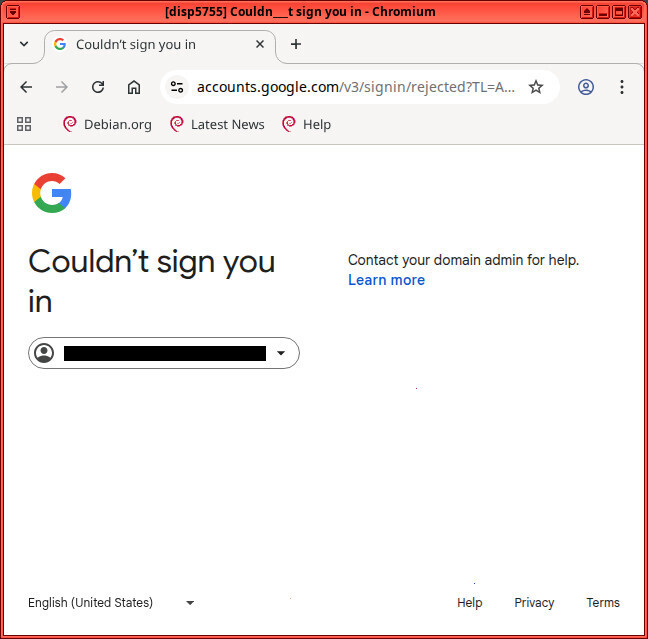
God damn it Google, I am the domain admin, and you locked me out (even though I entered the correct username and password on the first attempt!)
Since most of these service providers don’t let you simply turn-off their terribly faulty anomaly detection systems (that, in fact, cause more harm than good for users with strong passphrases and TOTP 2FA enabled), I’ve had to create a tool to minimize myself getting locked-out of my own accounts: Persistent, Sandboxed, Single-Site Browsers using firejail and proxychains.
It’s absurd that we have to do all of this just to prevent Google from stealing our gmail accounts and Meta from stealing our facebook accounts, but this is where we are in 2026: the age of AI-driven, false-positive, idiocracy-level distopia.
If you’re a smart and privacy-conscious Internet user, hopefully you don’t use a persistent web browser. To protect yourself from persistent infections and fingerprint tracking, it’s best to use an ephemeral browser for your daily internet browsing.
It’s also a good idea to install some privacy-focused extensions, such as uBlock Origin (to block tracking scripts), Cookie AutoDelete (to wipe cookies as soon as you close a tab), Chameleon (to change your fingerprint every 30 seconds), etc.
And, finally, you should be completely blocking all requests to any multinational corporations that have a track record of installing tracking scripts or malware on a wide network of third-party domains. For domains owned by Google and Meta, it’s best to block all traffic to them in your daily-use ephemeral browser, and use a dedicated single-site ephemeral browser for such websites.
In many ways, the solution presented in this guide does the opposite of ^ these best-practices. You’ll still be using a single-site browser (eg blocked from accessing anything but Google’s services), but it will be persistent (not ephemeral) and vanilla (with no privacy- or security-extensions installed).
⚠ NOTE: This article is about harm reduction.
It is hazardous to your online privacy to use Google or Facebook accounts. It is a risk to your operational security to use a persistent browser. However, sometimes we cannot avoid using such services.
If you’re going to proceed with using a Google or a Facebook account, then following the steps outlined in this guide may reduce your risk of having much of your Internet browsing activities collected and sold by these companies — while also reducing the risk that you’ll get DOSed by those service providers’ faulty “fraud protection” systems.
It should go without saying that (without such protections in-place), this means that these services would likely be able to track much of your activity across many websites that you visit in this browser — but this risk is mitigated by making it a single-site browser.
The key to why this solution should prevent us from getting locked-out of our own accounts is the persistence. In this persistent browser, the service provider (eg Google) should be able to track your activity from login-to-login. They should see the cookies they installed in your browser at your last login. And, because we’re going to pass all of the traffic through a SOCKS5 proxy with a static IP address, they should see that the IP address you’re using is the same from login-to-login — even if you’re using a VPN.
Assumptions
This article assumes that you have ssh access to a server with a static IP address somewhere in the world.
Software Versions
This guide was published in 2026, and it uses the following software and versions:
- Debian 12 (bookworm)
- Firejail v0.9.72
- Proxychains v3.1
If you’re using a different OS, firejail, or proxychains versions, then adaptations to the below commands & files may be necessary.
SOCKS proxy
We use ssh to bind a secure tunnel to a server on a SOCKS proxy at 127.0.0.1:9350. Applications that are configured to use a SOCKS5 proxy at 127.0.0.1:9350 will pass their connections through the ssh tunnel, such that the destination of the connection appears to originate from the ssh static server’s IP address (as opposed to your ISP’s dynamic IP address).
This will ensure that, even if you’re a digital nomad that changes your physical location every month, the E-corp service that you’re trying to log-into will see that your connection is originating from the same location every time.
We can create the SOCKS proxy on 127.0.0.1:9350 using the following SSH command.
ssh -ND 127.0.0.1:9350 example.com
Obviously, you’ll need to replace ‘example.com‘ with your server’s hostname or IP address.
Firejail
We use firejail to jail the Single-Site Browser in a security sandbox at the kernel-level. This, for example, prevents this instance of Firefox from being able to access most of the user’s disk.
Proxychains
We use proxychains to force all of the traffic of our sandboxed (firejail-ed) firefox browser through our SOCKS proxy.
This is better than setting the proxy in the browser’s “Network Settings” — as it forces the browser to go through the proxy — eliminating the risk of browser misconfiguration leading to us bypassing the proxy (and therefore risking us getting locked out of our E-Corp accounts).
The Script
Before creating the script to launch our SSB, we need to create the SOCKS5 proxy by connecting to our ssh server.
# create a SOCKS5 proxy to your ssh server; leave this open in the background
ssh -p <ssh_server_port> -ND 127.0.0.1:9350 <ssh_server_user>@<ssh_server_host>
For example
user@disp1913:~$ ssh -p 22 -ND 127.0.0.1:9350 user1@example.com
As the example above shows, if everything goes OK then there should be no output. Just leave that running in a terminal in the background. If it closes, your SOCKS5 proxy will also close (and the proxychain-ed SSB won’t have internet access).
Now that we have an open ssh connection for our SOCKS5 proxy on ‘localhost:9350‘, let’s create a script that we’ll execute to launch our SSB. Before copying-and-pasting this into your terminal, you should change the first 4 variables. In our example, we’re creating an ssb for “Google” and using ‘example.com’ for the hostname of our SOCKS5 server. If you connect to your SOCKS5 server (over ssh) on a non-standard port, you should also change ‘SOCKS_PORT‘.
After editing the first 4 variables, copy and paste the following snippet into your terminal.
############
# SETTINGS #
############

# define the new Site Specific Browser (SSB) name and
SSB_NAME=google
SSB_URL='https://google.com'
SOCKS_HOST='example.com'
SOCKS_PORT='22'

mkdir ~/.mozilla/firefox/${SSB_NAME}

# create the script to launch our SSB
cat << EOF > ~/.mozilla/firefox/${SSB_NAME}/${SSB_NAME}.sh
#!/bin/bash
################################################################################
# Author:  Michael Altfield <michael@michaelaltfield.net>
# Created: 2025-10-12
# Updated: 2025-10-12
# Version: 0.1
# Purpose: Start an Stateful Firefox that's Site-Specific
################################################################################

############
# SETTINGS #
############

SSB_NAME="${SSB_NAME}"
SSB_URL="${SSB_URL}"
PROFILE_PATH="\${HOME}/.mozilla/firefox/\${SSB_NAME}"
SOCKS_HOST="${SOCKS_HOST}"
SOCKS_PORT="${SOCKS_PORT}"

#########################
# START SSH SOCKS PROXY #
#########################

if [[ ! \$(ps -ef | grep -i ssh | grep 9350) ]]; then
	ssh -p \${SOCKS_PORT} -ND 127.0.0.1:9350 \${SOCKS_HOST} &
fi

##############################
# START SSB-SPECIFIC FIREFOX #
##############################

firejail --profile=firefox --whitelist="\${PROFILE_PATH}" proxychains firefox -no-remote -new-instance -profile "\${PROFILE_PATH}" "\${SSB_URL}"

# clean exit
exit 0
EOF
chmod +x ~/.mozilla/firefox/${SSB_NAME}/${SSB_NAME}.sh

# create proxychains config file
cat > ~/.mozilla/firefox/${SSB_NAME}/proxychains.conf <<'EOF'
strict_chain
#proxy_dns

[ProxyList]
socks5 127.0.0.1 9350
EOF
Now you can open the firejail-restricted and proxychain-ed SSB with the following commands
cd ~/.mozilla/firefox/${SSB_NAME}
./${SSB_NAME}.sh
For example
user@disp1913:~/.mozilla/firefox/google$ ./google.sh
Reading profile /etc/firejail/firefox.profile
Reading profile /etc/firejail/whitelist-usr-share-common.inc
Reading profile /etc/firejail/firefox-common.profile
Reading profile /etc/firejail/disable-common.inc
Reading profile /etc/firejail/disable-devel.inc
Reading profile /etc/firejail/disable-exec.inc
Reading profile /etc/firejail/disable-interpreters.inc
Reading profile /etc/firejail/disable-proc.inc
Reading profile /etc/firejail/disable-programs.inc
Reading profile /etc/firejail/whitelist-common.inc
Reading profile /etc/firejail/whitelist-run-common.inc
Reading profile /etc/firejail/whitelist-runuser-common.inc
Reading profile /etc/firejail/whitelist-var-common.inc
Warning: networking feature is disabled in Firejail configuration file
Seccomp list in: !chroot, check list: @default-keep, prelist: unknown,
Parent pid 9522, child pid 9525
Warning: An abstract unix socket for session D-BUS might still be available. Use --net or remove unix from --protocol set.
Warning: cleaning all supplementary groups
Warning: cleaning all supplementary groups
Seccomp list in: !chroot, check list: @default-keep, prelist: unknown,
Warning: cleaning all supplementary groups
Warning: Replacing profile instead of stacking it. It is a legacy behavior that can result in relaxation of the protection. It is here as a temporary measure to unbreak the software that has been broken by switching to the stacking behavior.
Child process initialized in 110.35 ms
ProxyChains-3.1 (http://proxychains.sf.net)
|S-chain|-<>-127.0.0.1:9350-<><>-34.160.144.191:443-<><>-OK
|S-chain|-<>-127.0.0.1:9350-<><>-34.160.144.191:443-<><>-OK
|S-chain|-<>-127.0.0.1:9350-<><>-34.107.221.82:80-<><>-OK
|S-chain|-<>-127.0.0.1:9350-<><>-199.232.17.91:443-<><>-OK
|S-chain|-<>-127.0.0.1:9350-<><>-34.160.144.191:443-<><>-OK
|S-chain|-<>-127.0.0.1:9350-<><>-34.36.137.203:443-<><>-OK
|S-chain|-<>-127.0.0.1:9350-<><>-173.194.69.147:443-<><>-OK
|S-chain|-<>-127.0.0.1:9350-<><>-199.232.17.91:443-<><>-OK
|S-chain|-<>-127.0.0.1:9350-<><>-34.107.243.93:443-<><>-OK
|S-chain|-<>-127.0.0.1:9350-<><>-34.120.208.123:443-<><>-OK
|S-chain|-<>-127.0.0.1:9350-<><>-34.107.221.82:80-<><>-OK
|S-chain|-<>-127.0.0.1:9350-<><>-142.251.31.94:80-<><>-OK
|S-chain|-<>-127.0.0.1:9350-<><>-142.251.31.94:80-<><>-OK
|S-chain|-<>-127.0.0.1:9350-<><>-142.251.31.94:80-<><>-OK
|S-chain|-<>-127.0.0.1:9350-<><>-199.232.17.91:443-<><>-OK
|S-chain|-<>-127.0.0.1:9350-<><>-199.232.17.91:443-<><>-OK
|S-chain|-<>-127.0.0.1:9350-<><>-199.232.17.91:443-<><>-OK
|S-chain|-<>-127.0.0.1:9350-<><>-142.251.31.94:80-<><>-OK
|S-chain|-<>-127.0.0.1:9350-<><>-2.17.190.73:80-<><>-OK
After executing the above script, a new sandboxed, single-site browser profile will open.
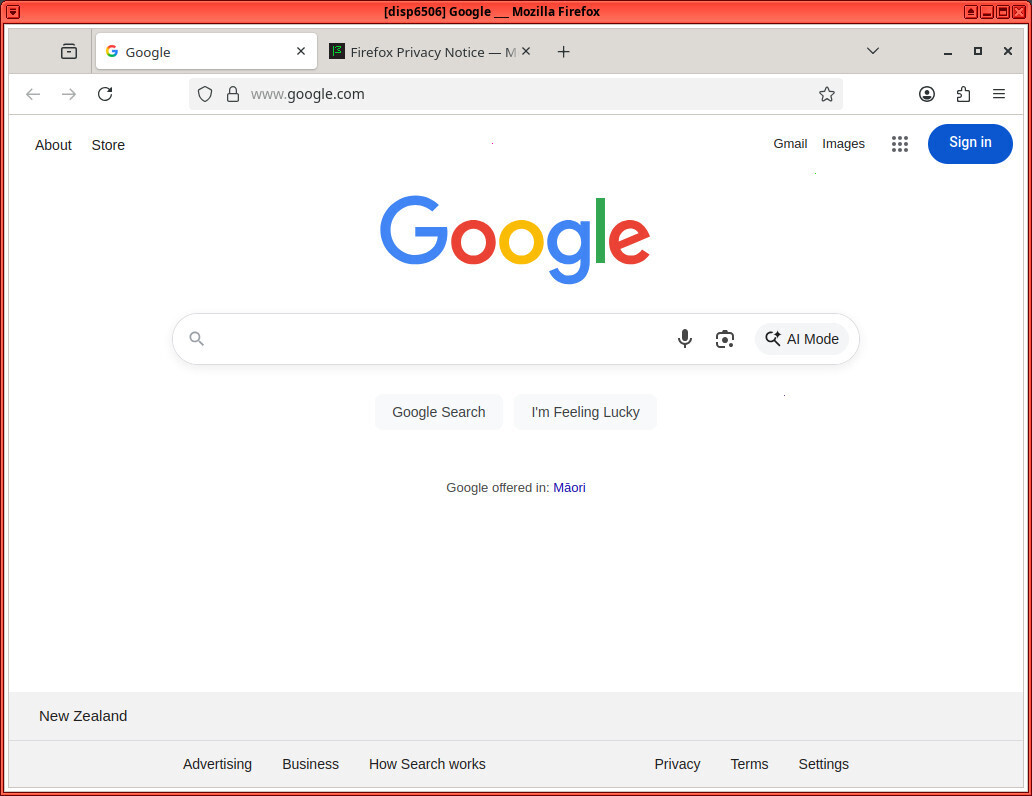
Executing the script opens a sandboxed browser profile
The Config
At this point you have a script to launch a firejail-ed and proxychain-ed firefox profile, but it is not a Single-Site Browser.
There’s a number of ways to restrict a firefox profile from being able to access all-but-one website. Probably the best way is to configure firejail with specific netfilter rules, but that’s cumbersome and rots over time.
I’ve also used a number of proxy-related browser plugins, but those have also come-and-gone over the years, leaving me with a useless SSB more frequently than I’d like to roll-up my selves and fix its config.
In fact, the most durable and easy way to configure firefox as a SSB is to just set it to use a bullshit, non-existant proxy for all sites — and then just define a set of exceptions for the sites you actually want it to be able to reach.
First, open firefox settings. Then scroll down on the “General” tab, and click the “Settings” button under “Network Settings”
Now, do the following
1. Change “No proxy” to “Manual proxy configuration”
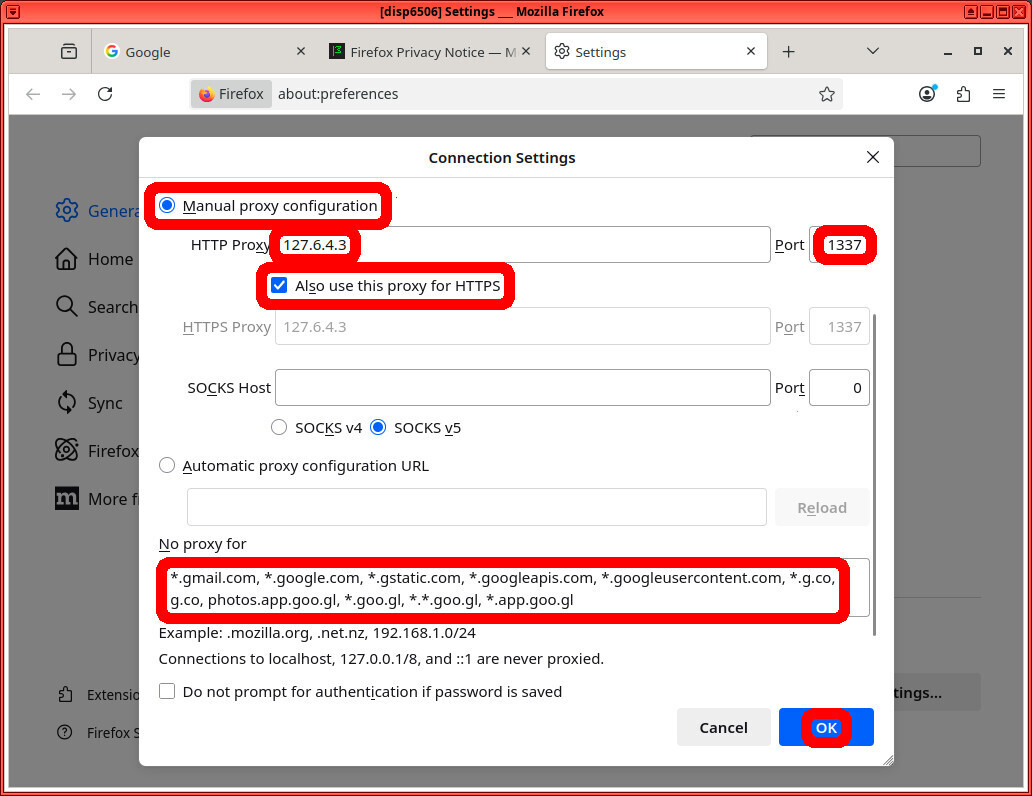
Choose a bullshit manual proxy, and add exceptions for all the domains that we *do want* the browser to be able to reach
You should now be able to access gmail.
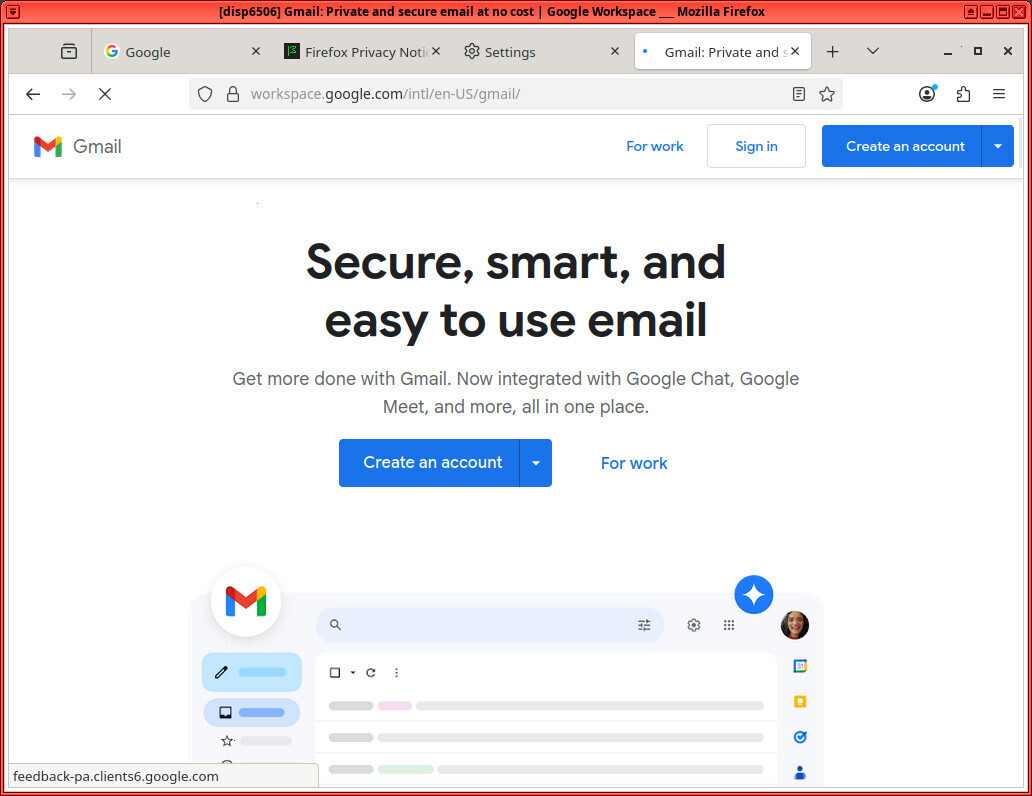
Our Network Settings proxy is configured to fail on non-google domains
But, as desired, your browser will fail to be able to load content from any non-google website (whitelisted above).
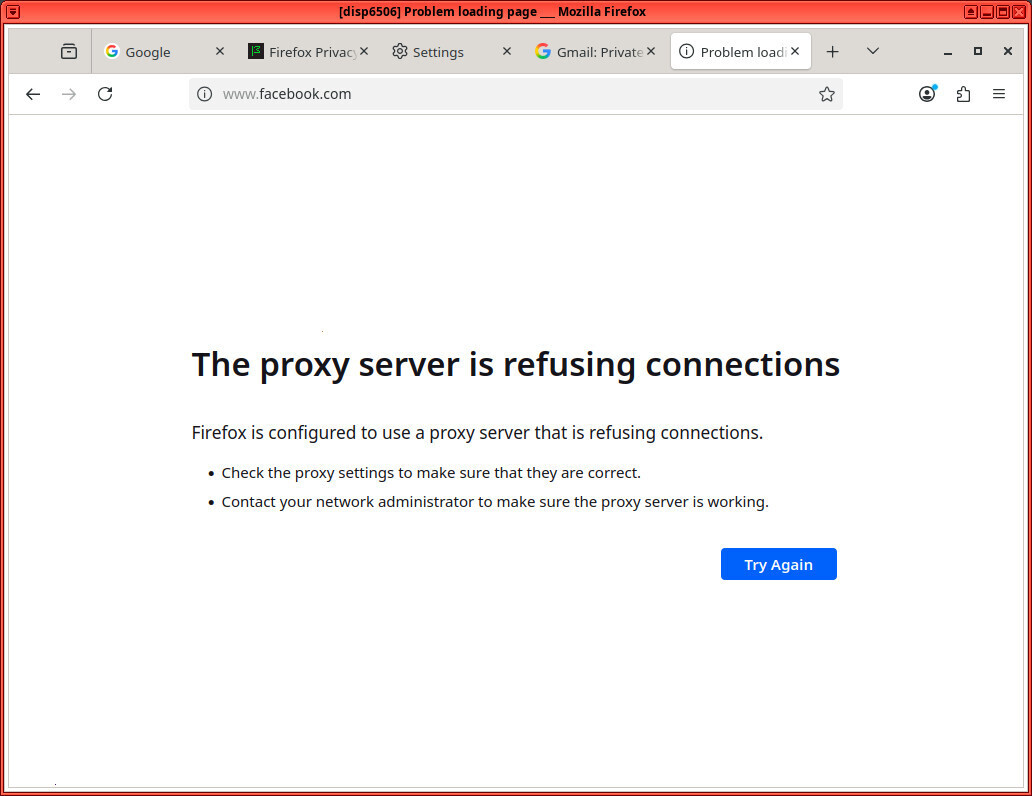
Our Network Settings proxy is configured to fail on non-google domains
Desktop Shortcut
Finally, we create an xdg desktop entry and create a symlink to it for a shortcut on the desktop.
user@host:~$ export SSB_NAME="google"
user@host:~$ export PROFILE_PATH="${HOME}/.mozilla/firefox/${SSB_NAME}"
user@host:~$ [ ! -d $HOME/.local/share/ ] && mkdir $HOME/.local/share/
user@host:~$ cat << EOF > $HOME/.local/share/${SSB_NAME}-ssb.desktop
[Desktop Entry]
Type=Application
Name=Ephemeral Firefox
Icon=firefox
Path=${PROFILE_PATH}
Exec=./${SSB_NAME}.sh
EOF
user@host:~$ ln -s $HOME/.local/share/${SSB_NAME}-ssb.desktop $HOME/Desktop/
user@host:~$ chmod +x $HOME/Desktop/${SSB_NAME}-ssb.desktop
user@host:~$
Now you can just double-click the icon on your desktop to start your new persistent SSB.
If you ever have an issue loading a site, you can troubleshoot new domains to add to the proxy whitelist by using the ‘Network‘ tab of the browser debugger.
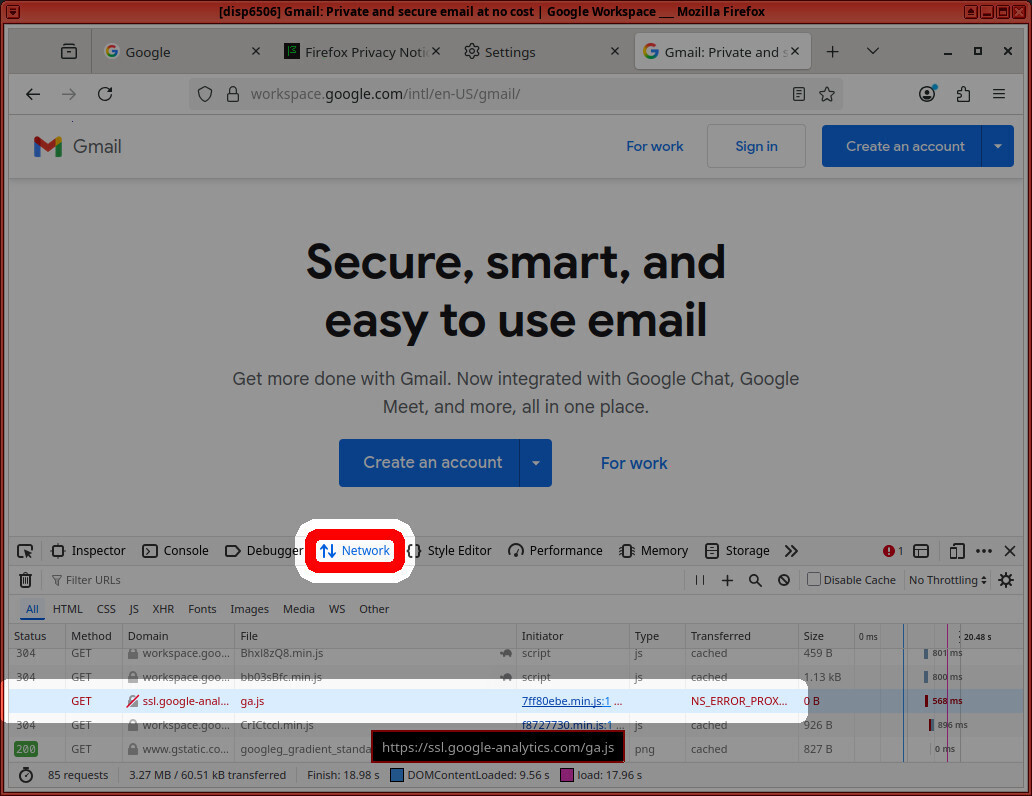
Remember to always block google-anal…
The above screenshot shows that the browser failed to connect to ‘ssl.google-analytics.com‘ due to ‘NS_ERROR_PROXY_CONNECTION_REFUSED‘. If you actually want to connect to that domain, you can add it to the whitelist
DNS
The script presented in this article has DNS leaks, so Evil Corp’s broken anomaly detection might still flag your login, if they did a fingerprint check that looks at your SSB’s DNS config (unlikely).
They’re still going to see the IP address of your SSH server. So, for the purposes of this article, it should be good-enough.
But proxychains does have a ‘proxy_dns‘ option. We just disabled it due to errors
/usr/lib/proxychains3/proxyresolv: 16: dig: Permission denied
If you know how to update the ‘proxychains‘ config to force all dns queries through the SOCKS5 proxy without causing the error above, please comment on this article with how.
“Can’t login due to false-positives? Fuck you; wontfix”
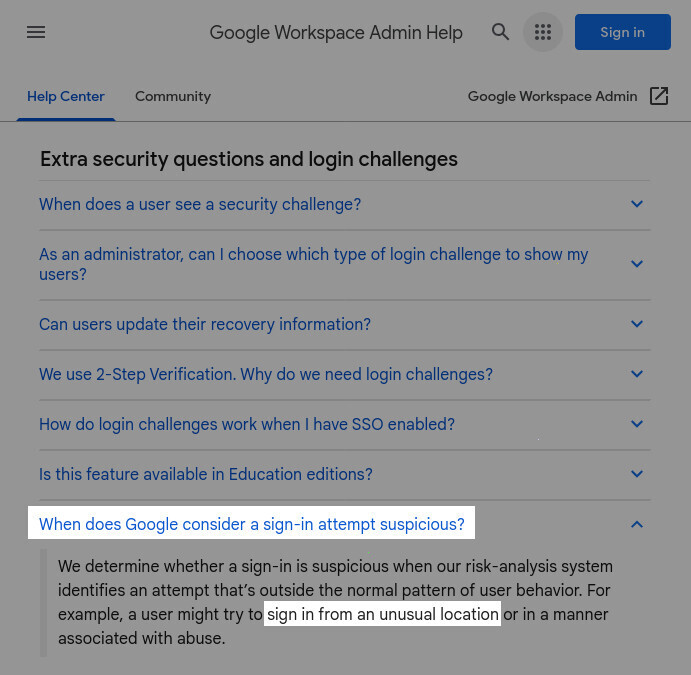
Google admits that they’ll lock you out of your own account if you sign in from a new location
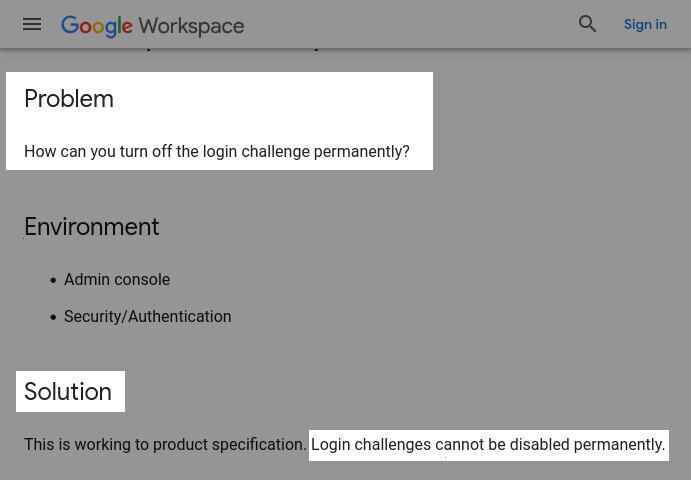
Google says “fuck you; won’t fix” to requests to disable their “login challenge” — even though it’s obviously broken (false-positives)
What Google Says
- Google admits that they’ll lock you out of your own account when their “risk-analysis system” sees you trying to login from an unusual location
- Google says that these broken Login challenges cannot be disabled permanently
Translation: “Our risk-analysis system is broken. We know it. You know it. Fuck you; wontfix”
Why are these Tech companies so dumb?
For a long time, I couldn’t wrap my head around these companies’ positions. These are some of the most powerful companies in the world. They probably have a legitimately excellent team of security engineers on-staff, yet they’re employing such terrible systems that are so rife with false-positives, that they must know that they’re effectively issuing a DOS attack on probably thousands or tens of thousands of their uses. Right??
What’s wrong with them?
Unfortunately, these companies are usually very tight-lipped about such systems, and they appear to intentionally go out of their way to not answer user’s questions as to why they don’t fix this — or at least allow users to disable these faulty “protections” on a per-account basis so that their users are able to opt-into actual protections, which reduce their risk of being locked-out of their own accounts. However, if we think about the most popular services that Google provides, their history, and a segment of their user-base, we get a better idea.
The most elucidating comment I’ve read was written by user Blindspots on this stack exchange answer:
It’s uncommon for companies like Google to share much about their abuse prevention systems or provide simple workarounds, such as allowing users to permanently secure accounts by username & password alone. For Google, the risks posed by security compromises go far beyond the immediate impact felt by owners of compromised accounts.
If we read between the lines, then the full picture comes into focus:
One of the most commonly-used Google services is Gmail. Personally, I think almost everyone I know has a Gmail account (or did have, at least at one time). And when we think about the most notoriously difficult-to-manage problems on the Internet, managing email servers and preventing spam is definitely in the top-ten.
Try to remember all the times that someone gave you an @gmail.com address. Now, try to think of the most computer-illiterate person who gave you their @gmail.com account. If you could order the whole Gmail userbase by computer literacy, try to imagine the lowest 1%. Think grandmas, cops, and Trump supporters. Do you think their passwords are good? Do you think they maybe reused those passwords on another site that might store their email address and account password in plaintext, and then get hacked?
Most likely, Google’s been battle-worn from having to deal with their dumbest users getting their accounts hacked (and the attacker then using your grandma’s Gmail account to send spam — or worse) so much so that they’ve just given up on humanity and made a decision that it’s better to effectively issue a DOS attack on your smart users in exchange for not having to deal with your dumb users getting their accounts taken-over in droves.
Is that a valid excuse? Probably not. If Google buried a hard-to-get-to setting somewhere that let users with a >50-character password disable this notoriously broken “protection,” I highly doubt you’d have many of those dumber users figuring out how to setup their accounts to opt-out of their their horrendously broken “risk-analysis system”
Or, for now, just setup a Persistent, Sandboxed, Single-Site Browser for all your Evil-Corp needs.
Links
- Ephemeral Firefox in Ubuntu (1/3)
- Ephemeral Firefox with Extensions (2/3)
- Ephemeral Firefox as a Site-Specific Browser (3/3)
- Firejail Documentation
- Proxychains Repo
- https://en.wikipedia.org/wiki/Site-specific_browser#Applications
- How To Turn Chrome or Firefox Into A Single-Site Browser Ghacks, 2012

Hi, I’m Michael Altfield. I write articles about opsec, privacy, and devops ➡