In this Friday’s magic demonstration, I’m going to show how what you see in Privacy & Security settings can be misleading, when it tells you that an app doesn’t have access to a protected folder, but it really does.
Although it appears you can achieve this using several ordinary apps, to make things simpler and clearer I’ve written a little app for this purpose, Insent, available from here: insent11
I’m working in macOS Tahoe 26.4, but I suspect you should see much the same in any version from macOS 13.5 onwards, as supported by Insent.
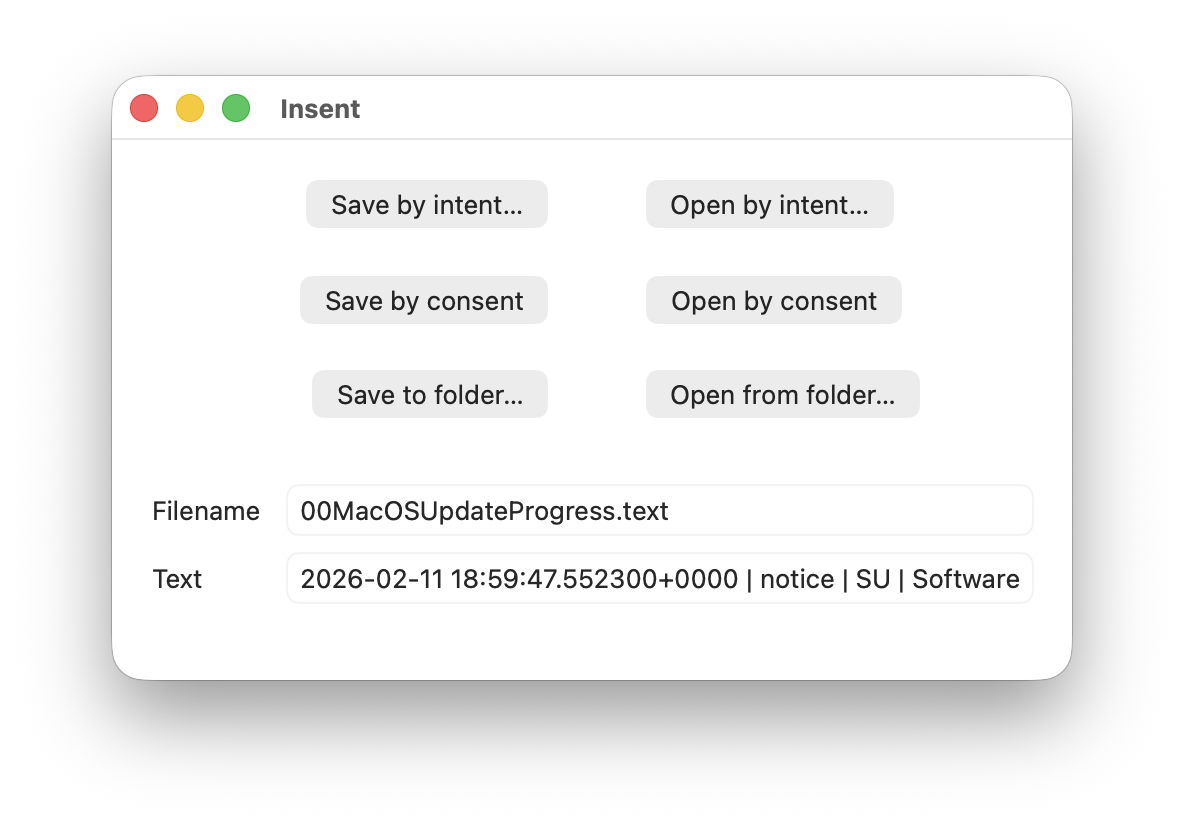
For this magic demo, I’m only going to use two of Insent’s six buttons:
- Open by consent, which results in Insent choosing a random text file from the top level of your Documents folder, and displaying its name and the start of its contents below. As it does this without involving the user in the process, the macOS privacy system TCC requires it to obtain the user’s consent to list and access the contents of that protected folder.
- Open from folder, which opens an Open and Save Panel where you select a folder. Insent then picks a random text file from the top level of that folder, and displays its name and the start of its contents below. Because you expressed your intent to access that protected folder, TCC considers that is good enough to give access without requiring any consent.
Demonstration
Once you have downloaded Insent, extracted it from its archive, and dragged the app from that folder into one of your Applications folders, follow this sequence of actions:
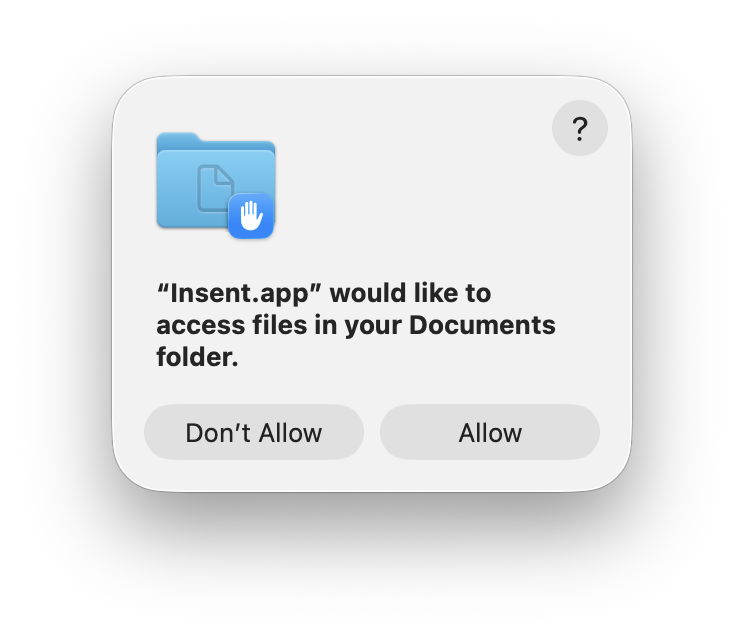
- Open Insent, click on Open by consent, and consent to the prompt to allow it to access your Documents folder. Shortly afterwards, Insent will display the opening of one of the text files in Documents. Quit Insent.
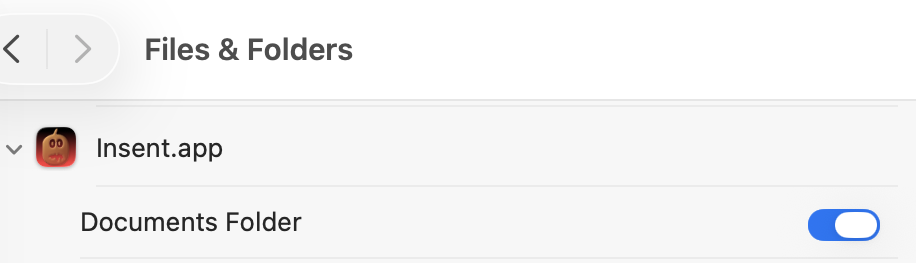
- Open Privacy & Security settings, select Files & Folders, and confirm that Insent has been given access to Documents.
- Open Insent, click on Open by consent, and confirm it now gains access to a text file without asking for consent. Quit Insent.
- Open Privacy & Security settings, select Files & Folders, and disable Documents access in Insent’s entry there using the toggle.
- Open Insent, click on Open by consent, and confirm that it can no longer open a text file, but displays
[Couldn't get contents of Documents folder]. - Click on Open from folder and select your Documents folder there. Confirm that works as expected and displays the name and contents of one of the text files in Documents.
- Click on Open by consent, and confirm that now works again.
- Confirm that Documents access for Insent is still disabled in Files & Folders.
- Whatever you do now, the app retains full access to Documents, no matter what is shown or set in Files & Folders.
Indeed, the only way you can protect your Documents folder from access by Insent is to run the following command in Terminal:
You can also demonstrate that this behaviour is specific to one protected folder at a time. If you select a different protected folder like Desktop or Downloads using the Open from folder button, then Insent still won’t be able to list the contents of the Documents folder, as its TCC settings will function as expected.
How does this work?
Insent is an ordinary notarised app, and doesn’t run in a sandbox or pull any clever tricks. When System Integrity Protection (SIP) is enabled some of its operations are sandboxed, though, including attempts to list or access the contents of locations that are protected by TCC.
When you click on its Open by consent button, sandboxd intercepts the File Manager call to list the contents of Documents, as a protected folder. It then requests approval for that from TCC, as seen in the following log entries:
TCC doesn’t have authorisation for that access by Insent, either by Full Disk Access or specific access to Documents, so it prompts the user for their consent. If that’s given, the following log entries show that being passed back to the sandbox, and the change being notified to com.apple.chrono, followed by Insent actioning the original request:
If you then disable Insent’s access to Documents in Privacy & Security settings, TCC denies access to Documents, and Insent can’t get the list of its contents:
If you then access Documents by intent through the Open and Save Panel, sandboxd no longer intercepts the request, and TCC therefore doesn’t grant or deny access:
Thus, access to a protected folder by user intent, such as through the Open and Save Panel, changes the sandboxing applied to the caller by removing its constraint to that specific protected folder. As the sandboxing isn’t controlled by or reflected in Privacy & Security settings, that allows TCC, in Files & Folders, to continue showing access restrictions that aren’t applied because the sandbox isn’t applied.
Conclusion
Access restrictions shown in Privacy & Security settings, specifically those to protected locations in Files & Folders, aren’t an accurate or trustworthy reflection of those that are actually applied. It’s possible for an app to have unrestricted access to one or more protected folders while its listing in Files & Folders shows it being blocked from access, or for it to have no entry at all in that list.
Is this likely to occur?
Most apps that want access to protected folders like Documents appear to seek that during their initialisation, and before any user interaction that could result in intent overriding the need for consent. However, many users report that apps appear to have access to Documents but aren’t listed in Files & Folders, suggesting that at some time that sequence of events does occur.
To be effectively exploited this would need careful sequencing, and for the user to select the protected folder in an Open and Save Panel, so drawing attention to the manoeuvre.
Most concerning is the apparent permanence of the access granted, requiring an arcane command in Terminal and a restart in order to reset the app’s privacy settings. It’s hard to believe that this was intended to trap the user into surrendering control over access to protected locations. But it can do.
I’m very grateful to Richard for drawing my attention to this.